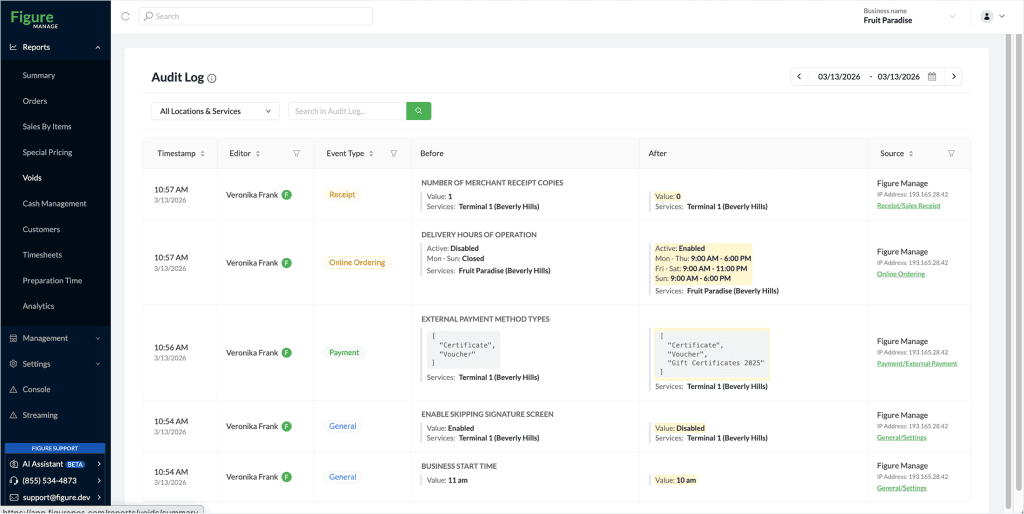
The Audit Log in Figure Manage allows you to track changes made within your system (note: currently, the audit log tracks changes made in the Settings section only). It records actions performed by users, showing exactly what was changed, who made the change, and when it happened.
Audit logs create a transparent history of activity and help administrators monitor configuration updates, and maintain accountability.
Where to find the Audit Log
To access the Audit Log:
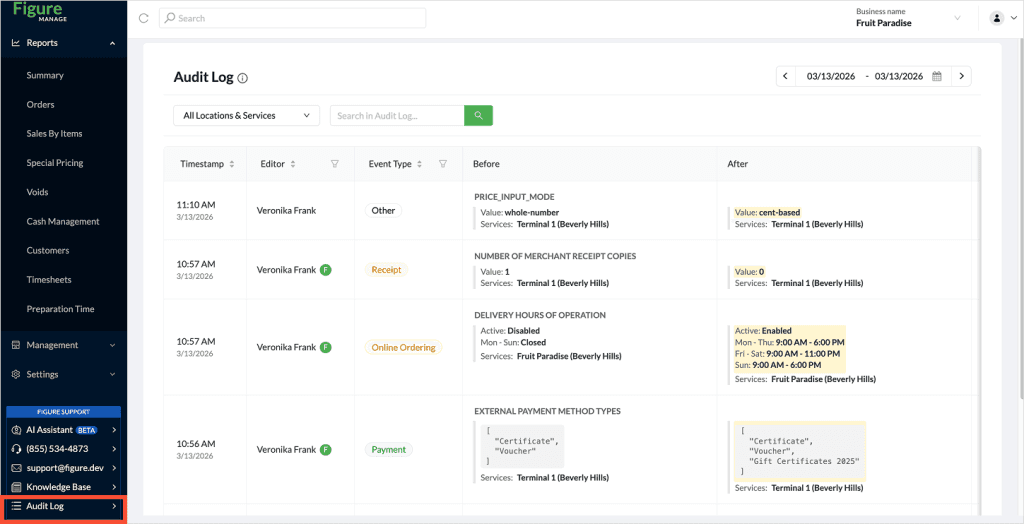
[1] Log in to Figure Manage
[2] Scroll down to find Audit Log in the left side-bar
From here you can view all logged activity in a chronological table.
Understanding the Audit Log
The Audit Log displays information in several columns:
Timestamp – The exact date and time when the change occurred
Editor – The user who performed the action
Event Type – The category of the change (for example Delivery or Online Ordering)
Before – The value or configuration before the change
After – The updated value after the change
Source – Where the change was made from (including system source and IP address)
Searching and filtering the Audit Log
You can quickly locate specific changes using the tools at the top of the page.
The Audit Log includes several filtering tools that help you quickly find specific actions or changes.
Search bar
Use the search field to find entries by keywords, values, or user names.
Date range
Select a custom date range to review activity within a specific time period.
Location & Services filter
Filter the log to view activity for a specific location or service.
Event Type filter
Filter entries based on the type of event, such as Delivery or Online Ordering. This allows you to focus on changes made within a specific system feature.
Editor filter
View actions performed by a specific user or staff member. This is useful when reviewing activity from a particular account.
Source filter
Filter logs by the source of the change, showing where the action originated from within the system.
Using these filters together allows you to quickly narrow down the results and identify the exact change you are looking for.
Example: