Figure and Caller ID – how it works
Figure POS can be connected with a telephone or with Figure Mobile app that can run in the background of the mobile phone through which the customers' calls are being accepted.
When a customer calls a restaurant, the customer's info is instantly accessible directly in the POS. Then it's possible to open an order for that specific customer by one click.
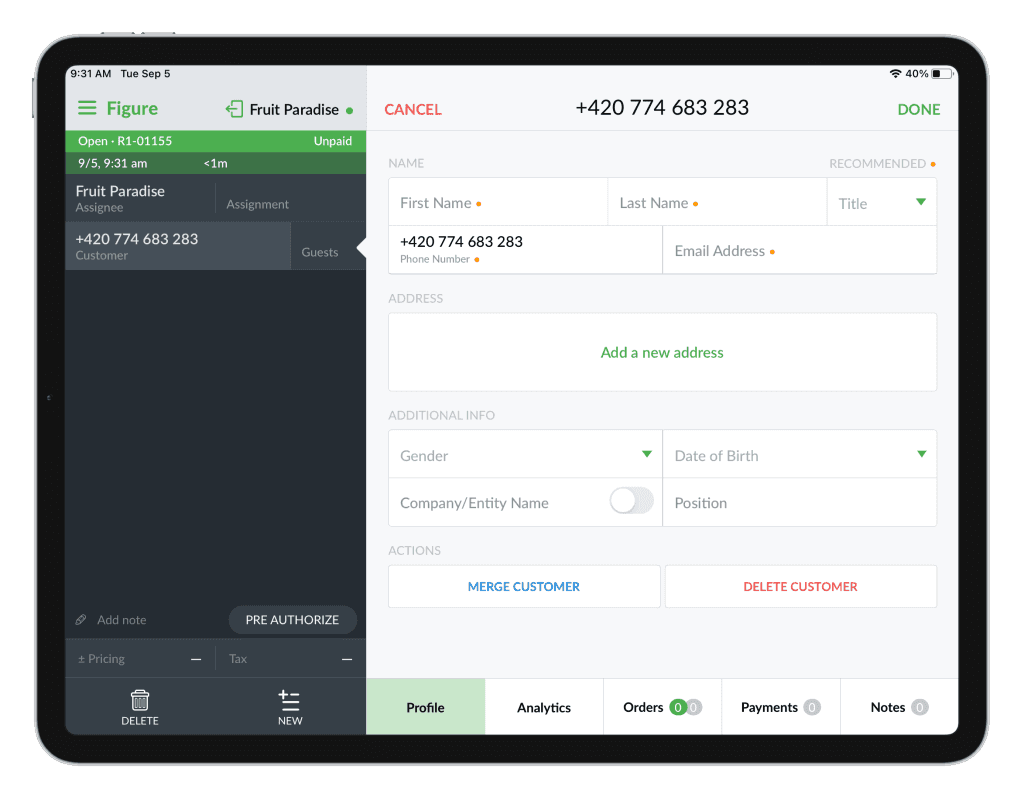
If there is no customer information, you can simply fill the customer's profile while on the phone.

How to set up the caller ID
If you are interested in setting up caller ID, reach out to support@figure.dev. Our support representatives will be happy to set it up for you!
How to enable receiving calls on a terminal
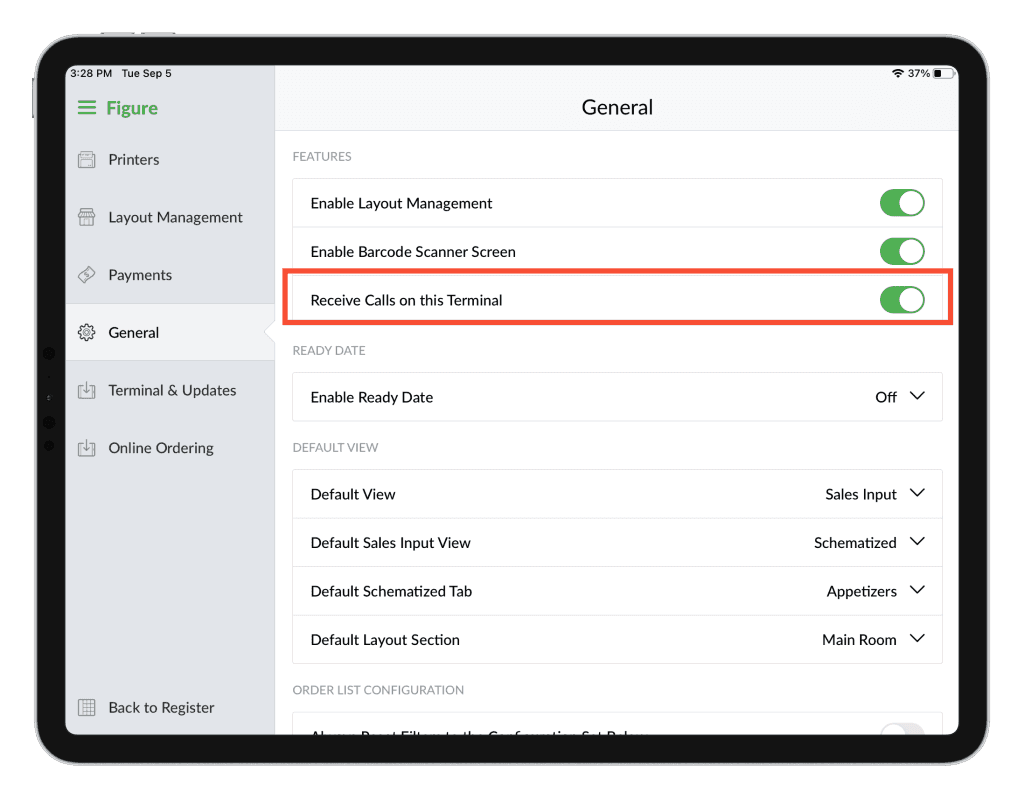
NEW: It is possible to receive calls on multiple terminals. Take the steps below on each of the terminals you want to see the incoming calls.
[1] Go to POS > Settings > General
[2] Enable 'Receive Calls on this Terminal'
How to receive a call and create an order
There are two scenarios that can happen – the customer already exists in the database and their information will be filled / available, or the customer does not have their information saved. See both scenarios below.
When an already existing customer is matched
[1] When a customer calls, it wIll be immediately displayed on the POS, it will automatically match with a customer in your customer's list and you can instantly create a new order.
[2] To create an order for the customer, click NEW ORDER.
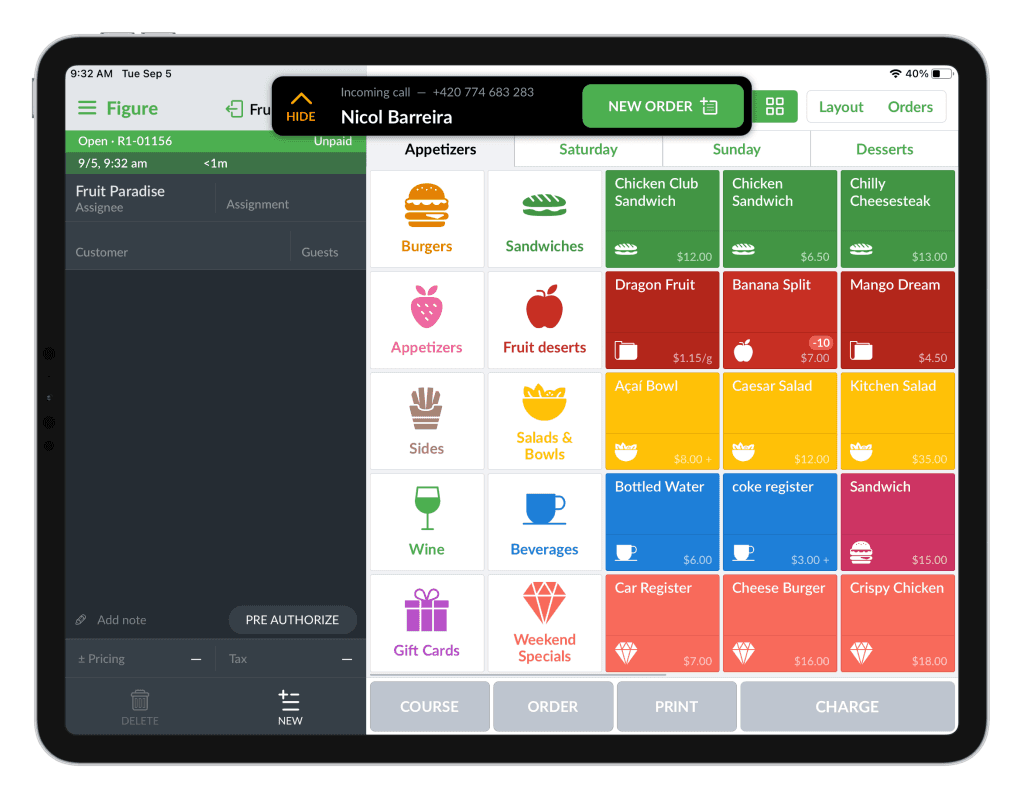
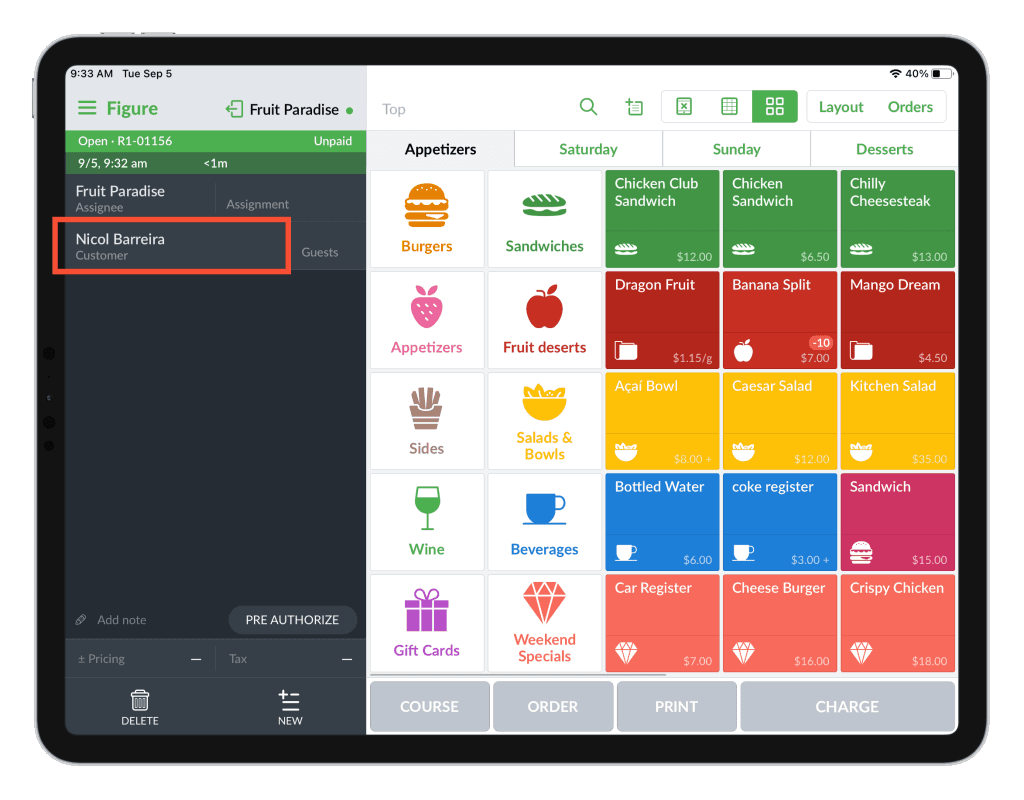
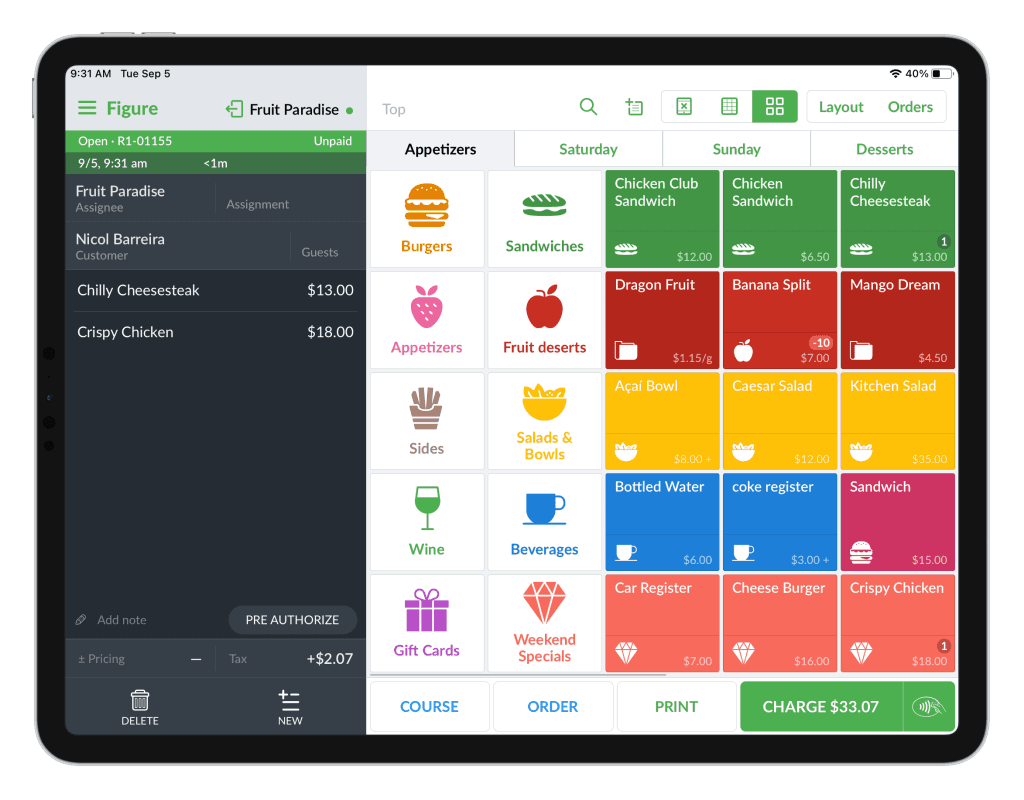
[3] The customer with all their information will be assigned to the order. You can finish the order as usual – add items, assignment, etc.
When it is a delivery order, we recommend to check whether the delivery address is filled in the customer detail – especially if it is a new customer.
When no customer is matched
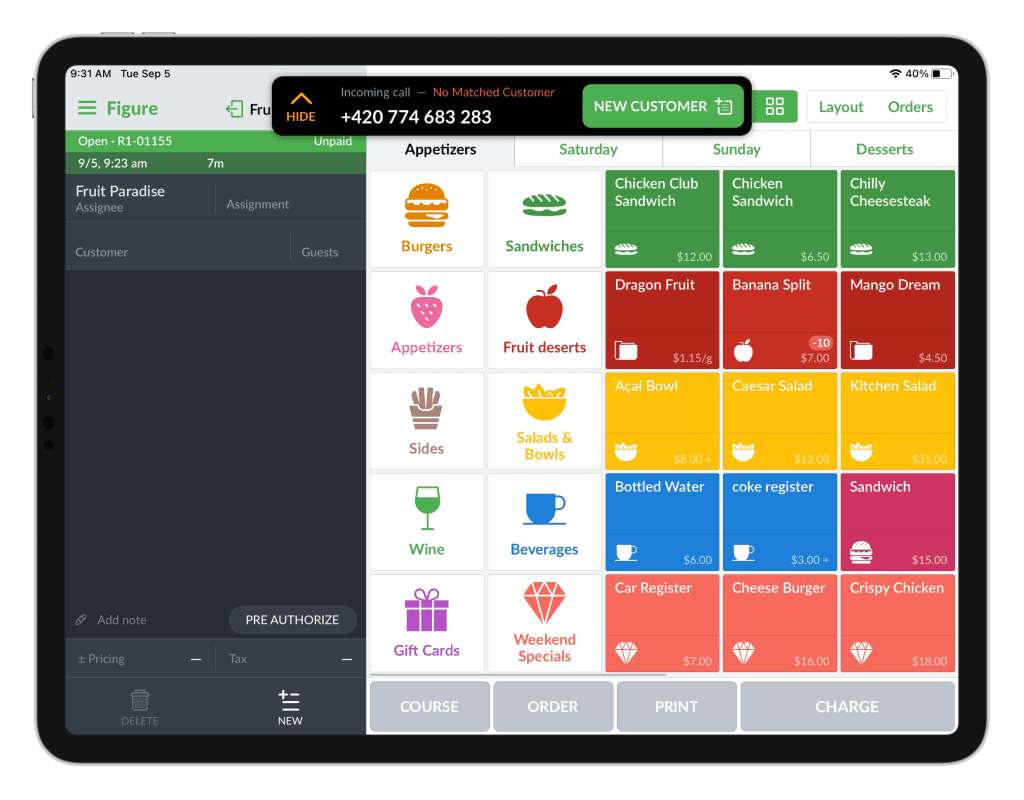
If the call is from a customer that is not yet in your customer list, the POS will offer to create the customer first. There can be only the number displayed, or also the customer's name if it was once added to the caller ID database.
[1] When an unknown customer calls, click NEW CUSTOMER.
[2] Fill out the necessary customer information.
[3] And finish the order as usual.
See the calls history
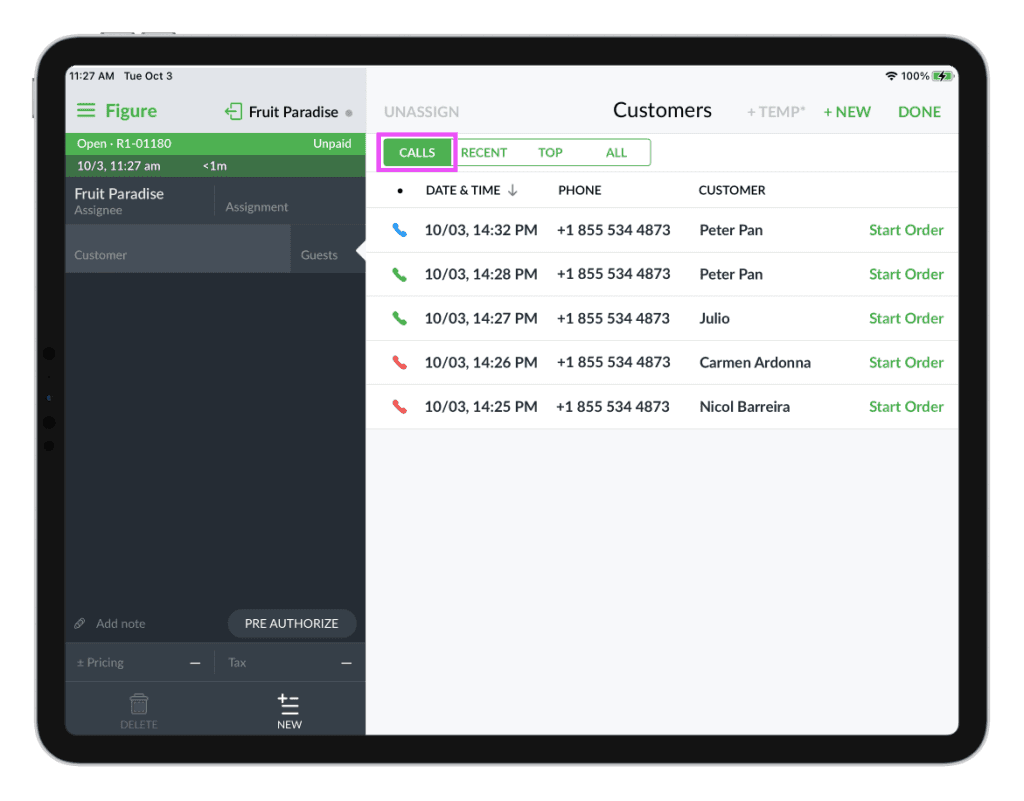
The history of calls can be found in the CALLS tab in POS in the customer list.
From there, it is possible to start a new order for the customer by clicking Start Order.
Indicators:
Red phone icon = no order was created for this call, the call notification was hidden by tapping the HIDE button
Green phone icon = an order was created during this call
Blue phone icon = there hasn't been any interaction with the call notification