It is possible to change the URL of your Make It Butter online ordering website.
When you change to a new URL, the old URL will no longer work.
You’ll need to update the URL in all the places you’ve used it, such as printed QR code on menus or QR codes for table ordering. Please make sure to replace the old URL with the new one everywhere it’s displayed.
Follow the steps below to change the URL:
[1] Log in to Figure Manage with your crendetials
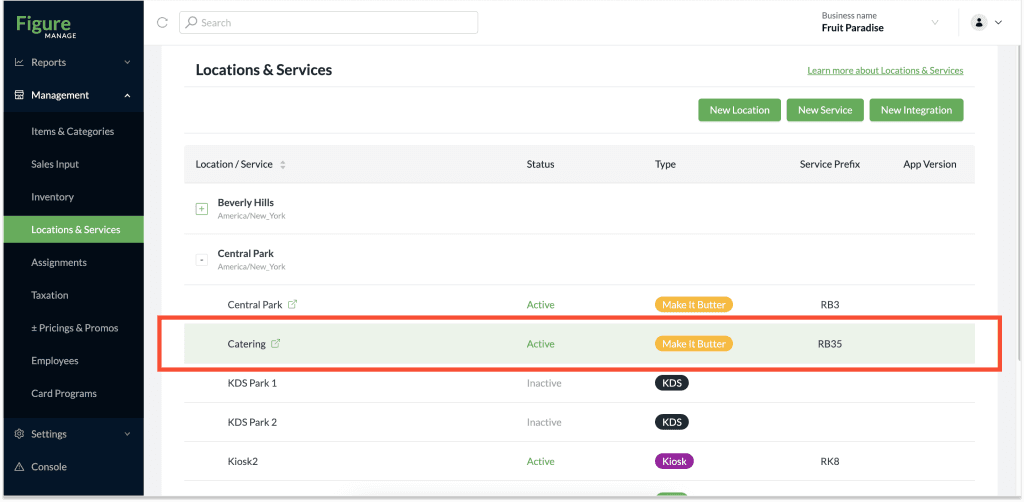
[2] Go to Management > Locations & Services
[3] Click on a Make It Butter service which you'd like to change the URL for
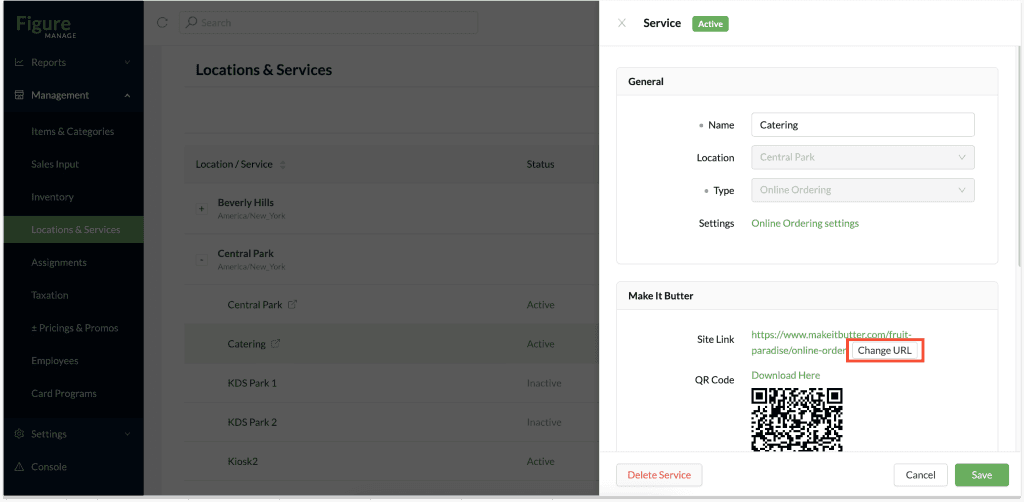
[4] Click Change URL
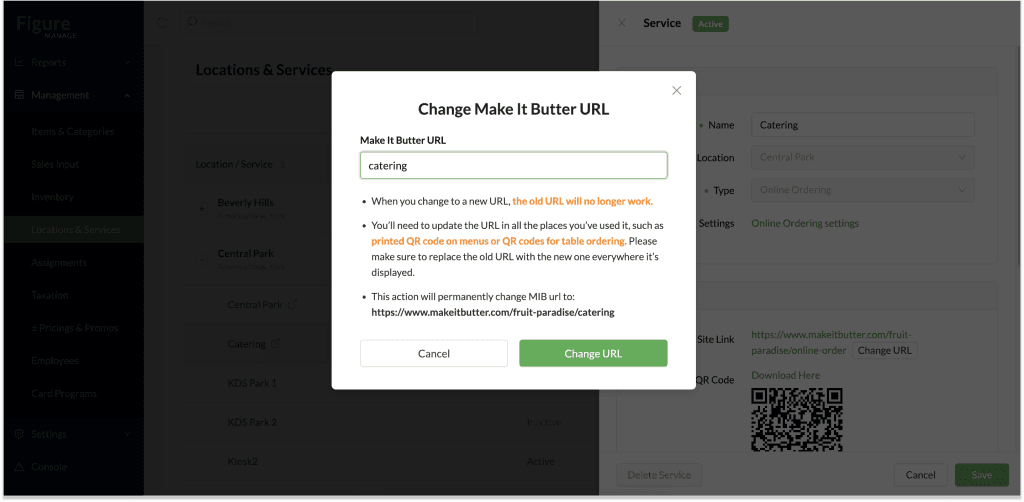
[5] Enter the the text you want to use as a slug for the URL. At the bottom of the window, you can see how the URL changes and looks like while typing.
Note: Do not enter the full URL, only the slug part – which refers to a part after the last ' / ' in the URL. See the example in the screenshot below: it is being changed from makeitbutter.com/fruit-paradise/online-order to makeitbutter.com/fruit-paradise/catering).
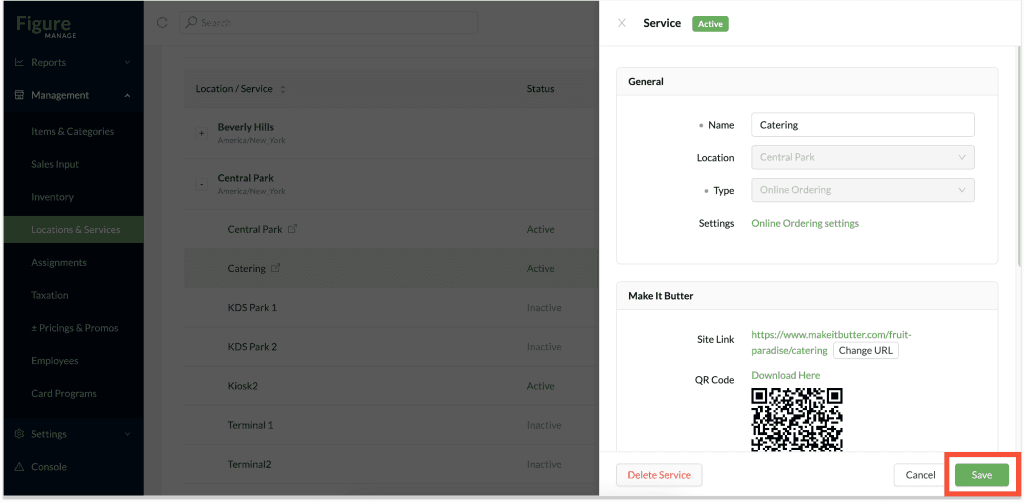
[6] Click Change URL
[7] Click Save
After changing the URL, the old URL will no longer work.
You’ll need to update the URL in all the places you’ve used it, such as printed QR code on menus or QR codes for table ordering. Please make sure to replace the old URL with the new one everywhere it’s displayed.