Introduction
It is necessary that the devices like printers and payment devices that are being used with Figure POS stay connected to the same network as the iPad with the POS. Otherwise, they might get disconnected from the POS and won’t be able to be used.
To avoid any operational disruptions, configure a preferred Wi-Fi network in the POS and get notified immediately if the iPad switches to a different network.
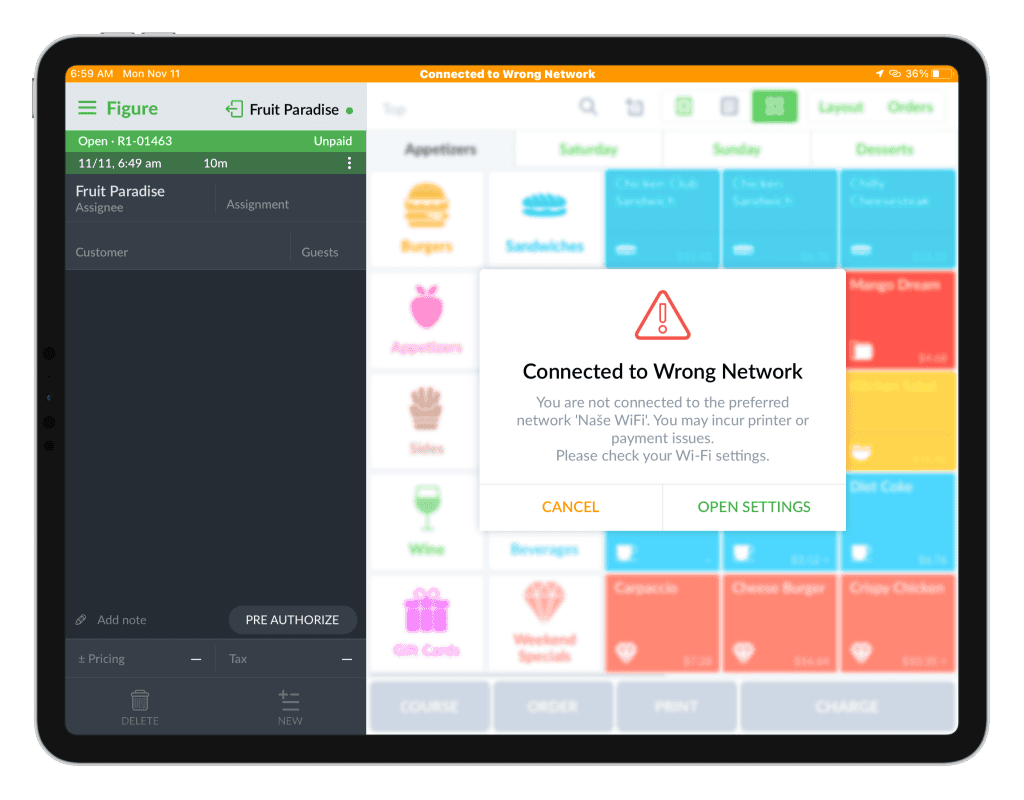
If a preferred network is once configured, then if the iPad switches to a different network for any reason, an orange bar will appear at the top of the screen with a message 'Connected to Wrong Network'.
How to configure the Preferred Network
[1] Make sure that the iPad is connected to the desired Network in the iPad’s Settings.
(in iPad > Settings > Wi-Fi)
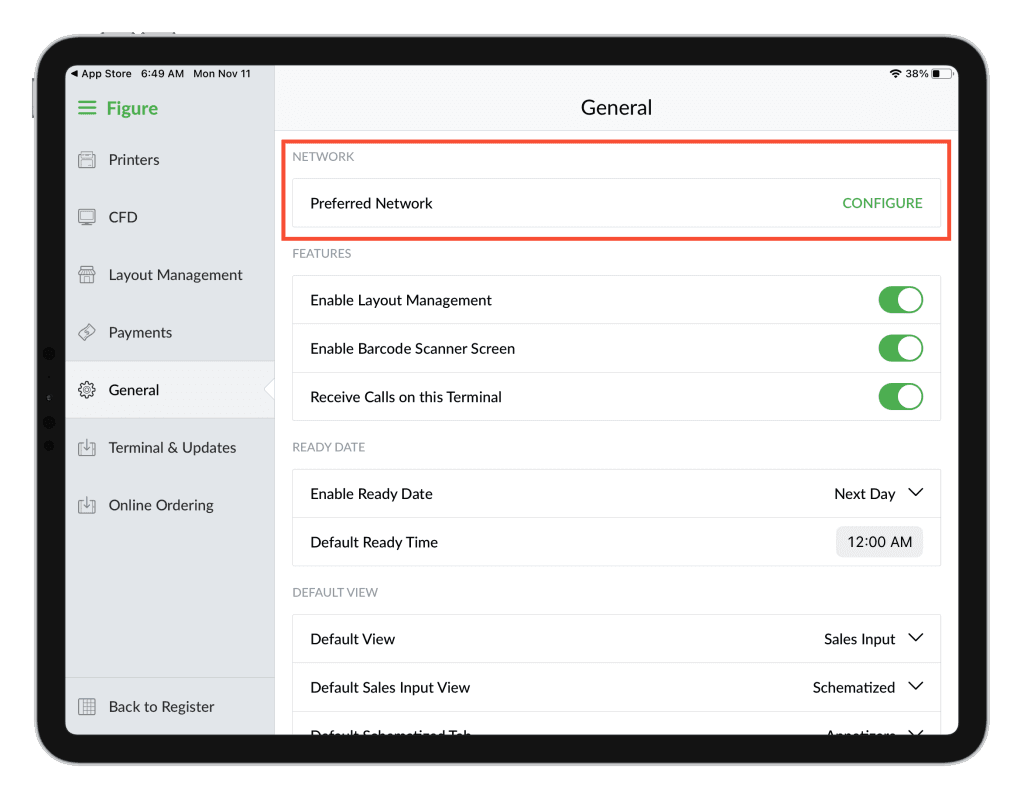
[2] Go to Figure POS > Menu (top left corner) > Settings > General
[3] In the NETWORK section, press CONFIGURE by the 'Preferred Network'
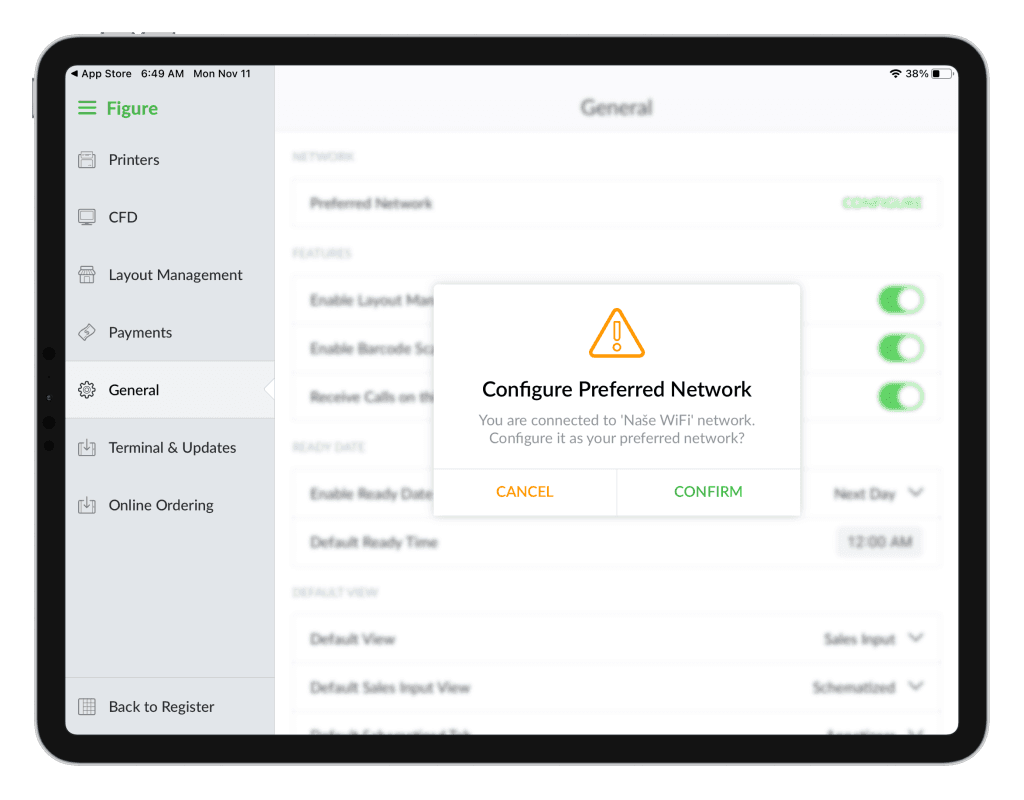
[4] CONFIRM that you want to configure the currently connected network as the Preferred Network
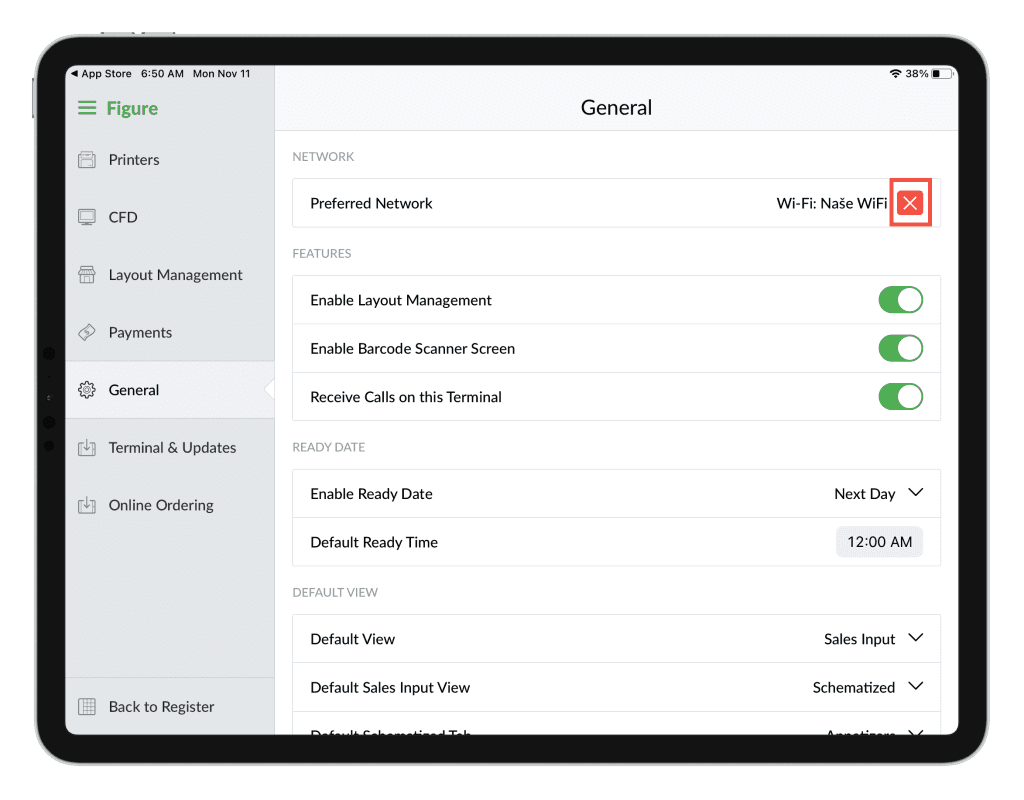
Now, the Preferred Network is configured. If the iPad switches to another network, you will be notified.
How to solve 'Connected To Wrong Network'
If the iPad switches to a different network then the Preferred one is for any reason, an orange bar will appear at the top of the screen with a message 'Connected to Wrong Network'.
To connect to the preferred network, go to iPad’s settings > Wi-Fi and connect to the network that is configured as the preferred one in the POS.
To find out which network is the preferred one – to which should the iPad be connected to,
go to Figure POS > Settings > General > see the name of the network by the 'Preferred Network'.
How to change the Preferred Network
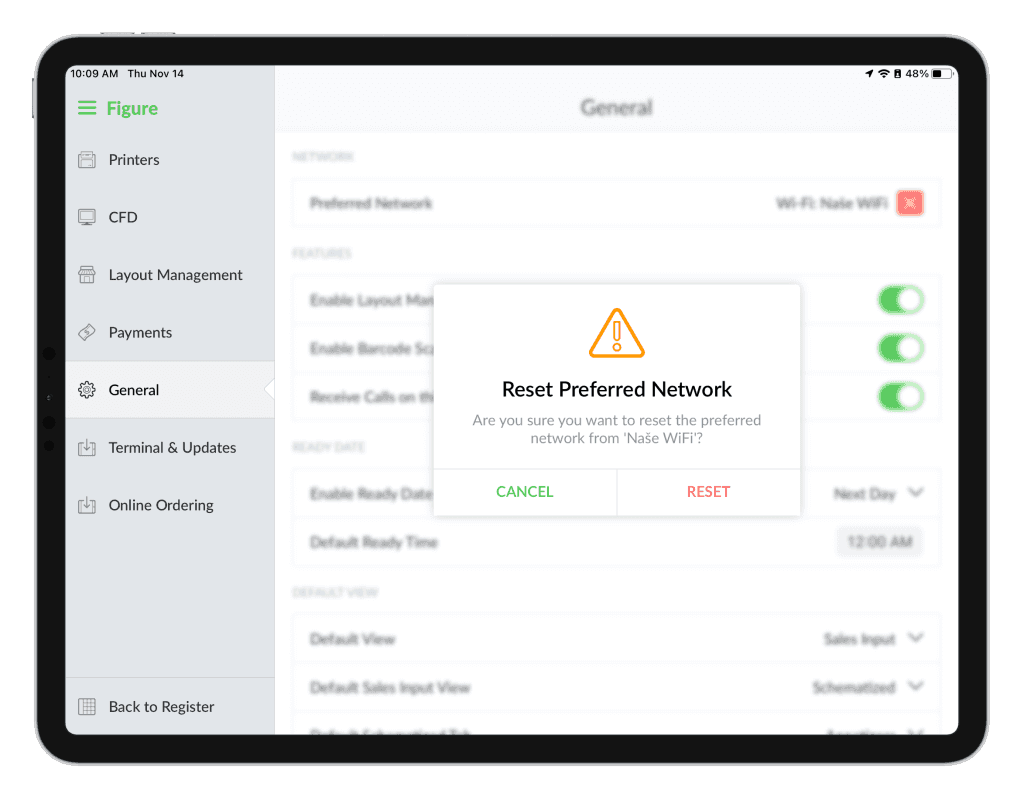
[1] Go to Figure POS > Main menu (top left corner) > Settings > General > there, see the section NETWORK
[2] Tap the red cross button to reset the preferred network
[3] Confirm the action by pressing RESET
To set a new network as the preferred one, follow the steps for How to configure the Preferred Network.