Businesses that sell products by weight, such as butcher shops and restaurants, may need to adjust the quantity of an item after it has been sent to the kitchen.
For example, a server may enter an estimated quantity of 1.0 lb Ribeye when taking an order. When the kitchen weighs the actual cut, it may turn out to be 0.9 lb or 1.2 lb. With this setting enabled, the server can update the unit-based quantity to match the actual weight before the order is closed.
This ensures that the final quantity and charge reflect the actual amount provided to the customer.
By default, item quantities can no longer be edited after an item has been ordered. This setting allows servers to continue adjusting unit-based quantities after ordering, while other item details remain unchanged.
How to enable the functionality
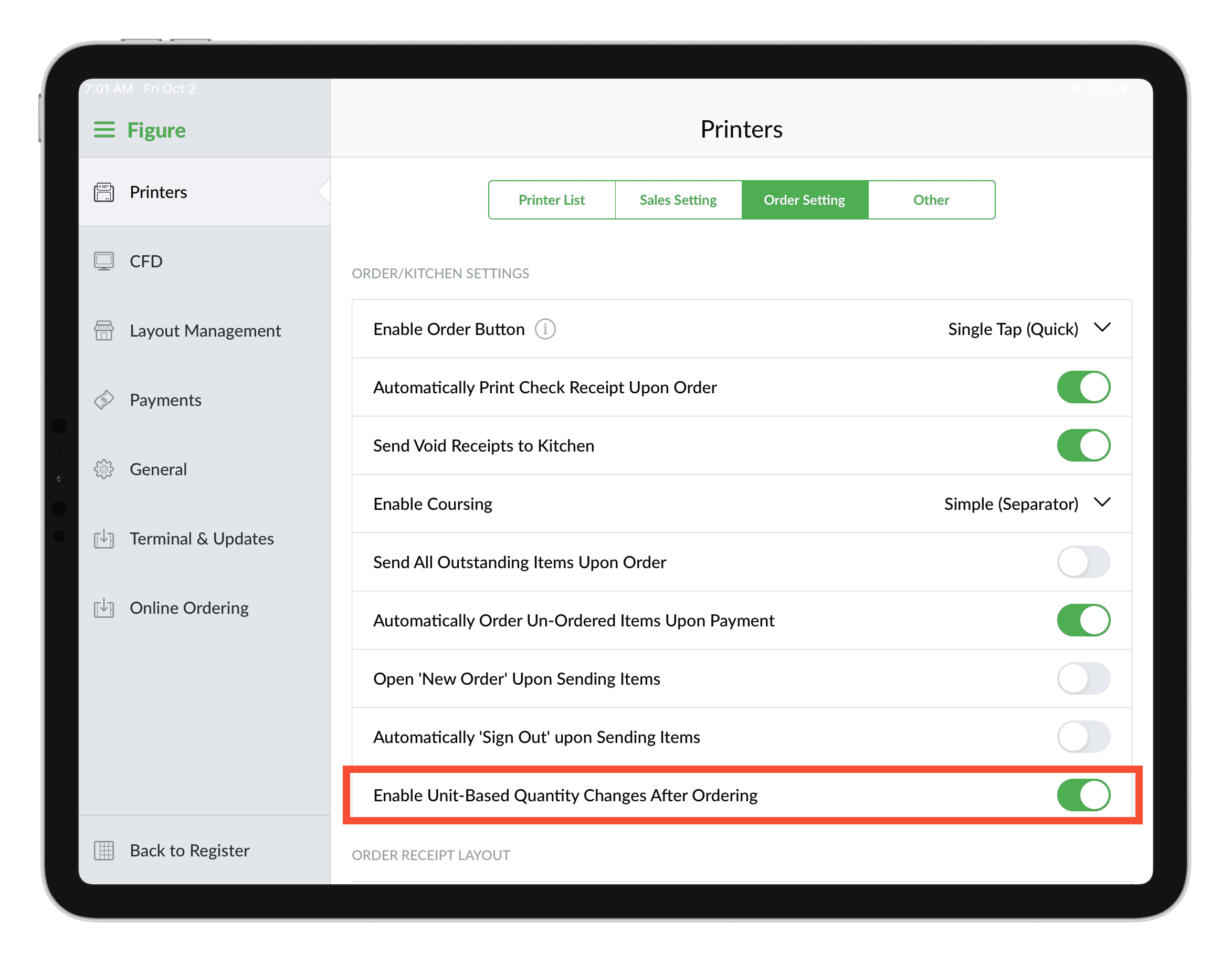
You can enable this setting from either the Figure Manage or the POS.
Figure Manage
[1] Go to Settings > Receipts > Order/Kitchen Printing
[2] Enable Unit-Based Quantity Changes After Ordering.

POS
[1] Go to: POS Settings > Printers > Order Settings tab
[2] Turn on Unit-Based Quantity Changes After Ordering.
How to change the quantity
Tap the item for which you want to change the quantity.
The unit-based quantity can be changed manually or by using the scale:
Manually: Tap the quantity field and enter the desired number using the keyboard.
Using the scale: Open the item details and place the item on the scale. Tap the scale button to weigh the item to update the quantity (weight in this case).

Note: Other parts of the item, such as modifiers, cannot be adjusted after the item has been ordered, as indicated in the orange banner at the top. Only the quantity can be changed when this setting is enabled.