Introduction
FigQR allows you to create a simple online presence for your restaurant and share important business information with your customers.
With FigQR, you can create a customizable page that includes your restaurant details, social media links, opening hours, contact information, and other useful information. Customers can access this page by scanning a QR code from any device.
The QR code can be downloaded directly from Figure Manage and placed anywhere – on tables, banners, printed materials, menus, displays, or digital screens.
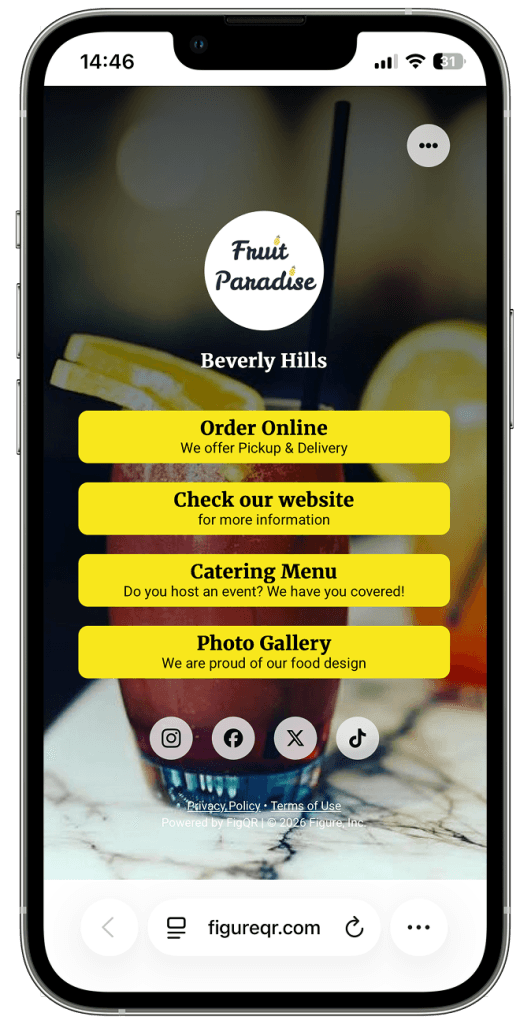
How to set up FigQR
To manage your FigQR page:
Log in to your Figure Manage account.
Go to Settings.
Select FigQR.
The FigQR settings page allows you to configure how your customer-facing page looks and what information is displayed.
General Settings
In the General Settings section, you can update the information displayed on your FigQR page.
You can manage:
Social media links
Opening hours
Restaurant address
Phone number
Email address
Website
Service name
Click Edit Location to update your restaurant information – the social media links can be filled there.
Click Edit Service to manage the FigQR service settings.
QR Code
Your FigQR page has a unique QR code that customers can scan to open your website.
After your page is active, you can see your FigQR website link in the settings.
Click Download QR Code to save the QR code and use it in your restaurant.
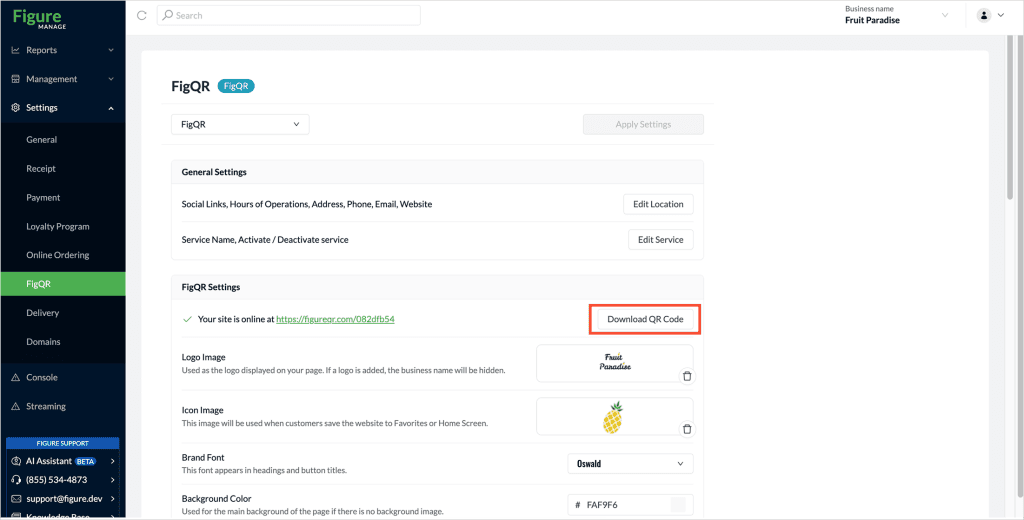
Customize Your FigQR Page
FigQR allows you to customize the appearance of your page to match your restaurant brand.
You can configure:
Logo Image
Upload your restaurant logo.
The logo will appear on your FigQR page and can replace the business name display.
Icon Image
The icon image is used when customers save your FigQR page to their favorites or home screen.
Brand Font
Choose the font style used for:
Page headings
Button titles
Background Settings
You can customize the background of your FigQR page.
Available options:
Background color
Background image
A background image can help you create a more personalized experience for your customers.
Buttons
Buttons allow you to add custom actions to your FigQR page and make it easier for customers to access important information.
Each button can be configured with a title and subtitle to describe the content or action.
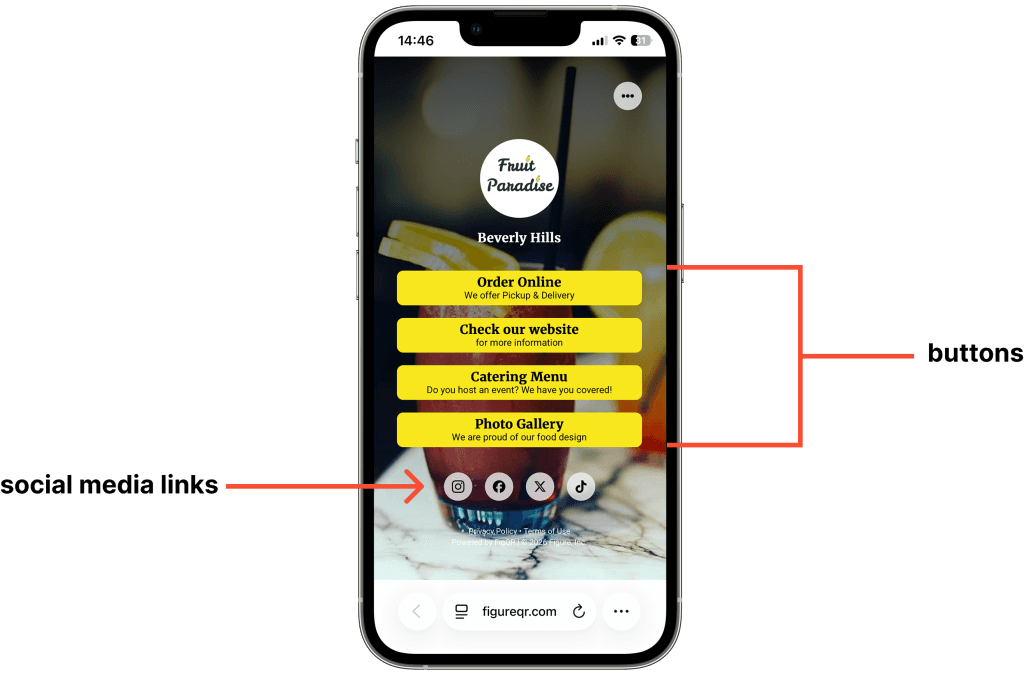
There are three types of buttons:
Link
Gallery
PDF
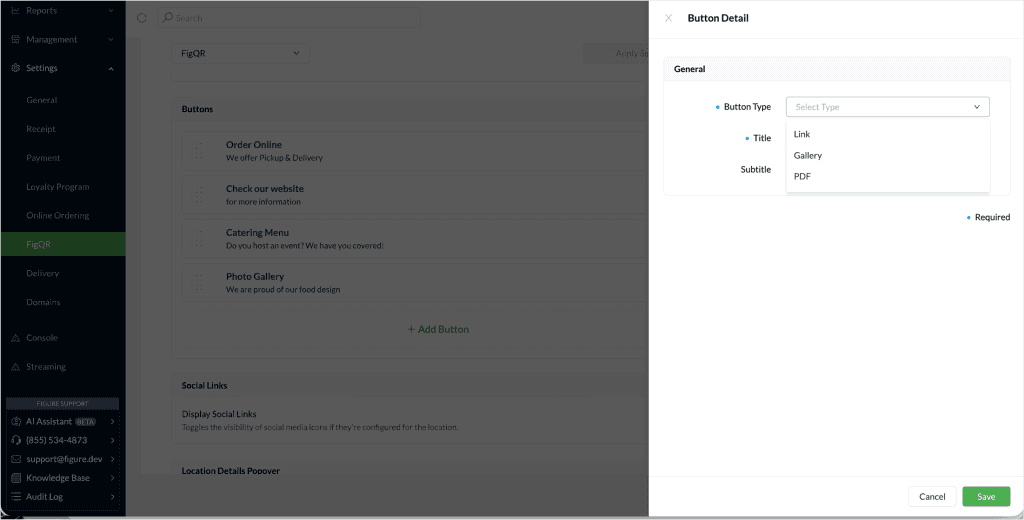
When creating a button, you can choose from different button types:
Link
Create a button that redirects customers to an external website or online page.
Use this option for:
Online ordering pages
Reservation systems
Your restaurant website
Promotions
Any external URL
Example:
Order Online
Place your order for pickup or delivery
Gallery
Create a button that displays a collection of images.
Use this option to showcase:
Food photos
Restaurant interior
Events
Special offers
Menu images
Example:
Photo Gallery
See our latest dishes and restaurant atmosphere
Upload a PDF file that customers can open directly from your FigQR page.
Use this option for:
Digital menus
Catering menus
Price lists
Special event information
Restaurant guides
Example:
Catering Menu
View our catering options and packages