On Make It Butter, it is possible to allow customers to schedule their orders for the future date.
How to enable future orders for your Make It Butter website
This needs to be enabled for both Delivery and Pick Up orders separately. You can choose to allow future orders only for one type of online orders, none of both.
[1] Go to Figure Manage > Settings > Online Ordering
[2] Go to Delivery or Pickup section – based on for which type of orders you want to allow the future ordering, in this example, we will set the future orders for Delivery orders
[3] Enable the 'Accept Delivery Orders for Future'
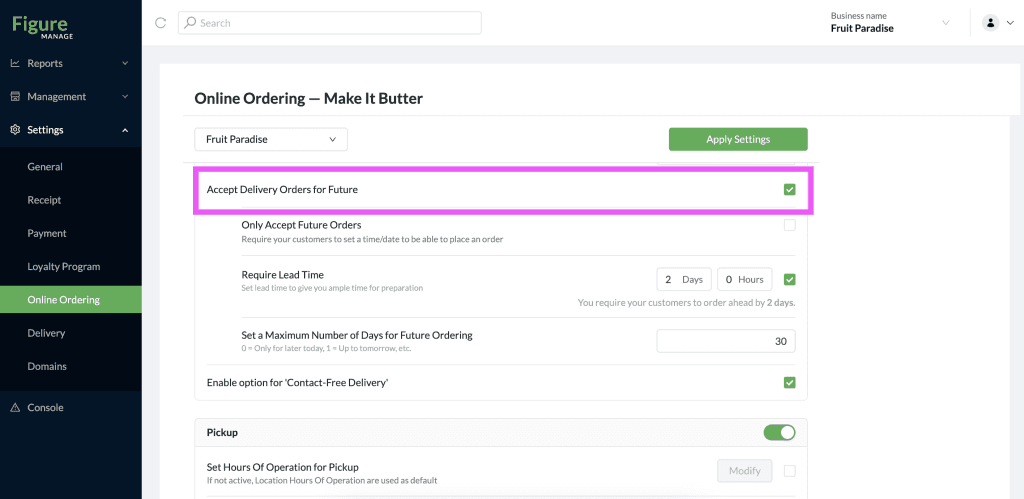
Additional settings:
Only Accept Future Orders:
Choose whether you want to accept ONLY scheduled order - not regular without scheduled time. To allow ONLY future orders, enable the 'Only Accept Future Orders'.
Require Lead Time:
It is possible to require a lead time – how long this order has to be placed in advance. Choose number of days and/or hours and check the box if this should be required.
Set a Maximum Number of Days for Future Ordering:
Choose number of days for which it will be possible to schedule an order in the future.
[4] Click Apply Settings
Do the same process for the other type (Pick Up) of online orders if needed.
How to schedule an order on Make It Butter
When the future ordering is enabled for your Make It Butter website, customers will be able to choose this option by clicking on 'You can schedule your order here!' when in the cart.
Then, they will select the date and time of the order – when it should be delivered or picked up and complete the order as usual.

How the scheduled order appears in the POS
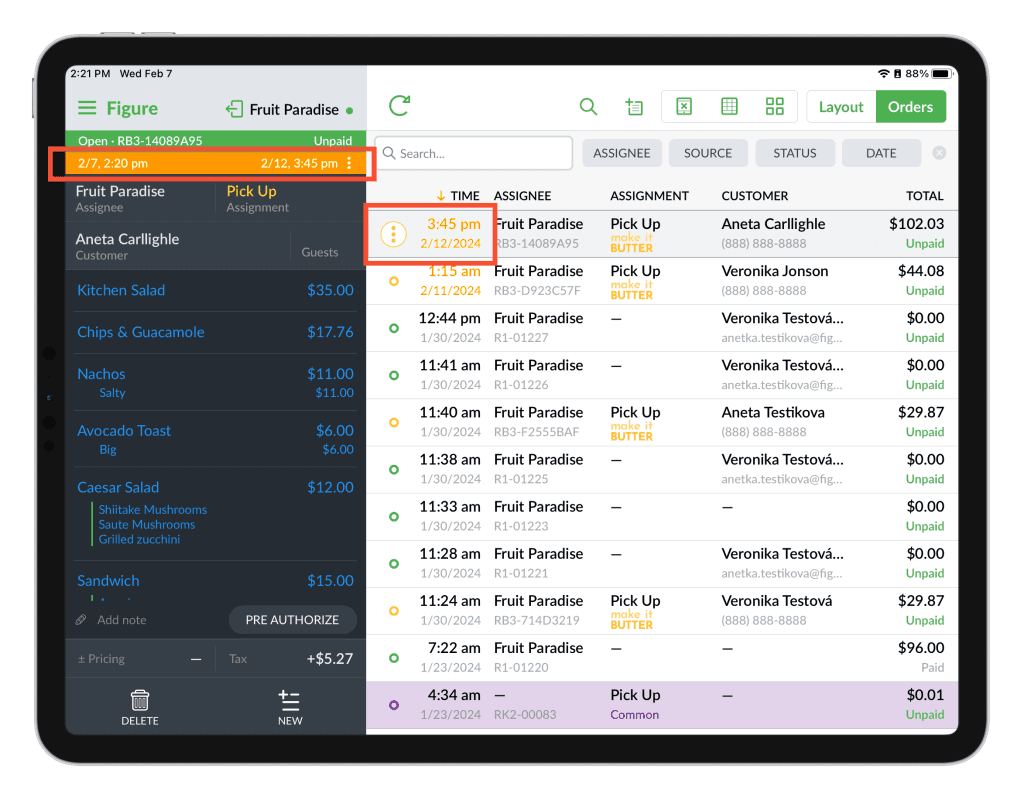
When a scheduled order is received in Figure POS, it always stays at the top of the list of orders and the date and time is colored in orange – to clearly identify the future order.
In the order detail, there is an orange bar with the scheduled date and time.
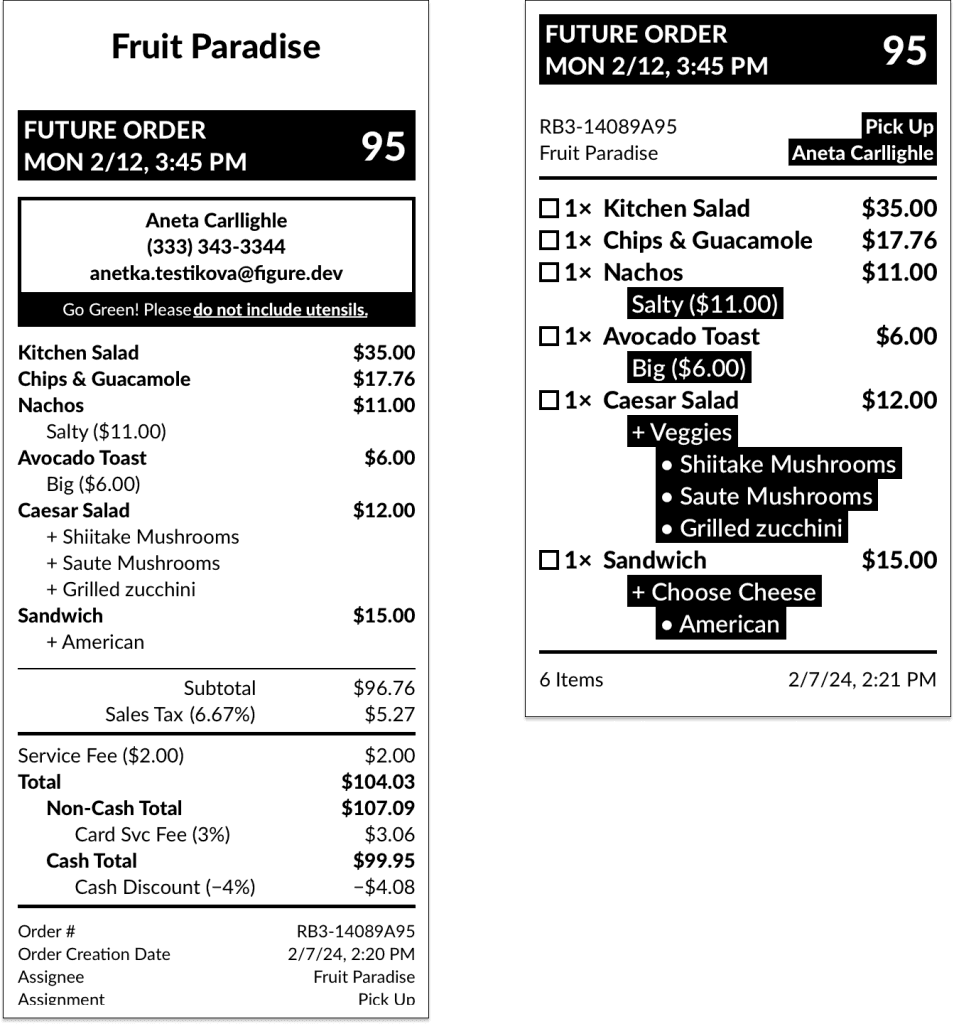
On the kitchen and sales receipt, the date and time is indicated as well.