Physical Gift Cards
How to set up Physical Gift Cards
[1] Log into Figure Manage website with your credentials and go to Management > Card Programs > Card Programs.
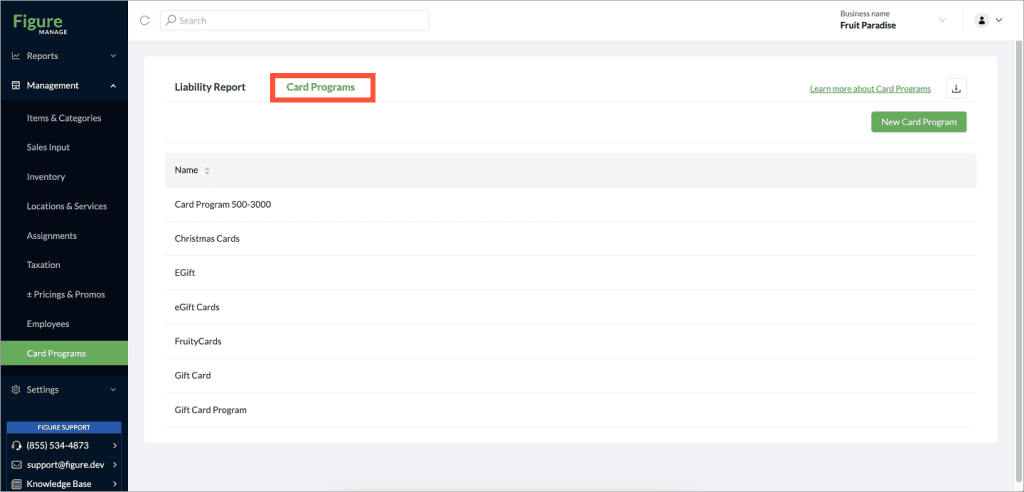
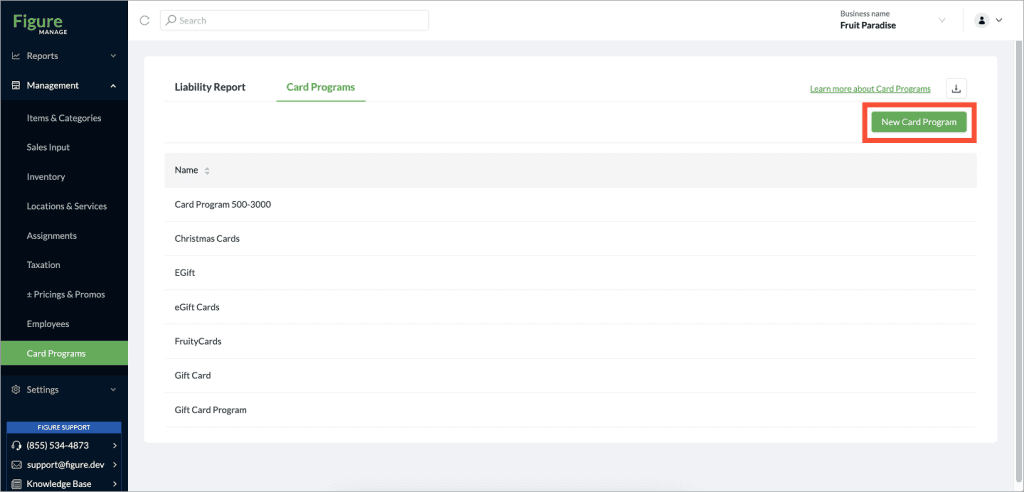
[2] Create a New Card Program
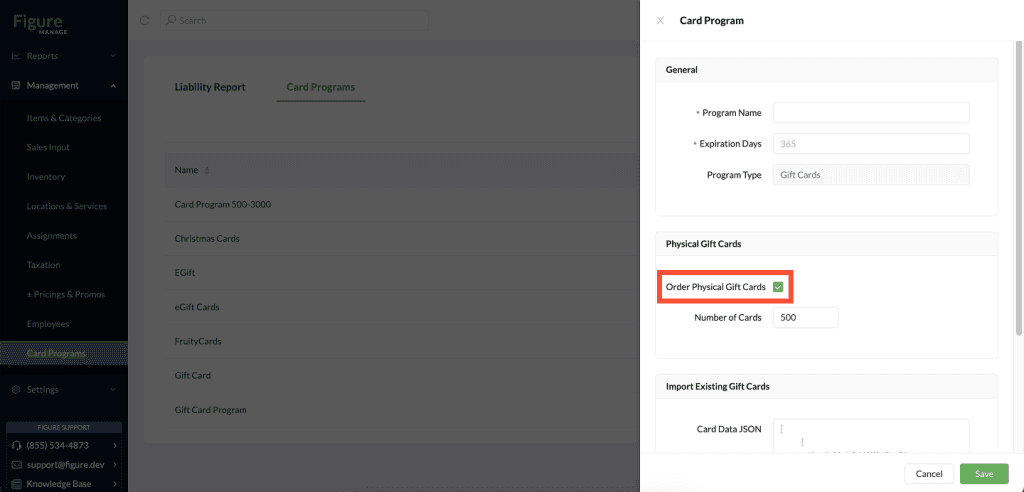
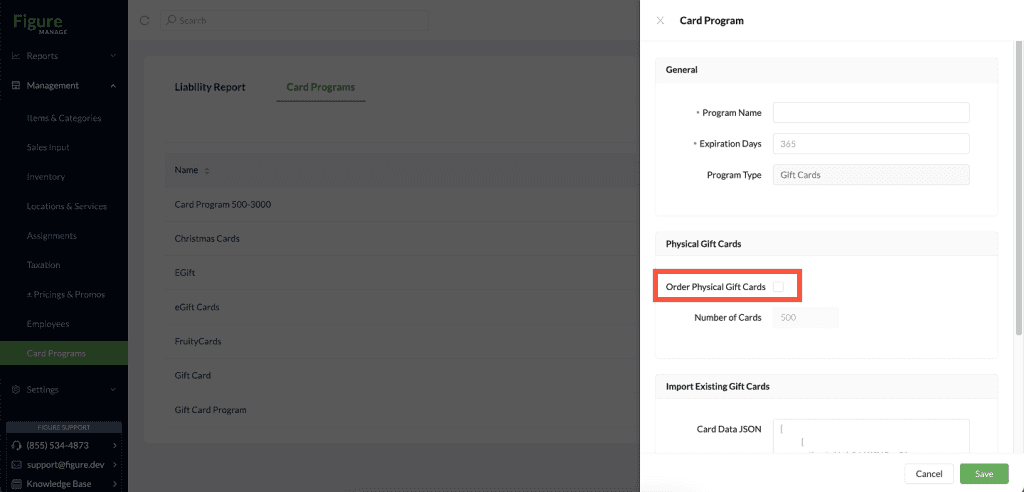
[3] Fill the required fields – Program Name. Tick the checkbox by 'Physical Gift Cards' to create a Physical Gift Card Program.
Once you've completed the setup, simply contact us at support@figure.dev, and we’ll arrange to have your plastic gift cards delivered right to your door. You’re welcome to provide your own design, or our team can create one for you!
If you’d like to design the card yourself, please use the template provided below and send your completed design to support@figure.dev.
Download the template here: > Download template <
Prefer us to handle the design? No problem—just send a digital copy of your logo, and we’ll create a gift card design for your review and approval.
[5] To add a Gift Card or Card Program to the schematized view, go to Management > Sales Input > POS Register and simply drag and drop the desired item into the appropriate section. You can follow the same process when adding any other items.
Don’t forget to click Save to apply your changes!
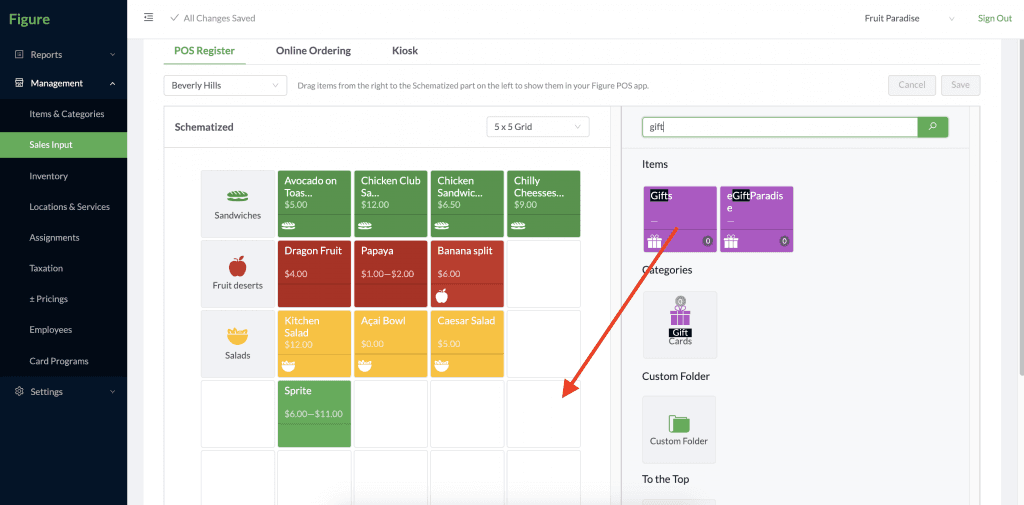
Now, the Gift Card program is visible in your POS and ready to be sold.
How to sell Physical Gift Cards
Before you can sell Gift Cards, make sure you’ve completed the setup steps outlined above and that physical gift cards are available at your store.
When a customer is ready to purchase a Gift Card, follow these steps:
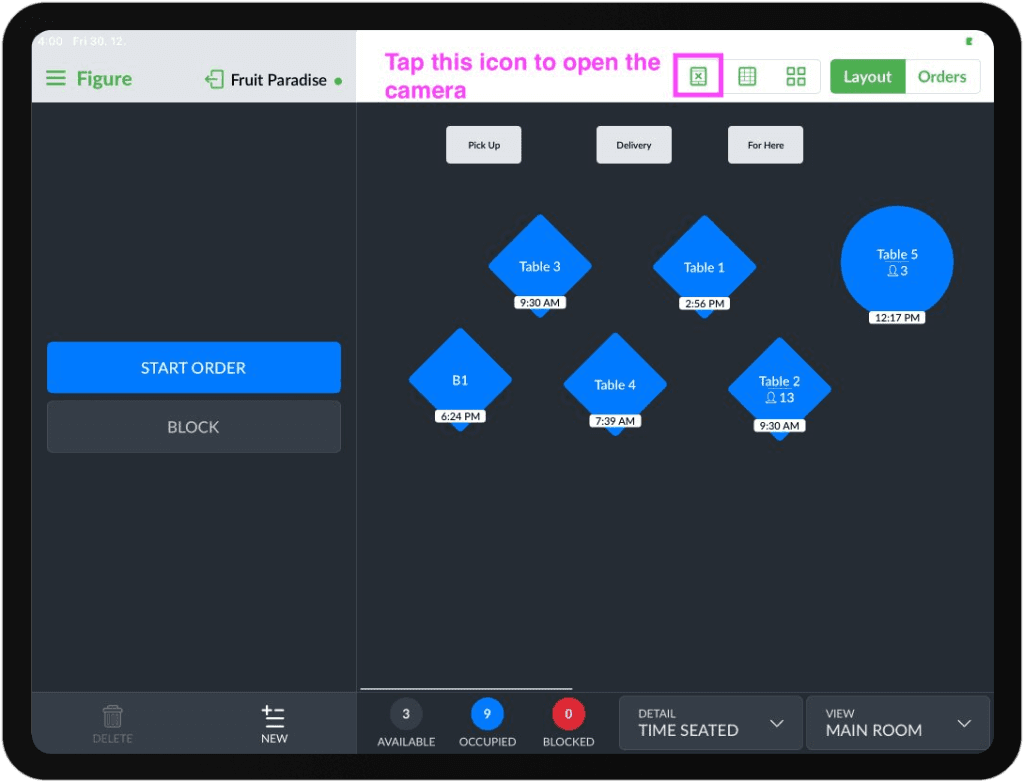
[1] Take one plastic card and scan the QR code using a barcode scanner or the iPad camera by pressing the highlighted icon in the picture below. If you don’t see the camera icon in your POS, it needs to be enabled first under POS > Menu > General > Enable Barcode Scanner Screen.
[2] Press Load Gift Card
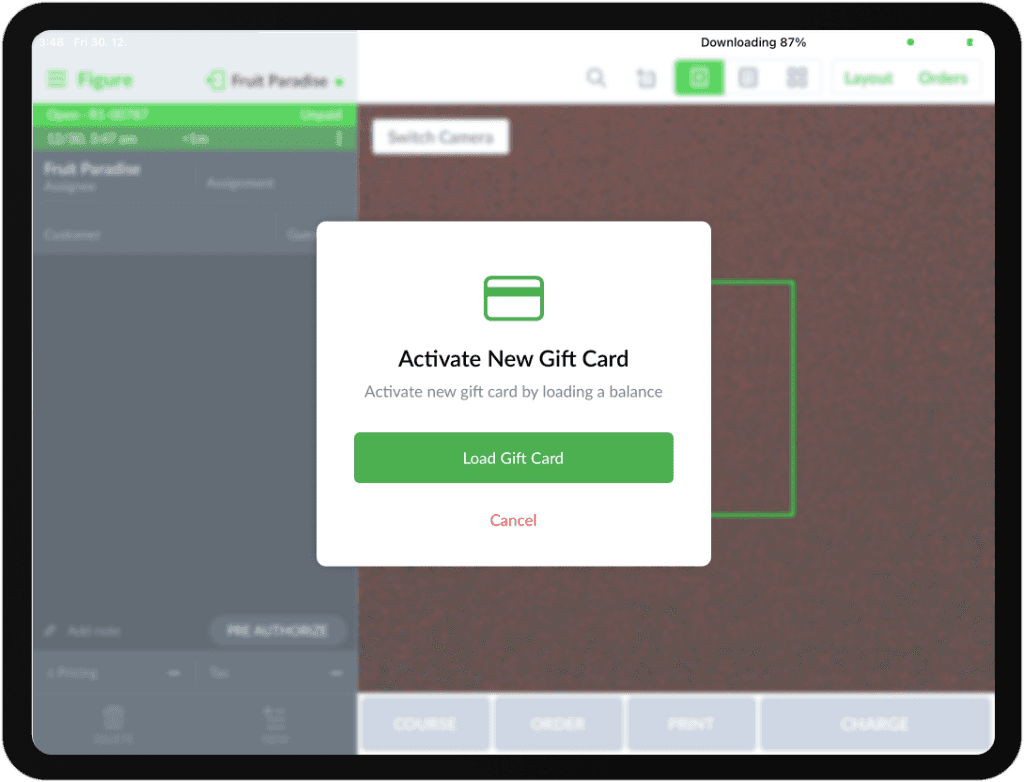
[3] The Gift Card itam will be automatically added to the order and it's detail will open. Input the amount that the Gift Cards should be loaded with and press DONE.

[4] Finalize the order as usual.
The Gift Card will now have the entered balance and will be ready to be redeemed.
Virtual Gift Cards [eGift Cards]
How to set up Virtual Gift Cards
[1] Log into Figure Manage website with your credentials and go to Management > Card Programs > Card Programs.
[2] Create a New Card Program
[3] Fill the required fields. Untick the checkbox by 'Physical Gift Cards' to create a Virtual eGift Card program.
To be able to sell eGift Cards, you need to create the online ordering website for that purpose. See the steps below:
[1] Go to Management > Locations & Services
[2] Create a New Service with 'Online Ordering' type.
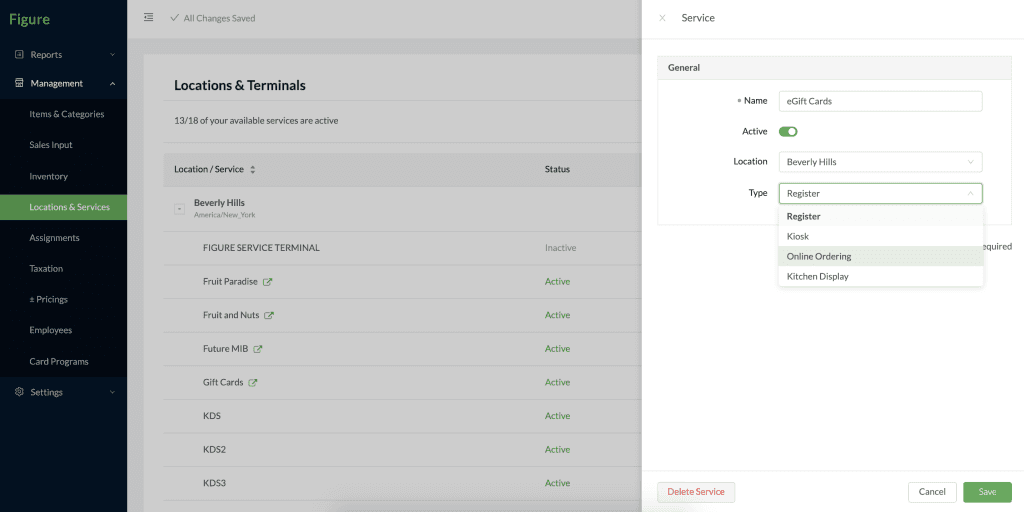
[3] Go to Settings > Online Ordering and choose the Service you've just created.

[4] Set the Online Ordering Website Template as Simple.
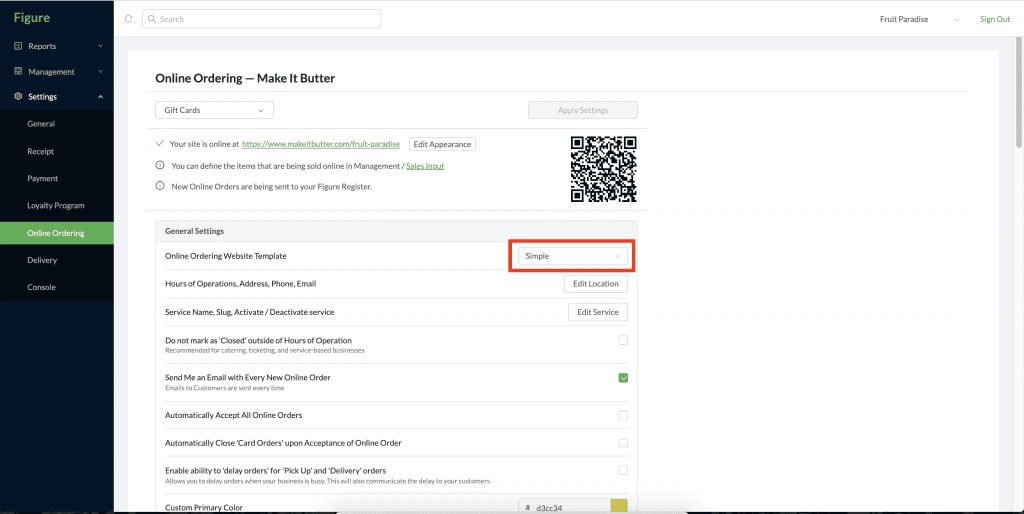
You can customize your Gift Card website. You can set your own background image, logo, or color.
Now, you have to connect the Card Program and the website:
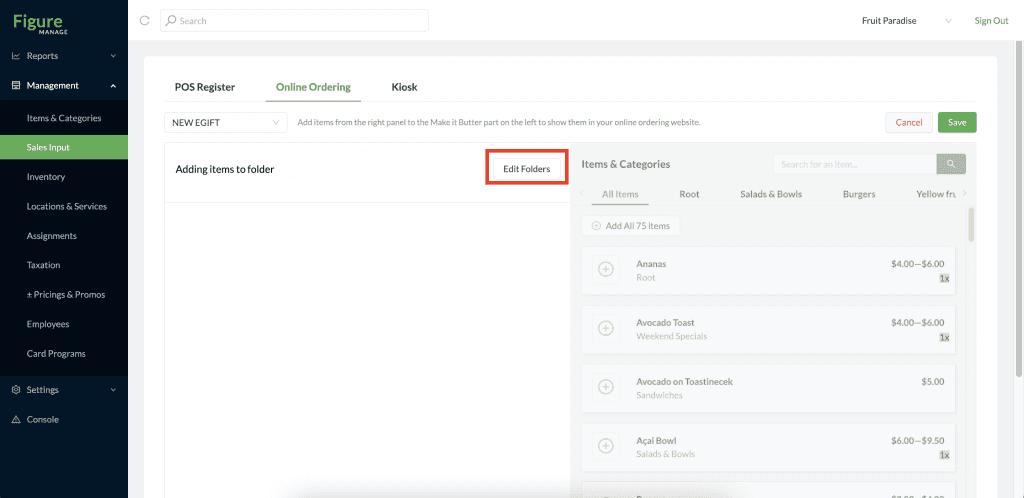
[1] Go to Management -> Sales Input -> Online Ordering
[2] Select the eGift Card service in the picker
[3] Click Edit Folders
[4] Click Add Folder
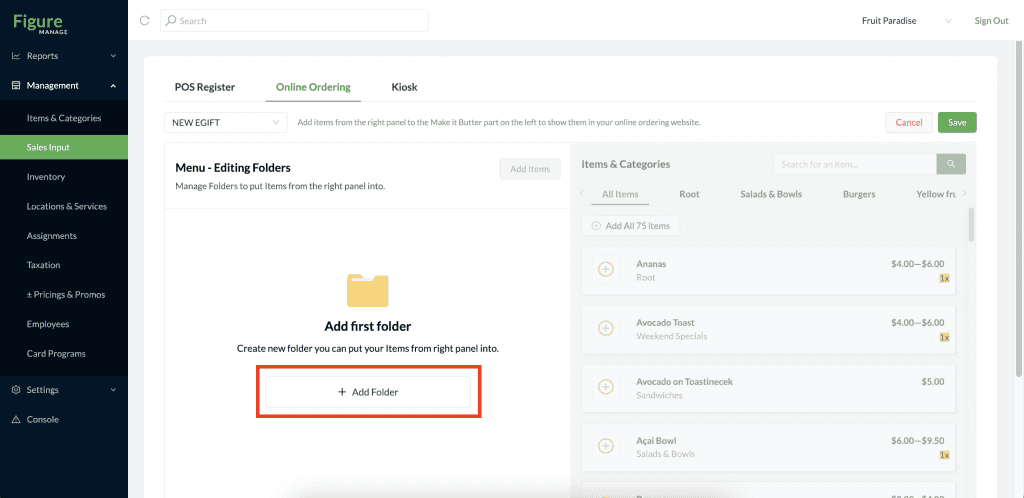
[5] Write a name of a folder (this will not be displayed anywhere)
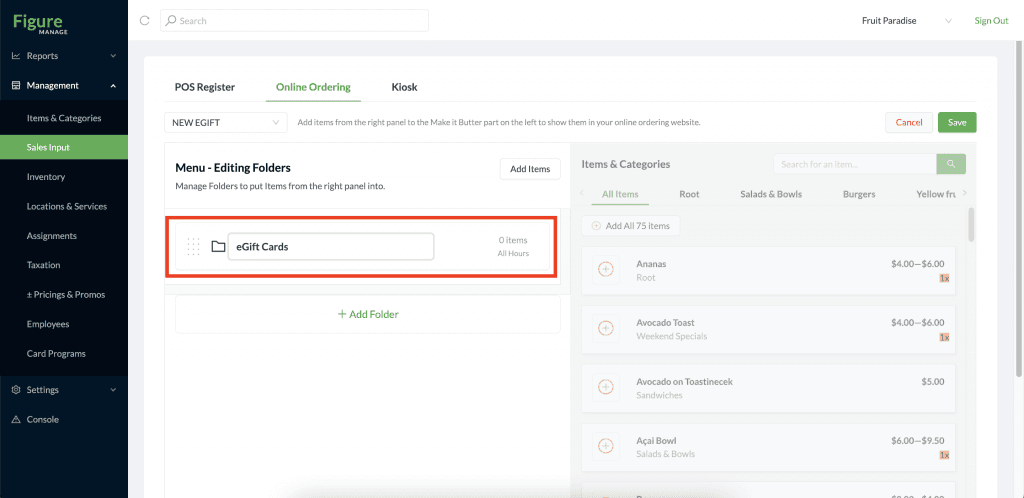
[6] Click Add Items
[7] Search for the name of the Card Program you created
[8] Click the '+' sign – this will move the item to the folder on the left
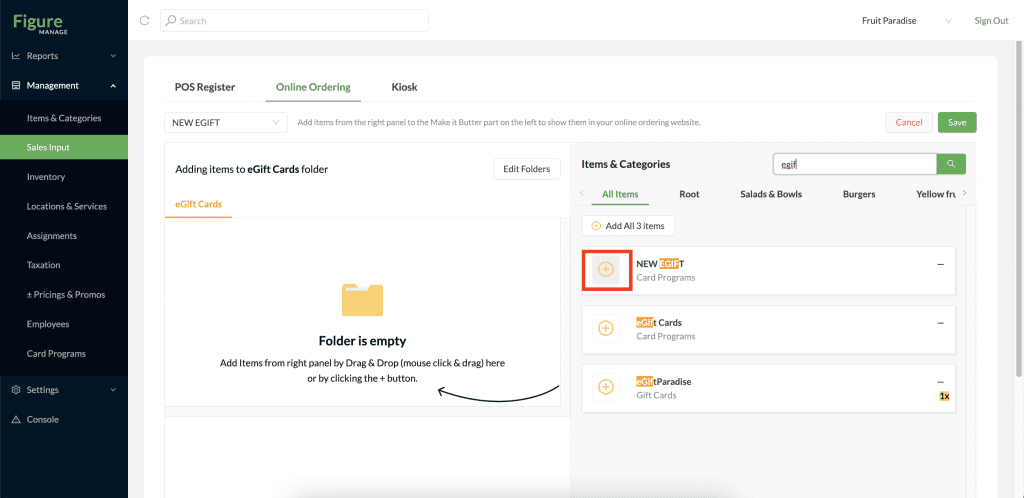
[9] Click Save
Now you have your Gift Card website activated. Share your link with your customers, on your website or social media. You can find the link to your newly created website in the service detail.
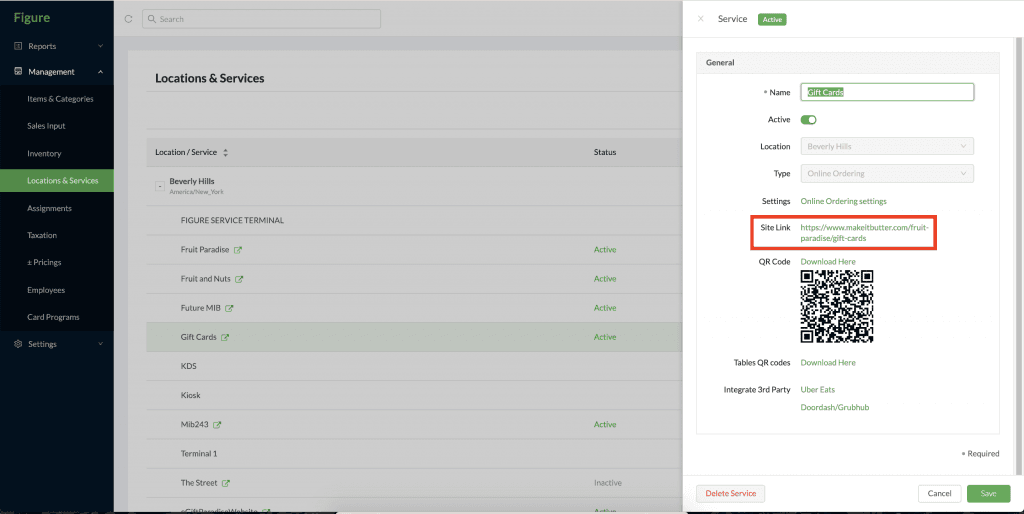
How to buy Virtual Gift Cards
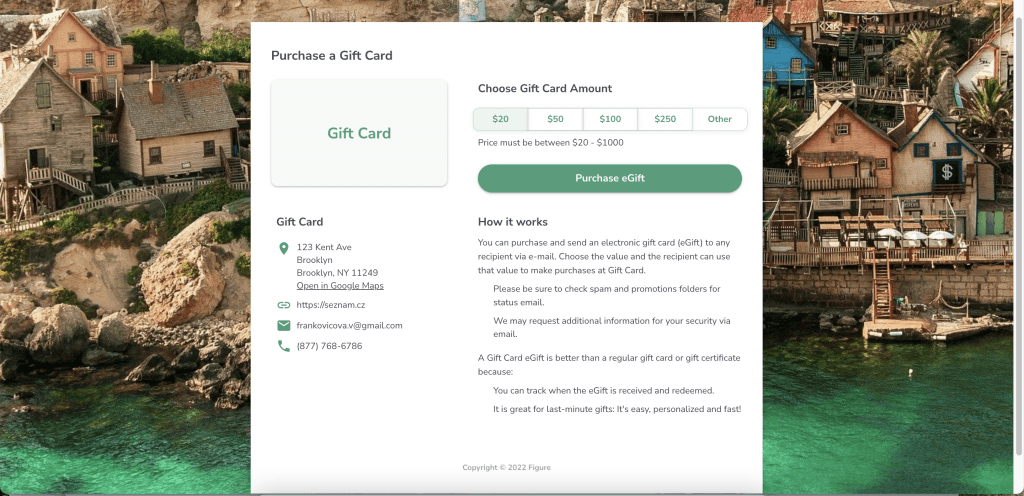
Customers can buy the virtual Gift Card on the website you just created.
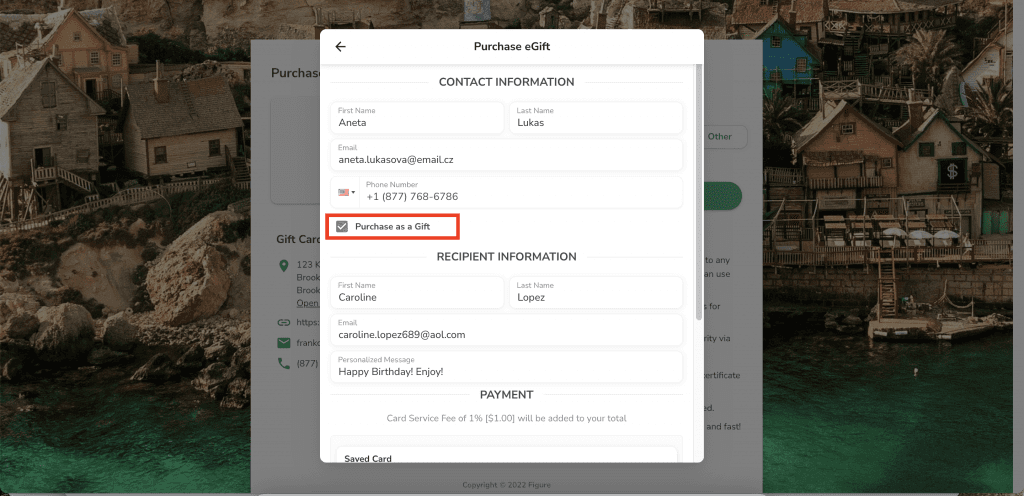
It is possible to buy a Gift Card and have it delivered to the same email address, or the Gift Card can be purchased as a gift. Then, the receipt will be sent to the buyer's email address and the Gift Card will be sent to the recipient's email address.
Example of an eGift Card website:
How to purchase the eGift Card as a gift:
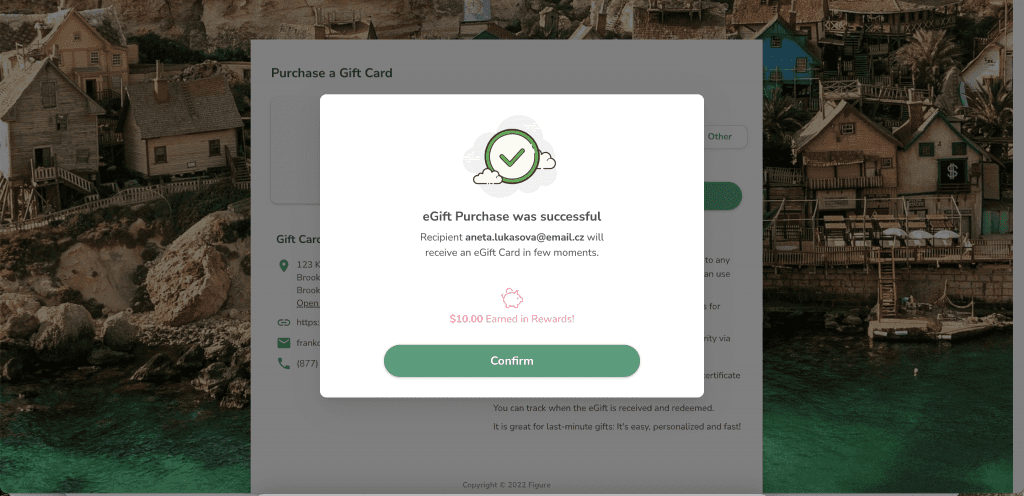
Confirmation after payment:
The recipient will receive the eGit Card in their mailbox:

How to pay with Gift Cards
Gift Cards can be redeemed on POS or on Make It Butter (online ordering). See below how to redeem them on both platforms.
How to pay with a Gift Card on POS
On POS, when there is an order a customer wants to pay by their Gift Card, you can take the payment by scanning the card or keying in the gift card key.
Pay by scanning the gift card:
[1] Open the order you want to pay for, then scan the Gift Card’s QR code using a barcode scanner or after tapping the camera icon in your POS.
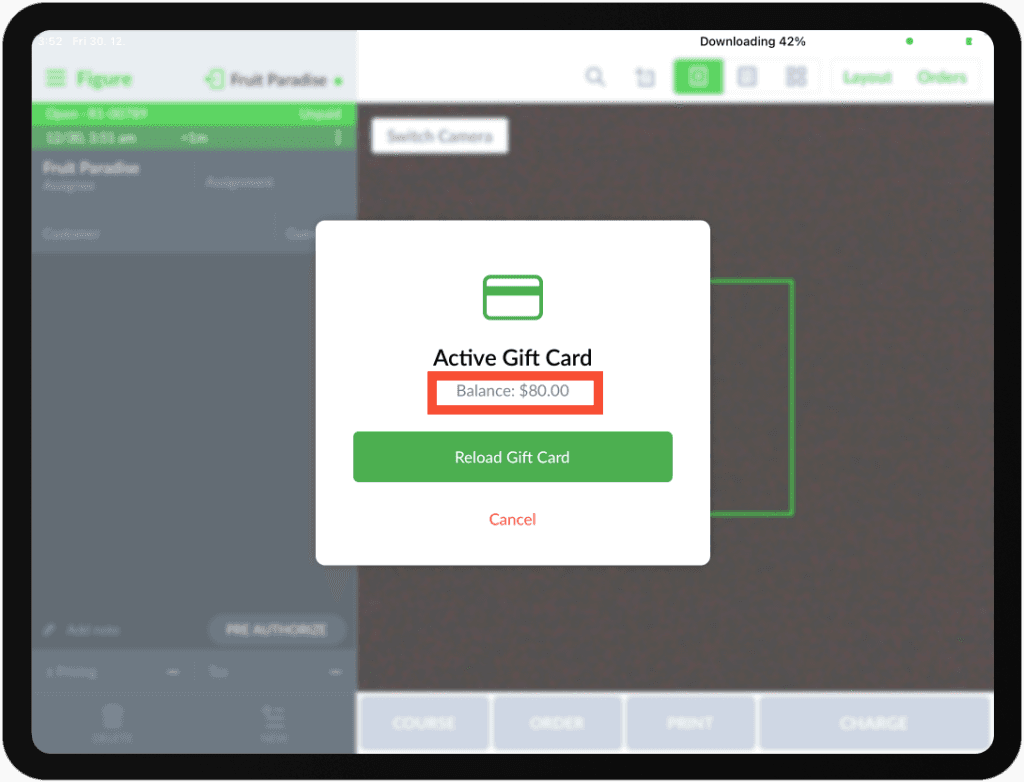
[2] You'll see the balance of the card and two options of how to proceed: Pay with Gift Card and Reload Gift Card. Press Pay with Gift Card and finalize the order as usual.
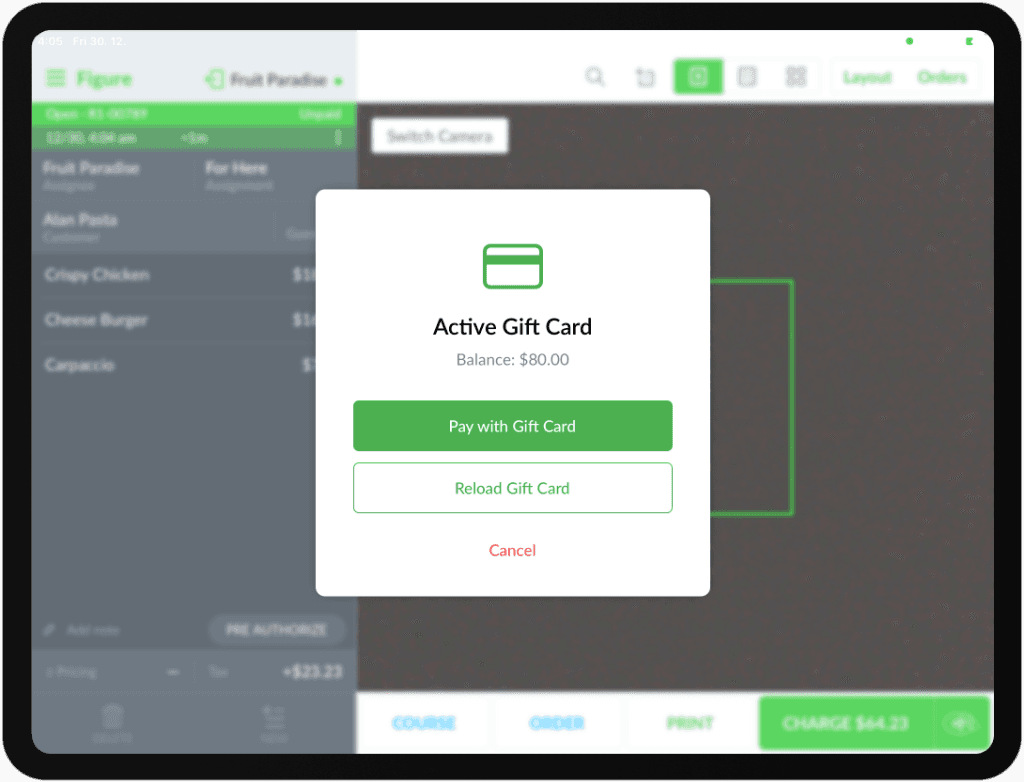
If you'd like to scan the Gift Card while processing a split payment, you can trigger the camera in the Payment Screen by pressing the camera button:
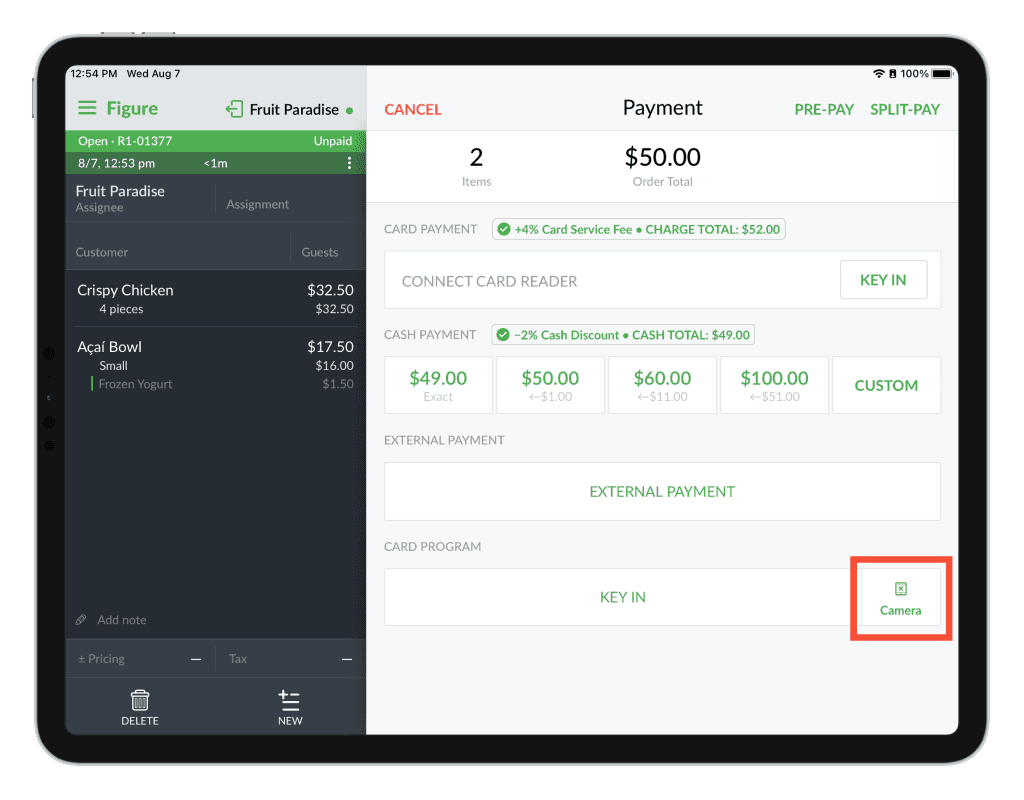
Pay by entering the Gift Card key:
[1] Open the order that should be paid by the Gift Card
[2] Press CHARGE
[3] Choose the CARD PROGRAM payment method by pressing the KEY IN in order to insert the Gift Card key manually.
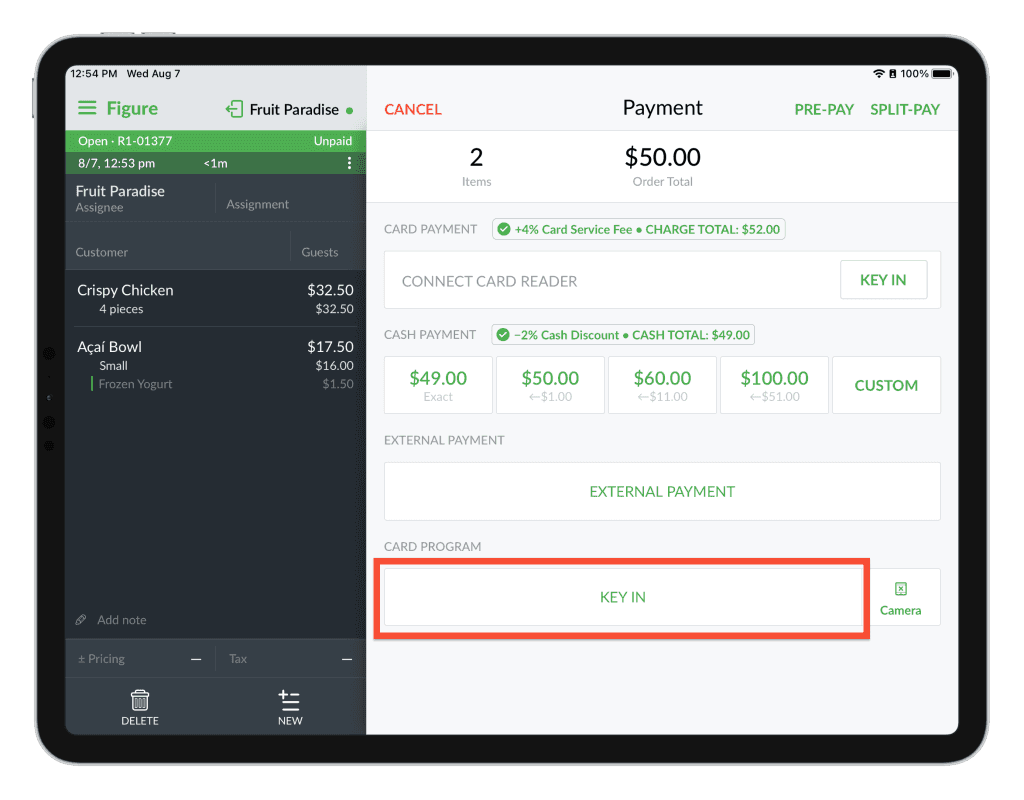
[4] After selecting the KEY IN method, enter the gift card key which you can find printed on the Gift Card or in the virtual Gift Card email and press CHARGE.
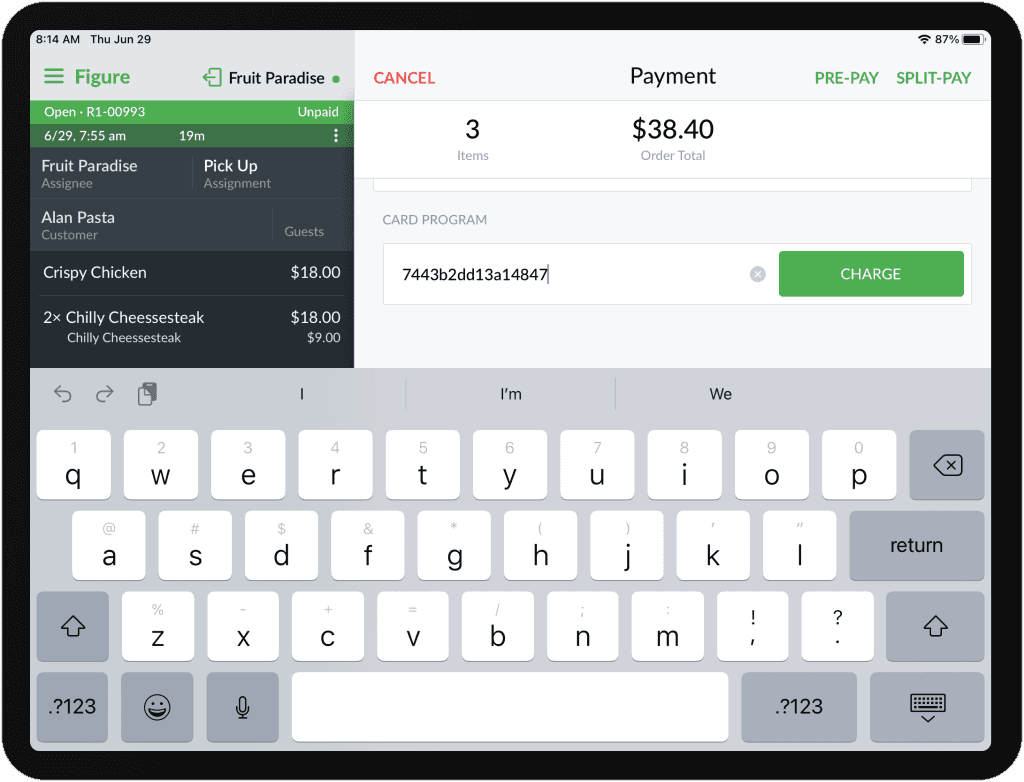
[5] Select the option to pay with the Gift Card and finalize the order as usual.
How to pay with Gift Cards on Make It Butter (online ordering)
Enable ability to pay with Gift Cards:
In order to enable receiving Gift Card payments on your Make It Butter, you have to enable this functionality first by following the steps below:
[1] Go to to Figure Manage > Settings > Online Ordering
[2] Choose the MIB website/service you want to enable the Gift Card payments for.
[3] Enable the setting called 'Enable ability to pay with Gift Cards' and click Apply Settings

Redeem the Gift Card
[1] Add items to an order on Make It Butter as usual
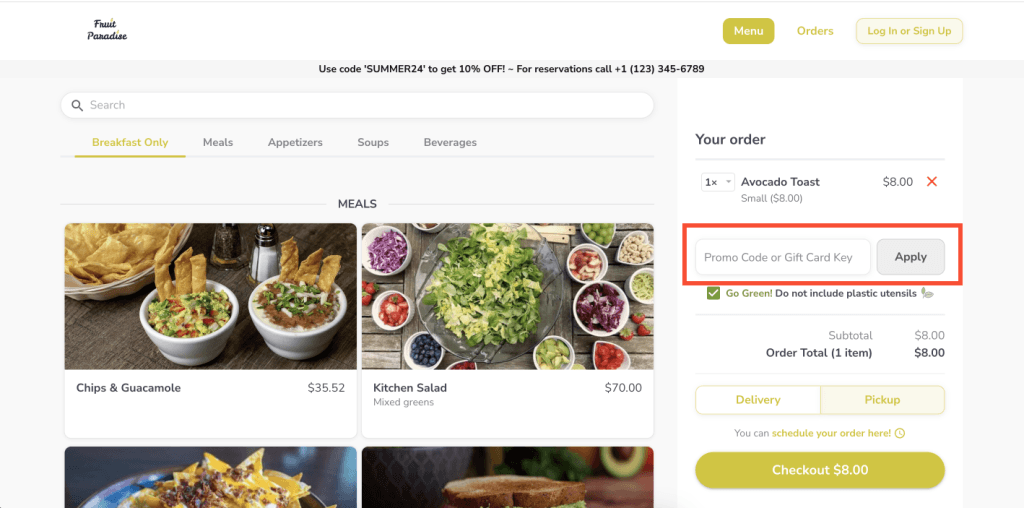
[2] Input the eGift Card key in the 'Promo Code or Gift Card Key' field below the cart and press Apply.
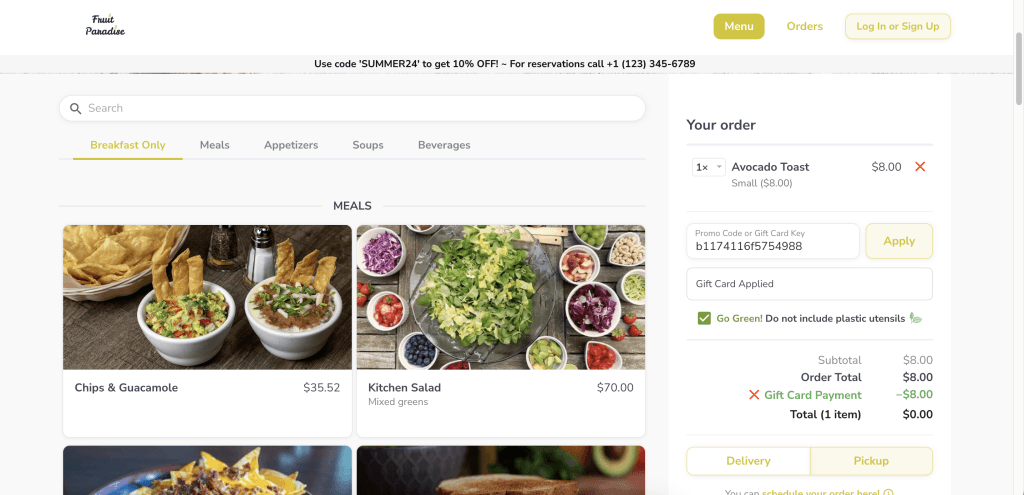
The Gift Card will be applied:
How to find the Gift Card Key:
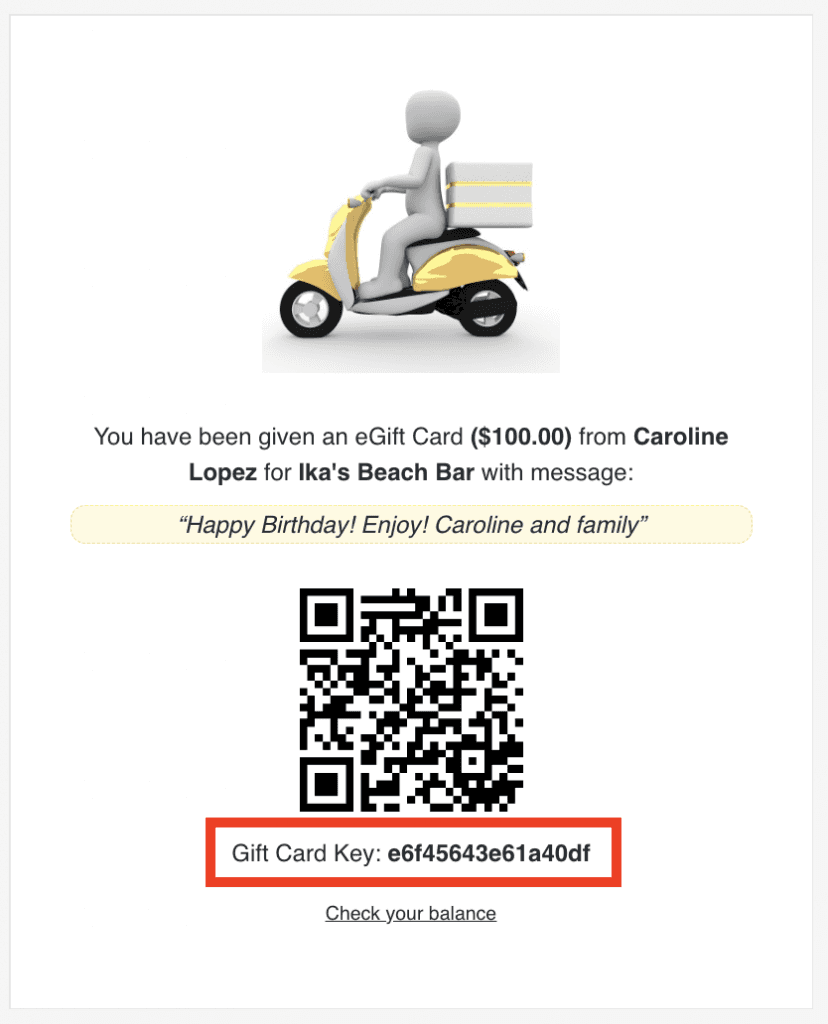
For eGift Cards, the key can be found in the email they received after purchasing the feGift Card (see the image below). For physical Gift Cards, the key is printed on the card.
How to reload a Gift Card
When a gift card is exhausted, you can reload it with a custom amount. This can be done only through the POS.
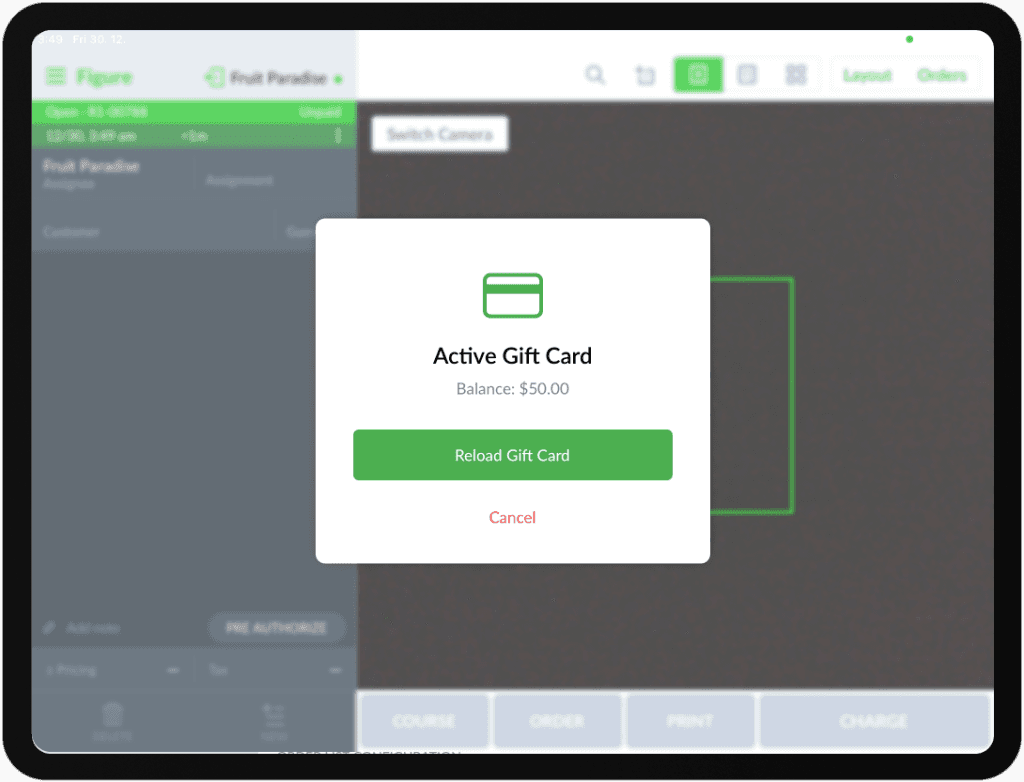
[1] Scan the Gift Card (using a barcode scanner or the iPad camera after pressing the camera icon in he POS)
[2] Tap Reload Gift Card
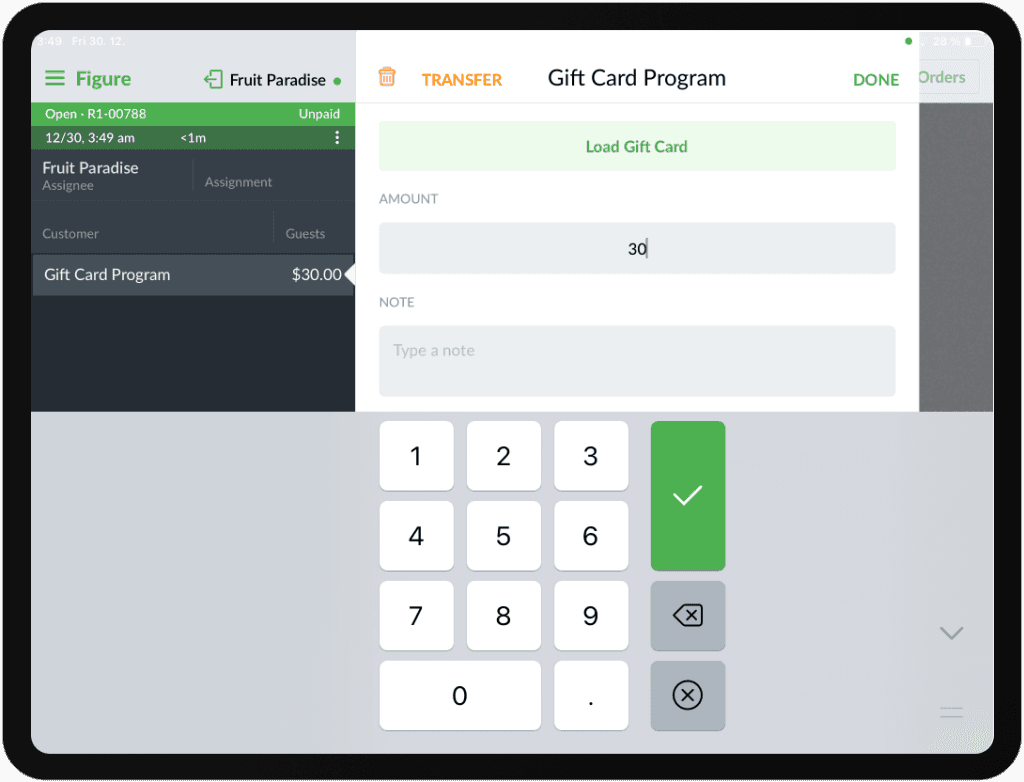
[3] Add the required amount
[4] Finalize the order as usual
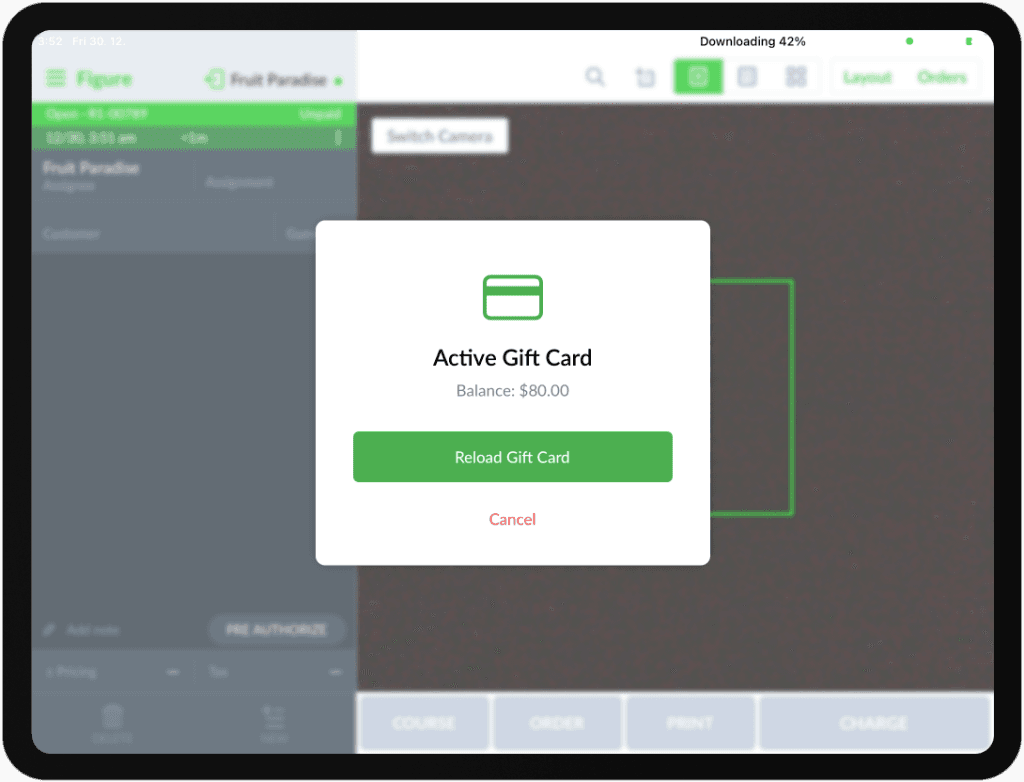
When there still is some amount before reloading, the new amount will add up. You can check the balance by scanning it again.
How to check a gift card balance / details
There are multiple ways how to check the gift card balance: in POS and in Figure Manage.
Check gift card balance / details in POS
Scan the card and a popover with the gift card balance will appear:
Check gift card balance / details in Figure Manage
In the order detail
go to Figure Manage -> Reports -> Orders
find the order within which the gift card was sold
open the order detail and click the button Open Card Detail
In Card Programs' Liability Report
go to Figure Manage -> Management -> Card Programs -> Liability Report
the Liability Report provides a list of all Gift Cards in your system. For easier navigation, you can filter the list by status: Active, Disabled, Deleted, or All.
each row displays basic information about a Gift Card
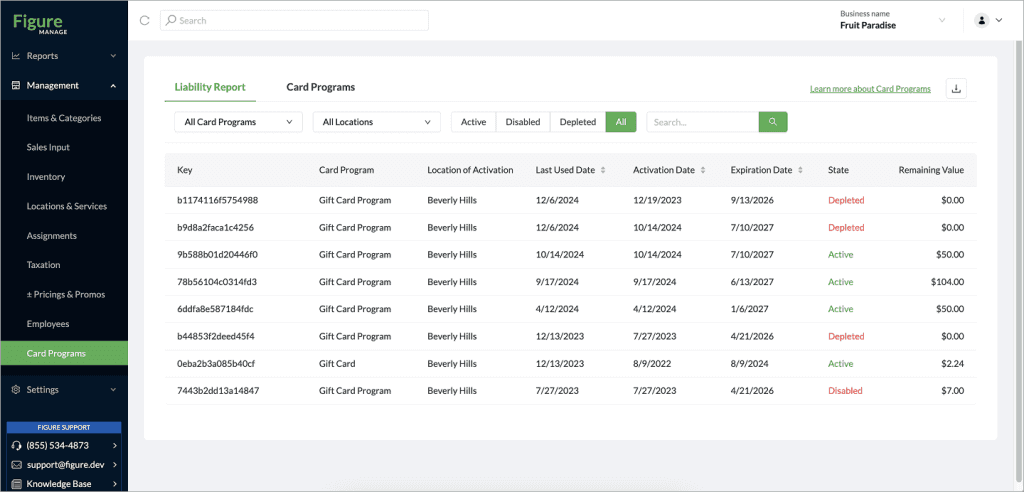
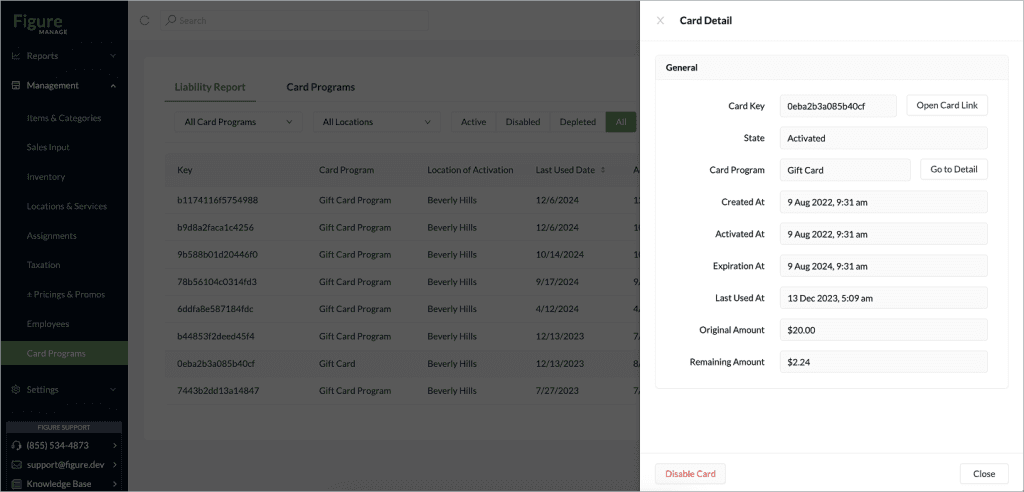
to view more details about a specific card, simply click on its row to open the Card Detail view
How to export the Liability Report to CSV or XLSX
There is an option to export the Liability Report to CSV or XLSX. To do that, follow the steps below:
[1] Go to Figure Manage > Card Programs > Liability Report, there, click the download button at the top right corner
[2] Select 'Download .csv' or 'Download .xlsx'
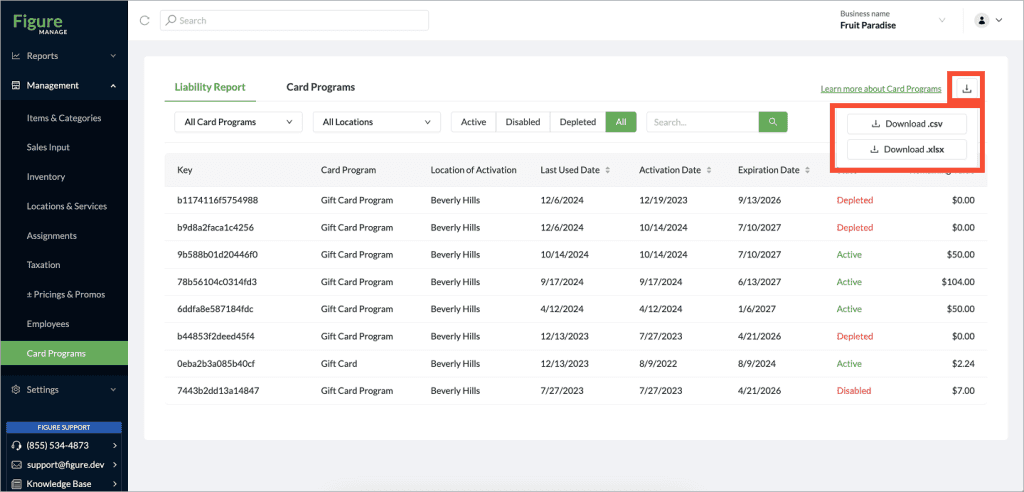
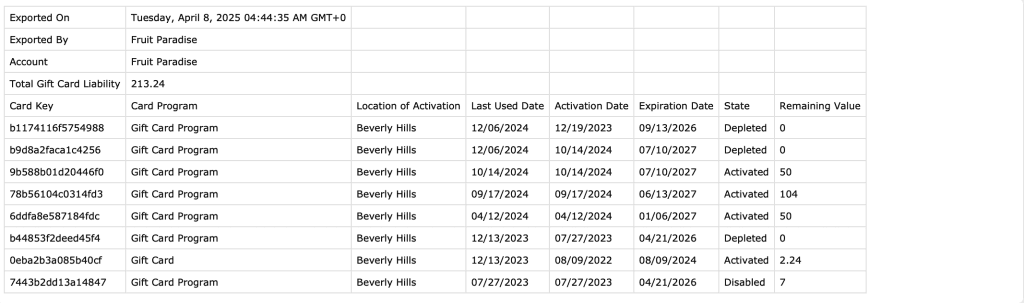
This is an example of an exported CSV file:
How to resend a gift card
Occasionally, customers may lose their Gift Card, delete the email with their eGift Card, or no longer have access to their mailbox. No worries—this is an easy fix!
From Figure Manage, you can quickly resend a Gift Card to any email address. This applies to both eGift Cards and plastic Gift Cards—an electronic version can be sent for either type.
To resend a Gift Card, follow these steps:
[1] Go to Figure Manage and log in with your credentials
[2] Go to Reports > Orders
[3] Find the order within which the Gift Card was purchased
you can search by a customer name, order number, date, etc
[4] Open the order detail
[5] Click 'Resend Gift Card'
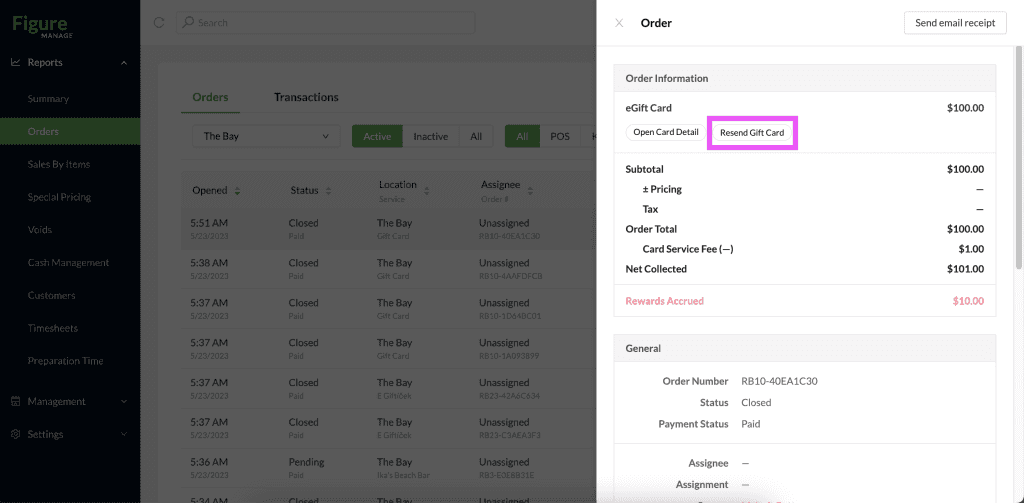
[6] Fill in the email address you want the Gift Card to be sent to
the original recipient's email is pre-filled there, you can delete that address and input a different one
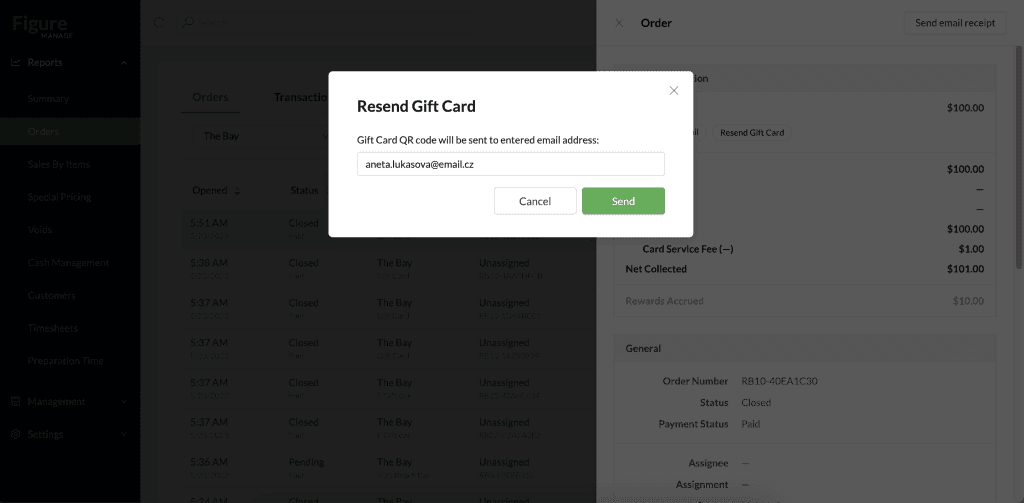
[7] hit Send
The Gift Card is sent to the email address you entered in the previous step.
See a short recording of resending a gift card:
How to invalidate a gift card
A gift card can be invalidated in Figure Manage. This might be needed for example when the purchase of a gift card has been refunded – to make sure the gift card cannot be redeemed anymore.
Recommendation: To maintain security and control, we recommend configuring permissions so that only administrators and managers have access to Figure Manage.
To invalidate a gift card follow the steps below:
[1] Log into Figure Manage website with your credentials and go to Management > Card Programs > stay in the Liability Report tab.

[2] Search for a card you want to invalidate and click the row to open the card detail
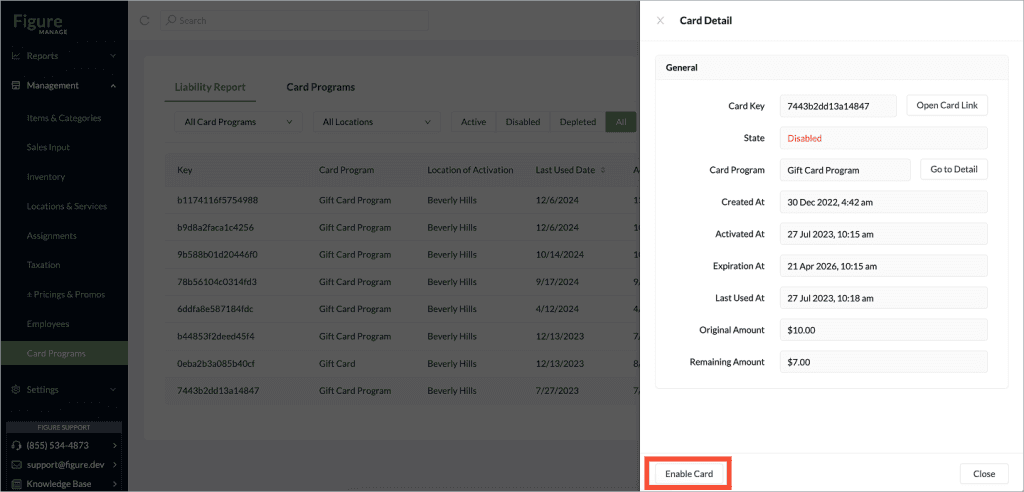
[3] Click Disable Gift Card at the bottom and confirm the action
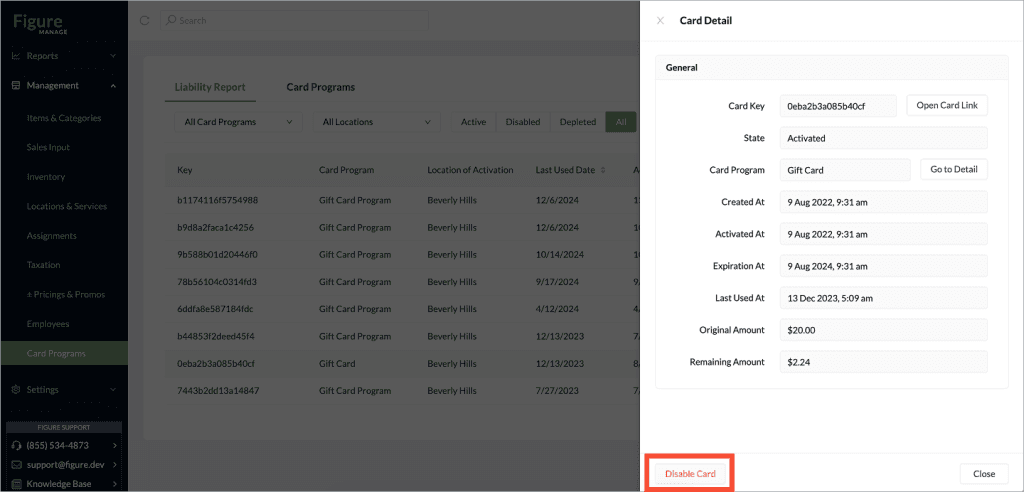
Now, the gift card has been invalidated / disabled.
The card can be enabled again when needed.