Introduction
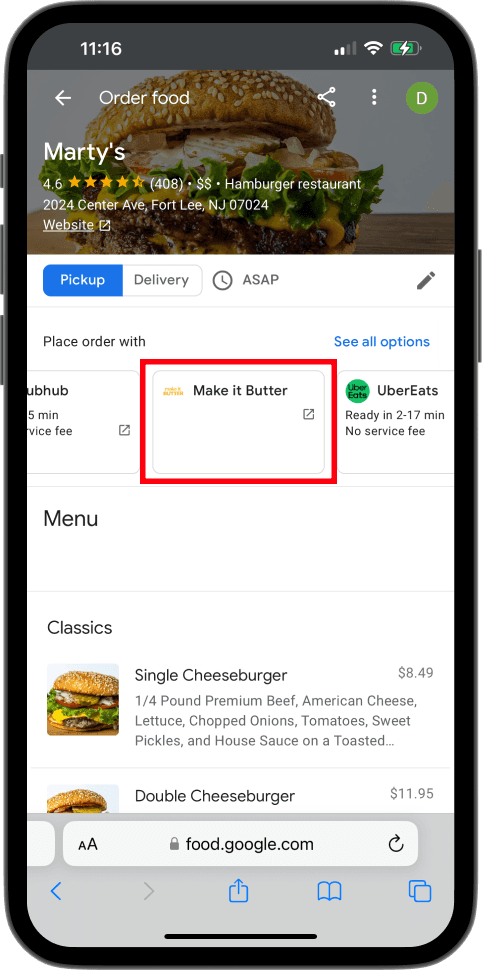
List Make It Butter (MIB) website in your Google Business Profile Card to allow your customers to order quickly when they use the Google search or Google Maps. If MIB is the restaurant's only online ordering website, the button Place an order will open MIB website. If you have more online ordering websites in your Google Business Profile Card such as Grubhub, Doordash or UberEats, MIB link will appear in the list of all online ordering websites.
How to enable Google Ordering Link
Please note, it is possible to list only one Make It Butter website for each location.
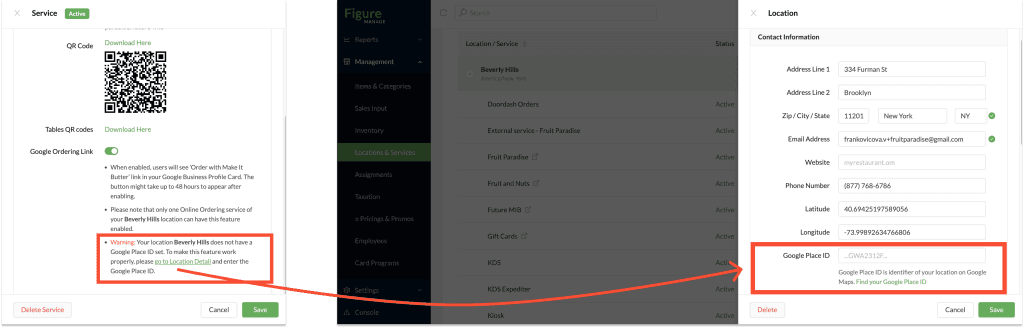
[1] Add Google Place ID: In order to make this feature work properly, ti is necessary to fill the location's address and the Google Place ID in the Location detail.
To do so, go to Figure Manage > Management > Locations & Services and click on your location and follow the instructions by the Google Place ID field.
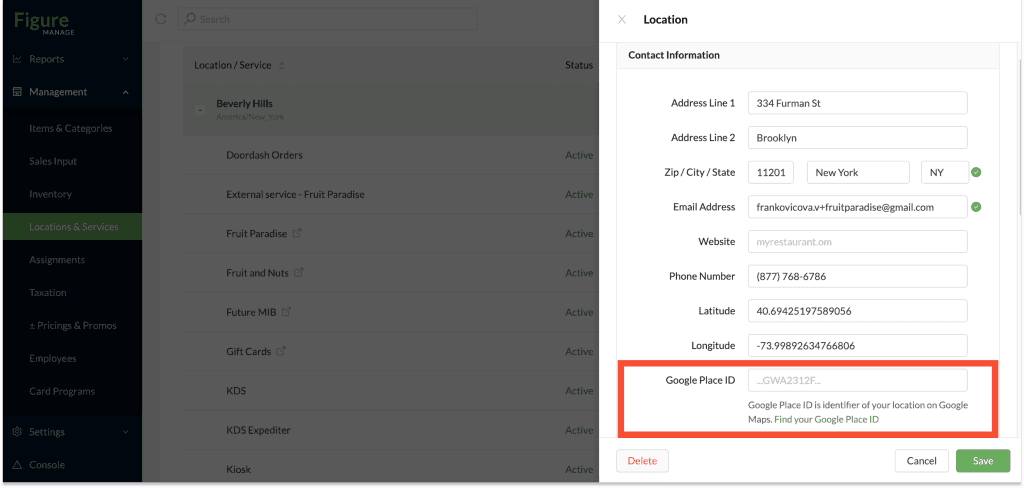
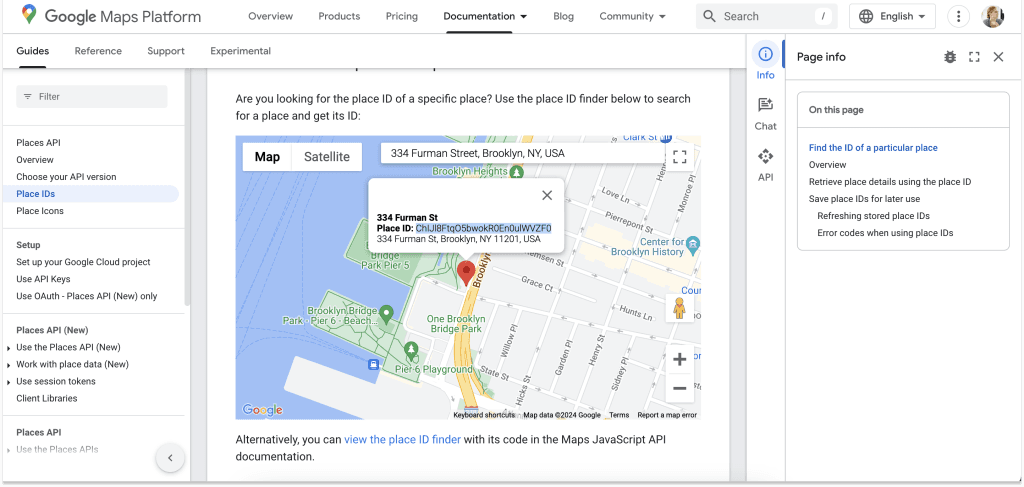
You can use the link in the description – Find your Google Place ID. There, enter the restaurant's address and copy the ID. Then, insert it to the Google Place ID field in Figure Manage and click Save.
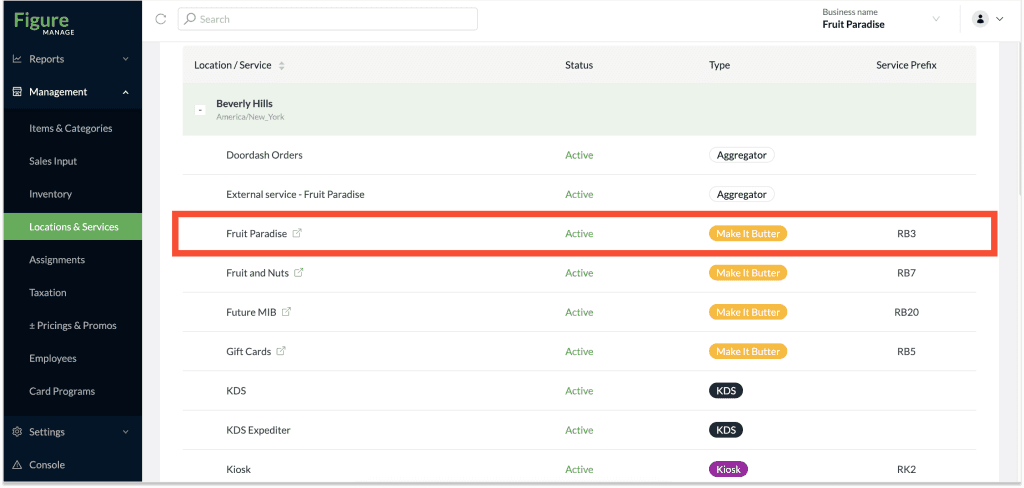
[2] After the Google Place ID is filled in the location detail, enable the Online Ordering Link.
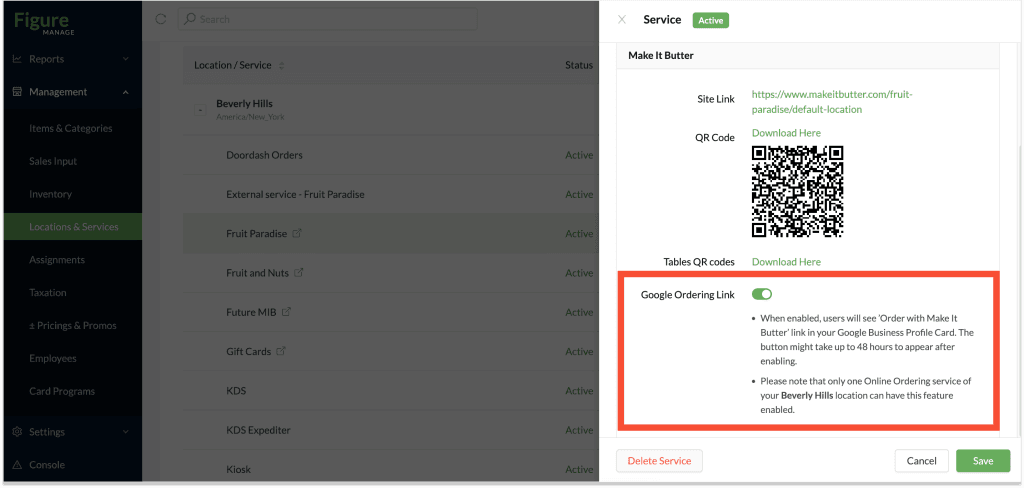
Go to Figure Manage > Management > Locations & Services and click on a Make It Butter service that you want to list in the Google Business Profile Card.
[2] Switch the button next to Google Ordering Link to green to enable the feature
In case you don't have Google Place ID filled in the location detail, the page will instruct you to do so as below. Click the go to Location Detail, there, fill the Google Place ID.
Important: If you haven't saved the Service Detail with the enabled Google Ordering Link before opening the location detail to insert the Google Place ID, please, go back to the service detail and enable it again and click Save.
[3] Press Save
When enabled, users will see ’Order with Make It Butter’ link in your Google Business Profile Card. The button might take up to 48 hours to appear after enabling.