If you run out of an item and you'd like to stop selling it, you can easily deactivate the item. The item will disappear from Online Ordering and Kiosk and will get greyed out in the POS. Then, you can activate it when needed.
You can do it from your POS (iPad) or Figure Manage. See the steps below:
How to deactivate an item from the POS
[1] Go to the main MENU
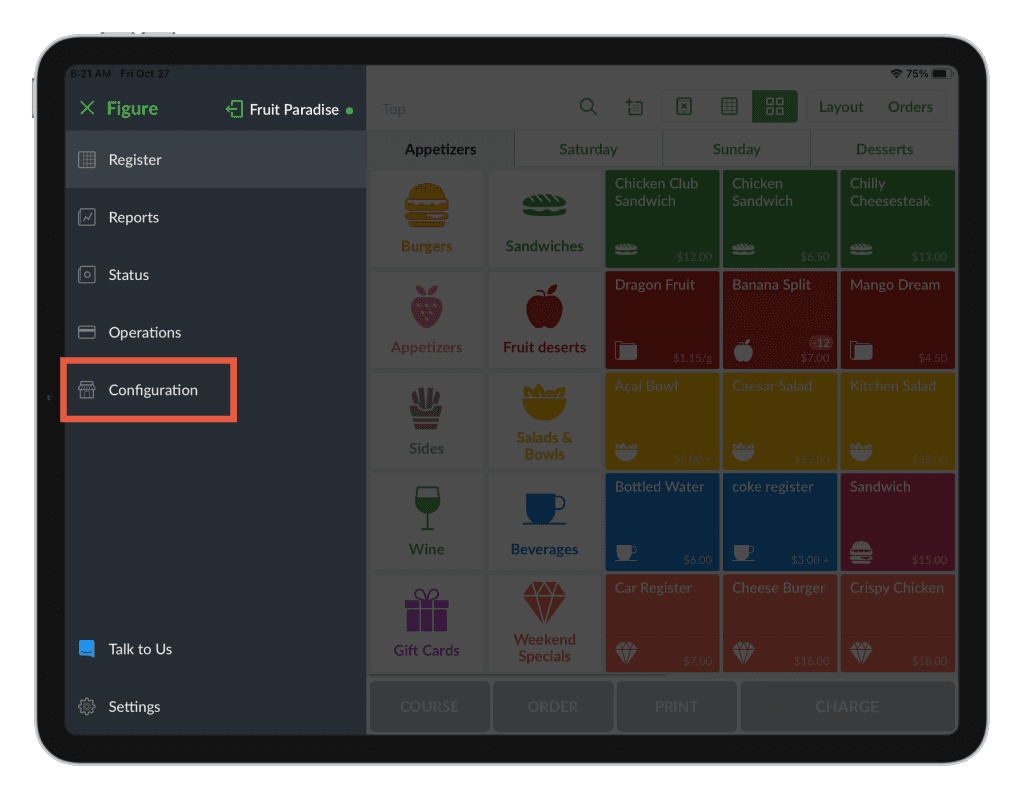
[2] Go to Configuration. If you can't see this section, your role probably does not have a permission for this action. In that case, reach out to the administrator of the account.
[3] Search for the item you would like to deactivate
[4] Click on the item. The item detail will open.
[5] Click on the switch button to the left so it gets grey.
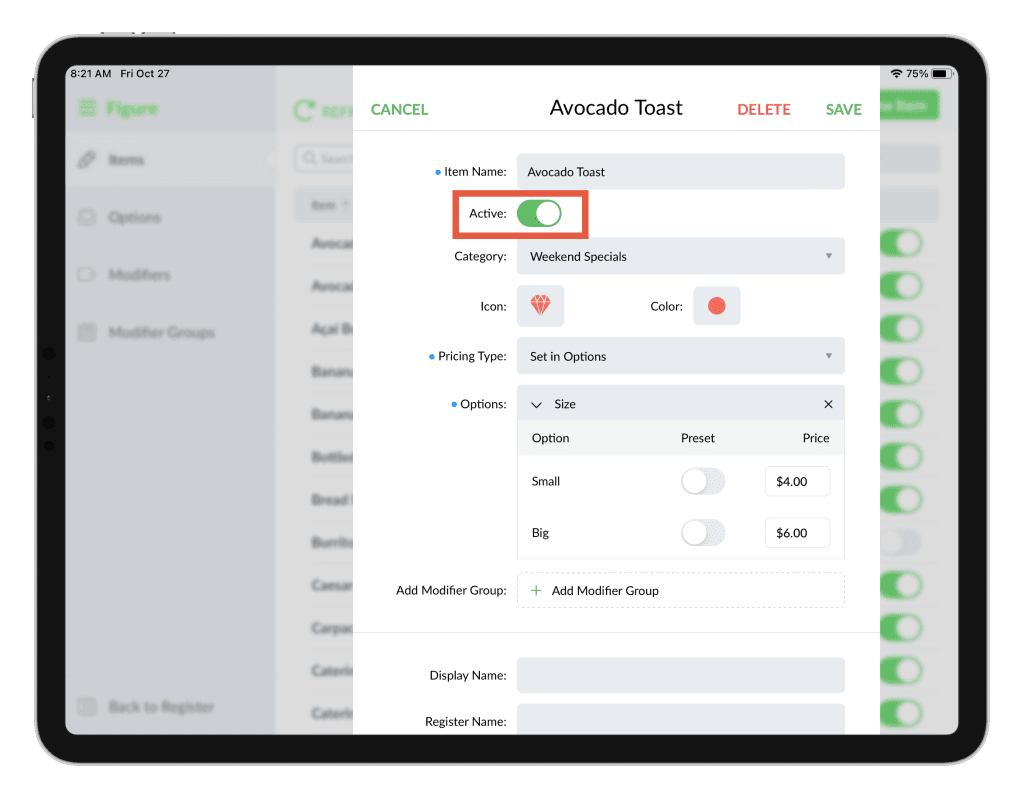
[6] Hit Save
Now, the item is deactivated: It disappeared from POS, online ordering and Kiosk until it's manually activated again.
How to deactivate an item from Figure Manage
[1] Log in to Figure Manage using your credentials.
[2] Navigate to Management → Items & Categories.
[3] Find the item you want to deactivate.
[4] Click on the item to open its details page.
[5] Deactivation steps depend on whether you are viewing a specific location or using the Master List:
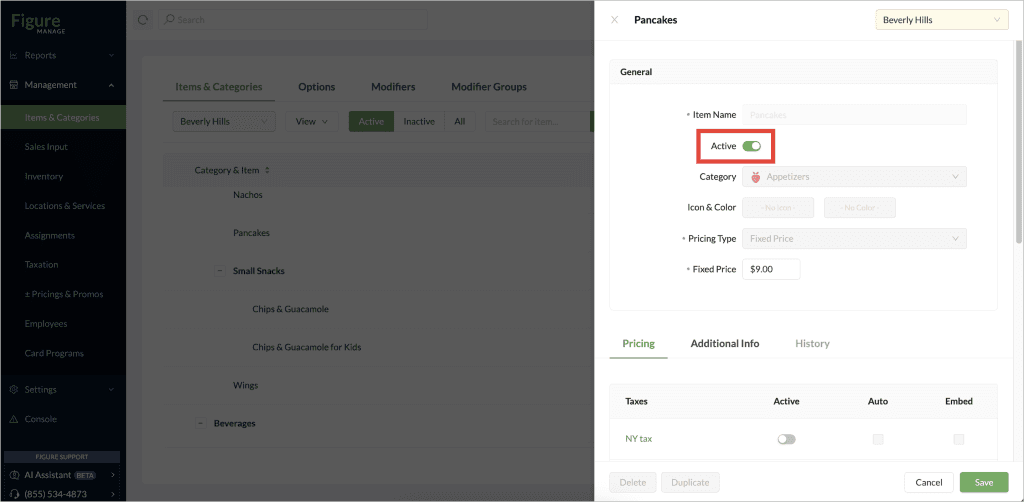
a) If you have a specific location selected or access to manage only specific location/s:
Click the toggle switch next to Active on the left. When the switch is grey, the item is deactivated.
b) If you are using the Master List:
Scroll to the bottom of the item detail page. There, you will see a list of locations. You can deactivate the item for each location by toggling the corresponding switch.
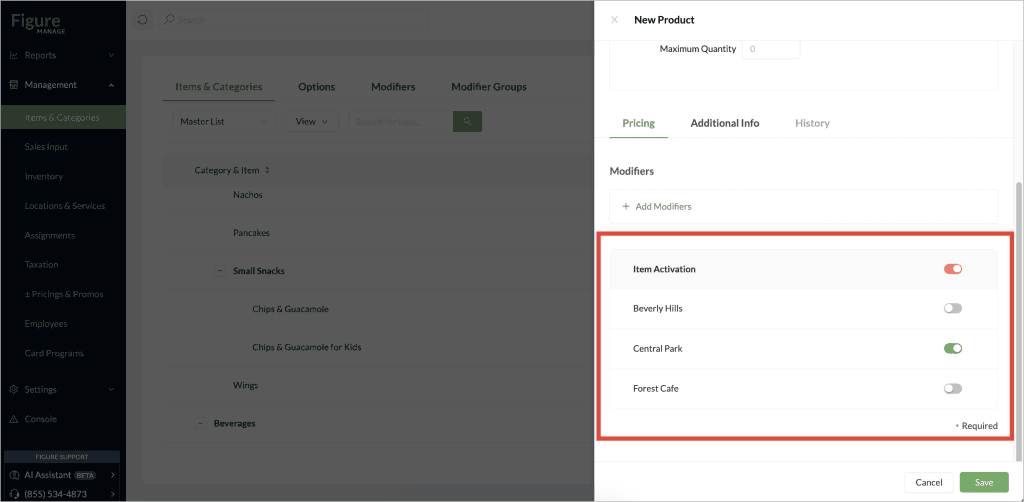
[6] Hit Save
Now, the item is deactivated: It will be greyed out in from POS, online ordering and Kiosk until it's manually activated again.