We keep working on all our products – we add new features and improve the current ones regularly. In order to get the best of all of them and to keep your apps working fine, it is necessary to have them running on the newest version at all times.
How to enable the auto update for all apps
We highly recommend enabling the auto update for all apps downloaded through App Store in your iPad. This way, you will make sure you will not miss on any new feature or improvement. Your POS / KDS / Kiosk / Figure Mobile will always be automatically updated. If this is set, there is no need for manual updating the apps.
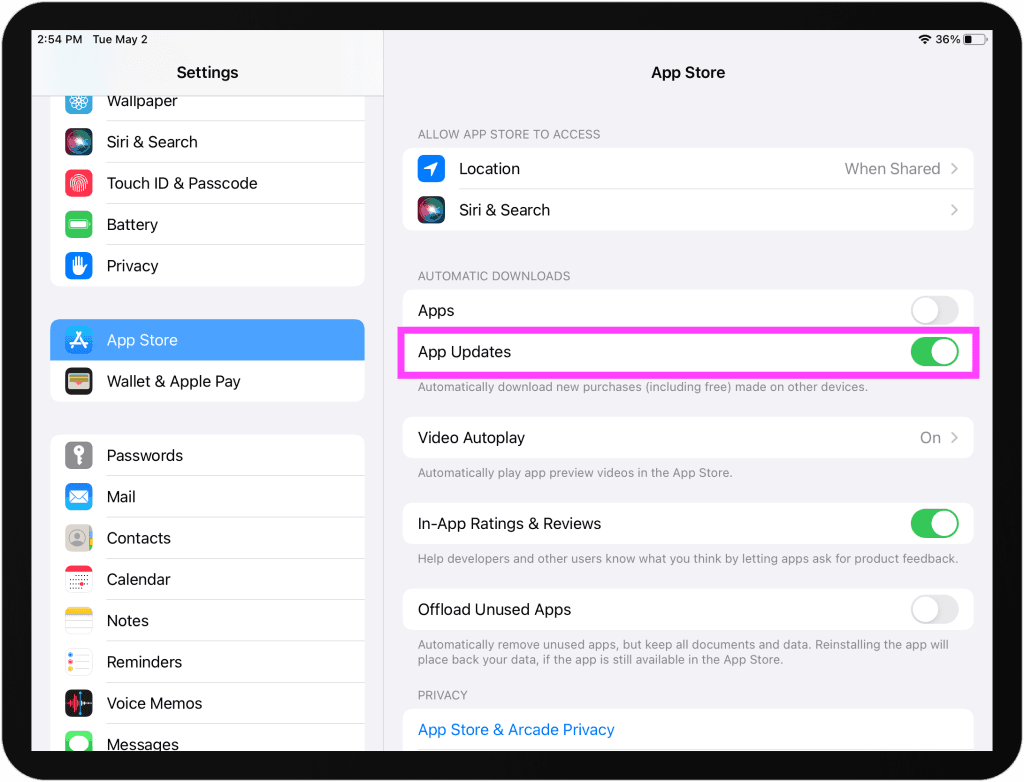
[1] Go to iPad > Settings > App Store
[2] Enable the App Updates as in the screenshot below
Updating POS
How to know there is a new version of POS available
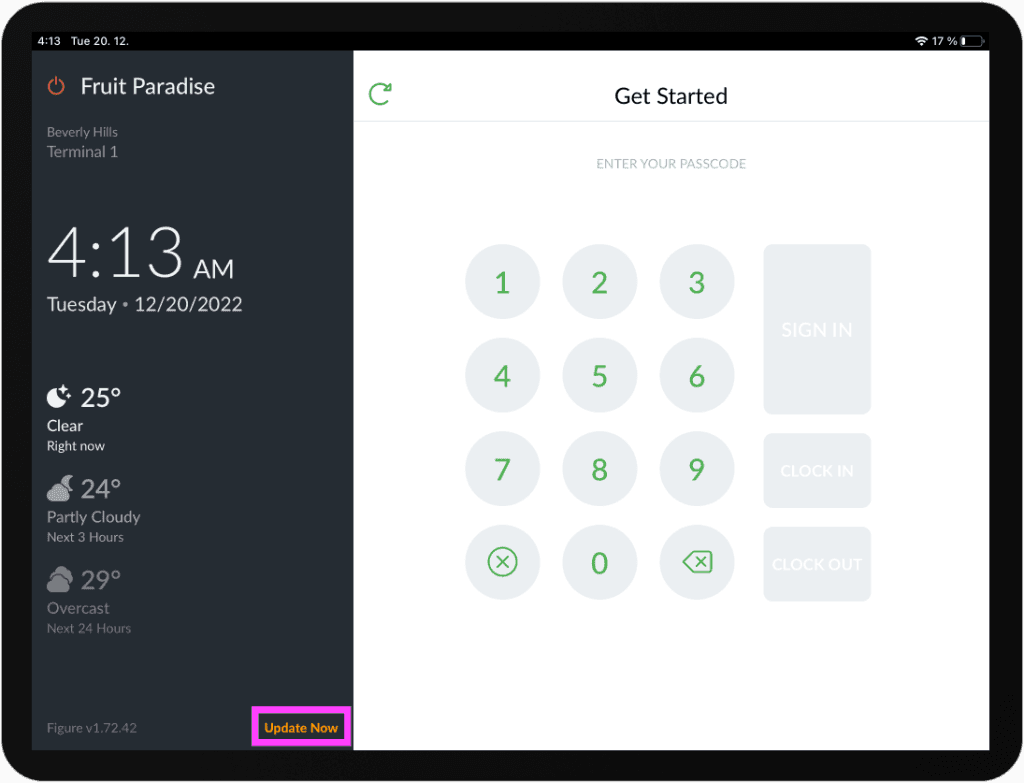
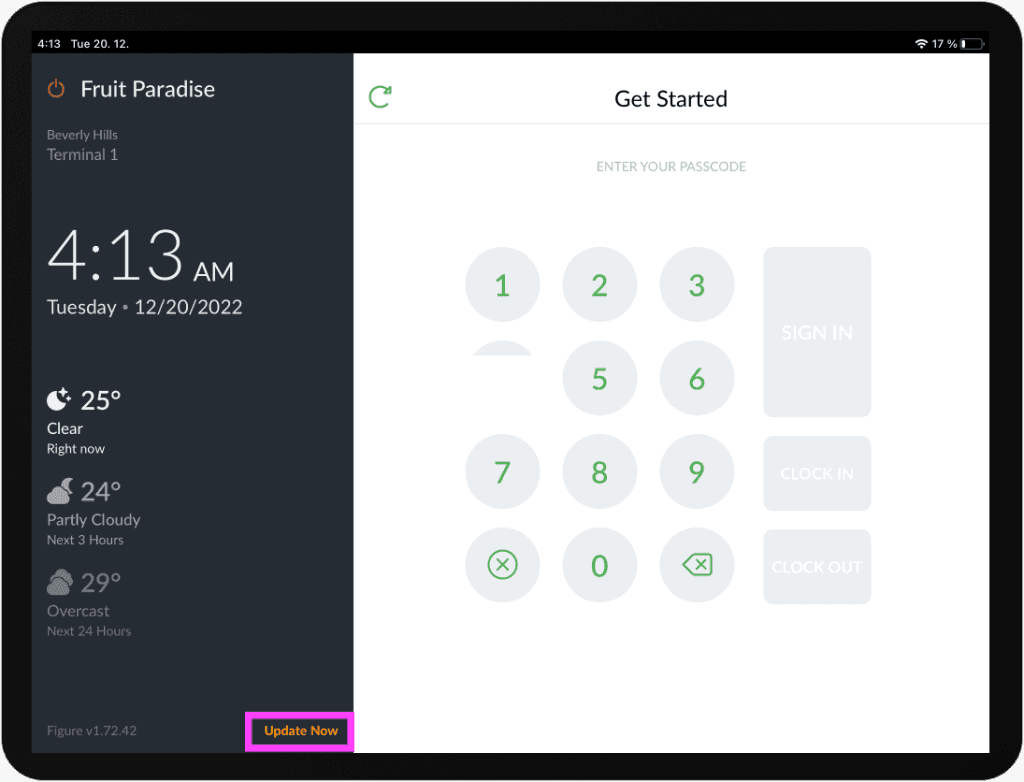
In case you don't have the auto updates enabled, you can manually update the app. You can always see the the number of the version your POS is running on. If there is a newer version available, there will be a button Update Now at the Sign In screen of your POS. When you see this, the app needs to be updated.
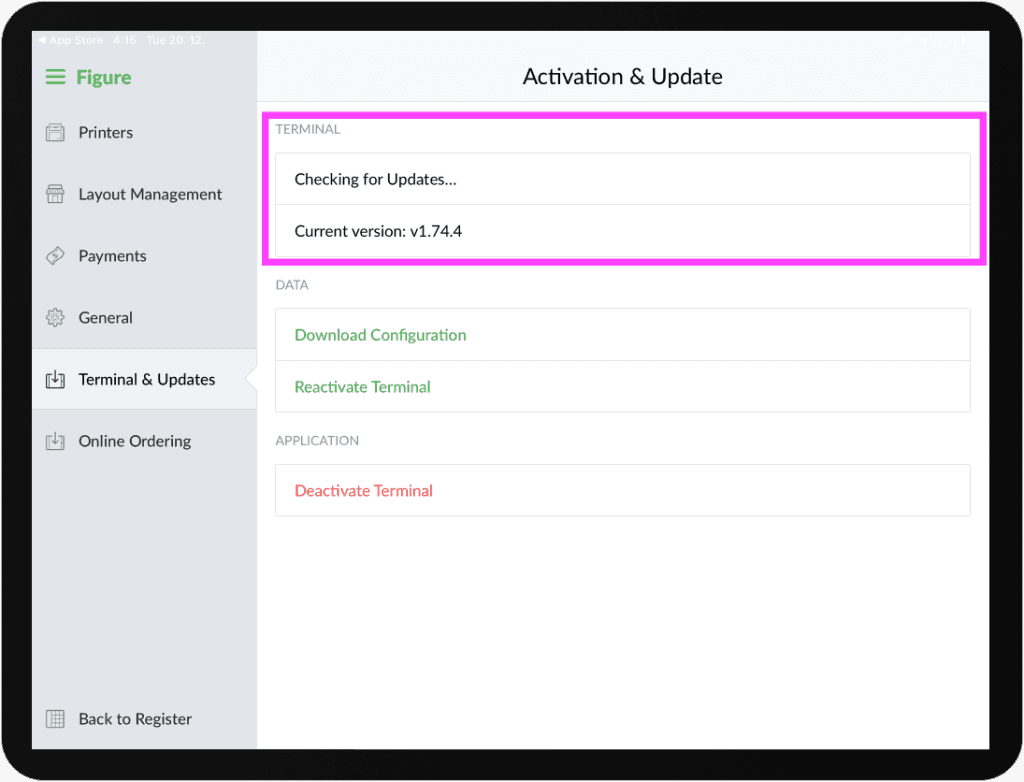
To make 100 % sure your POS is running on the latest version, you can always go to POS > Menu > Terminal & Updates. There, in the TERMINAL section, you can see your Current version and above that there is either a button to Update to Latest Version, or Check for Updates. You can always tap the Check for Updates to make sure there are no pending updates.
After clicking 'Check for Updates':
After clicking 'Check for Updates' and a pending update has been found:
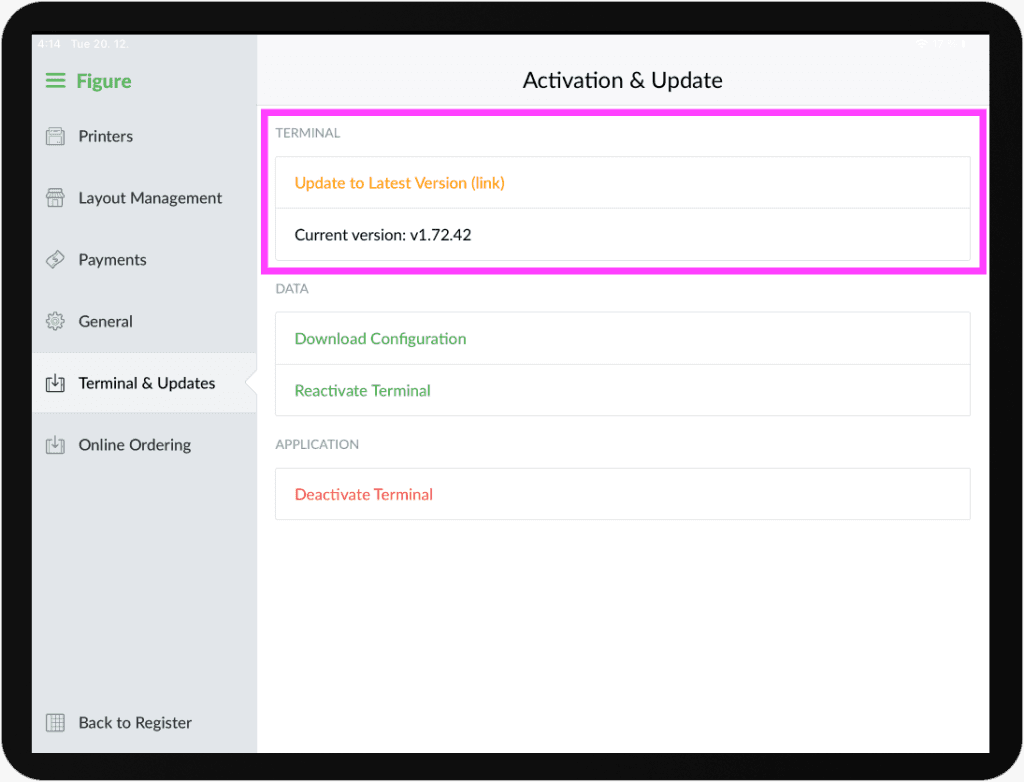
How to update the POS app
By clicking the Update Now at the Sign In screen, or Update to Latest Version, the app will either be updated instantly, or it will take you to the App Store. See the images below.
Click 'Update Now':
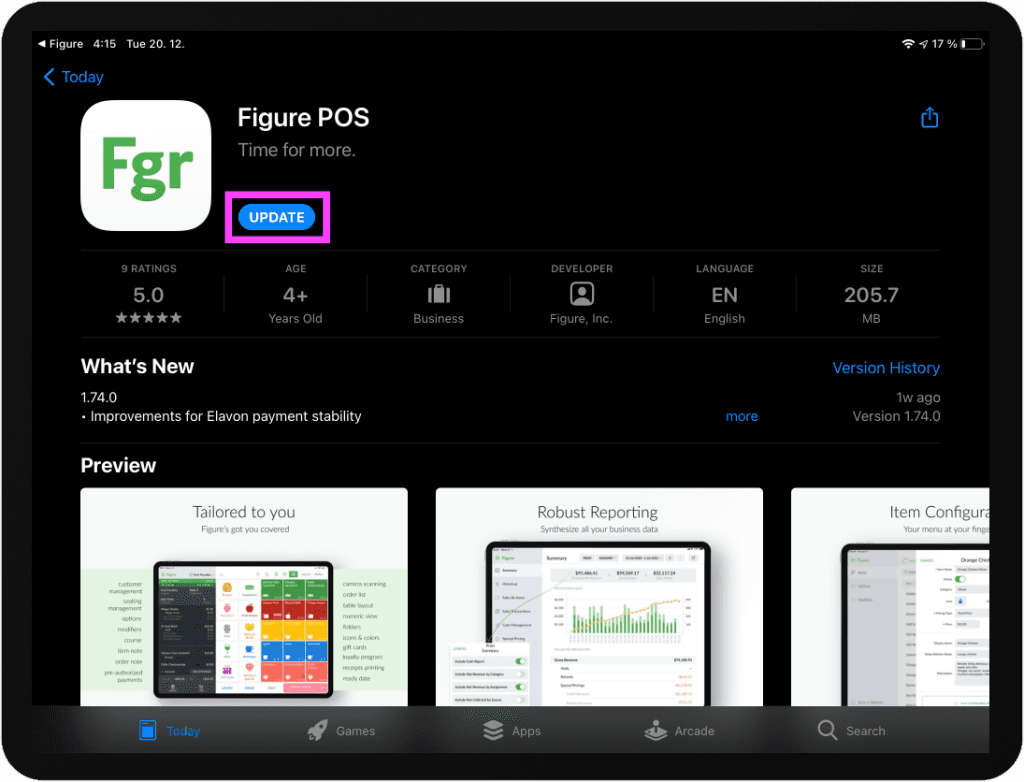
The app will either be updated instantly, or it will take you to the App Store. If it takes you to the App Store, click UPDATE:
And wait until the app is downloaded and then click OPEN:
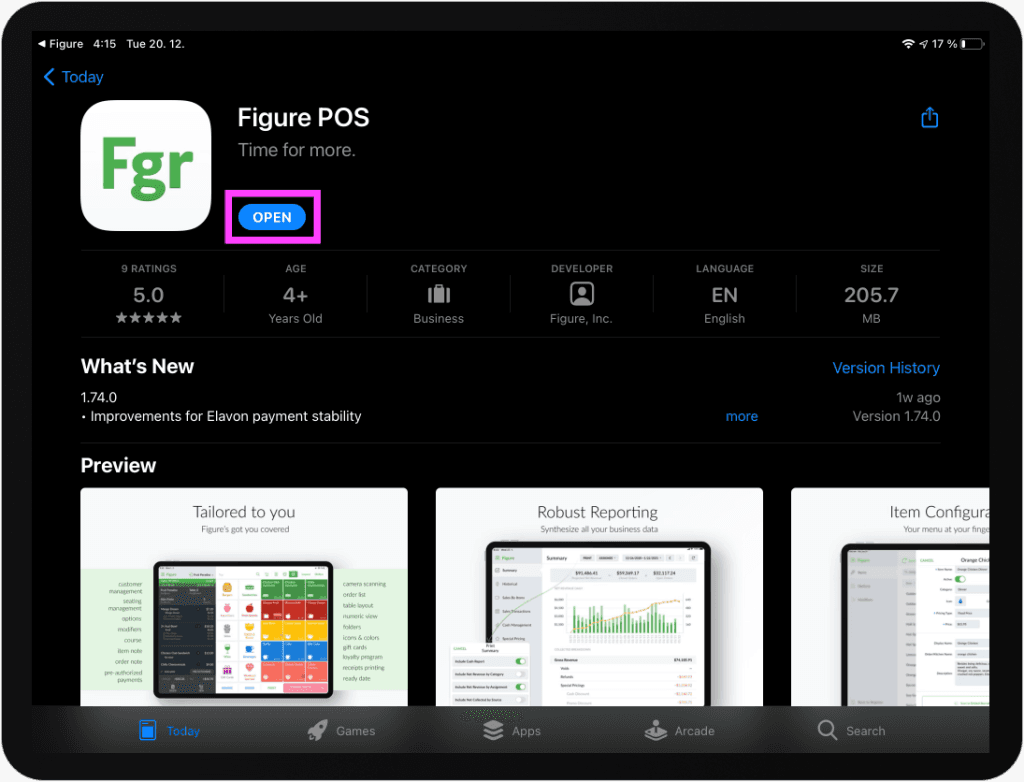
After opening the app after the App Store update, one additional instant update might be needed. It should happen automatically. If not, you'd see the orange Update Now button on the Sign In screen again. If that's the case, please, hit it again, it will get instantly updated to the newest version in a matter of a few seconds.
Updating the Kitchen Display
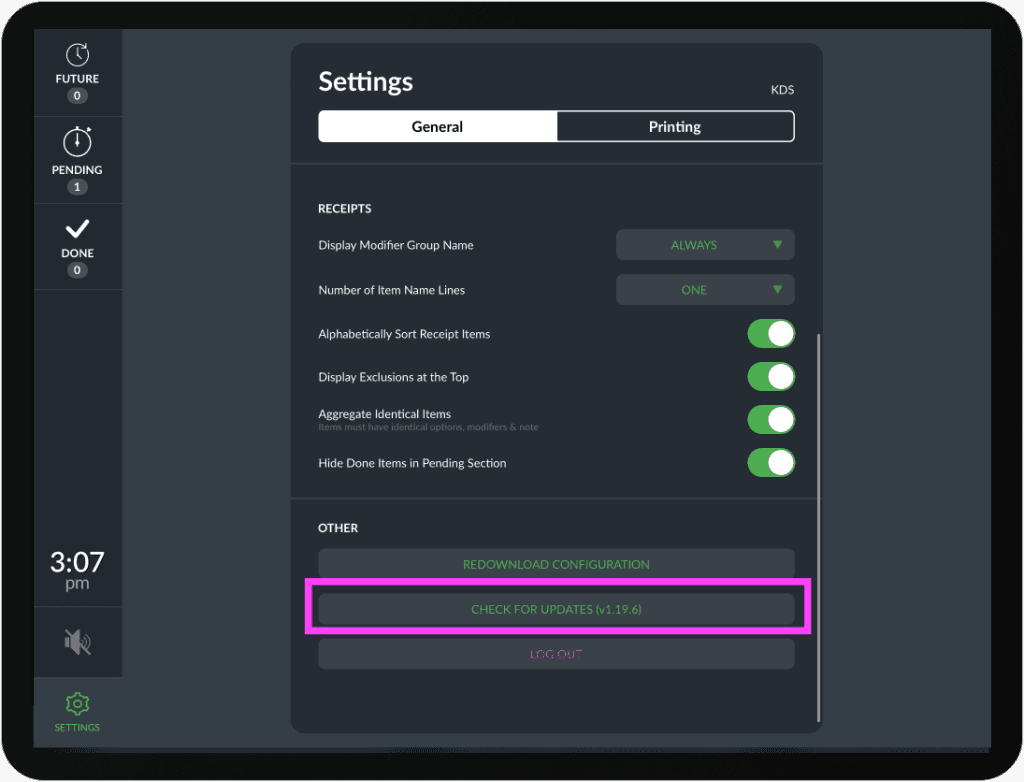
If you have the auto updates on App Store enabled, there is no need to manually update the app. In case you don't have the auto updates, go to KDS > Settings. There, hit the CHECK FOR UPDATES button. If there are any updates, the app will redirect to the App Store to update there.
If, after tapping the button, nothing happens, that means your KDS is running on the newest version.