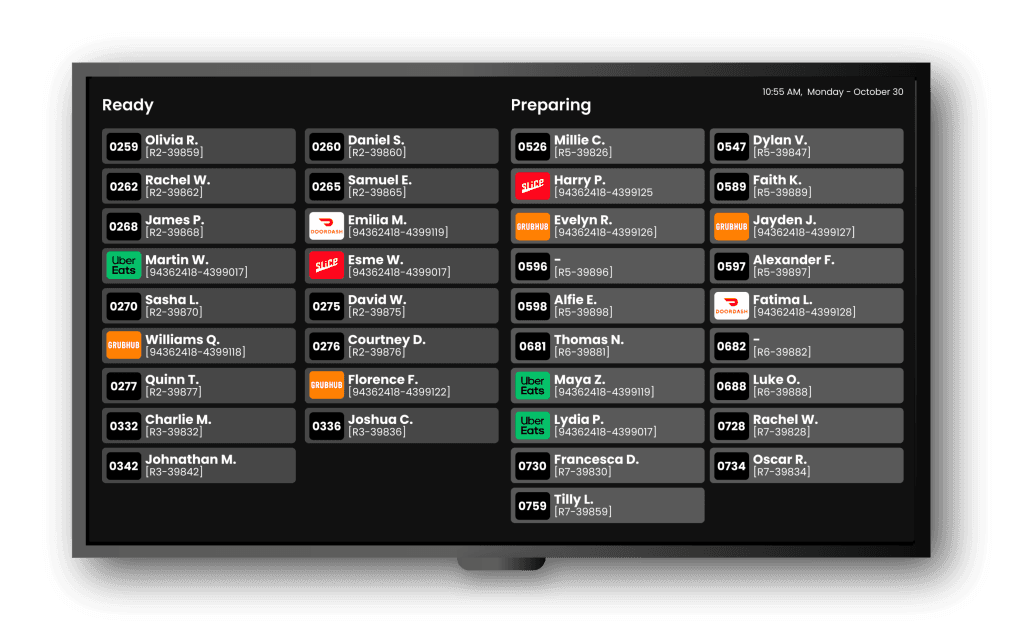
Display your customer's order status on the restaurant's guest-facing TV screen.
To set up your OSB, reach out to support@figure.dev and one of our representatives will walk you through the process.
How OSB works
When you have the TV screen with the OSB app set up, it's automatically synchronized with your Figure POS and Expediter KDS.
Ordering
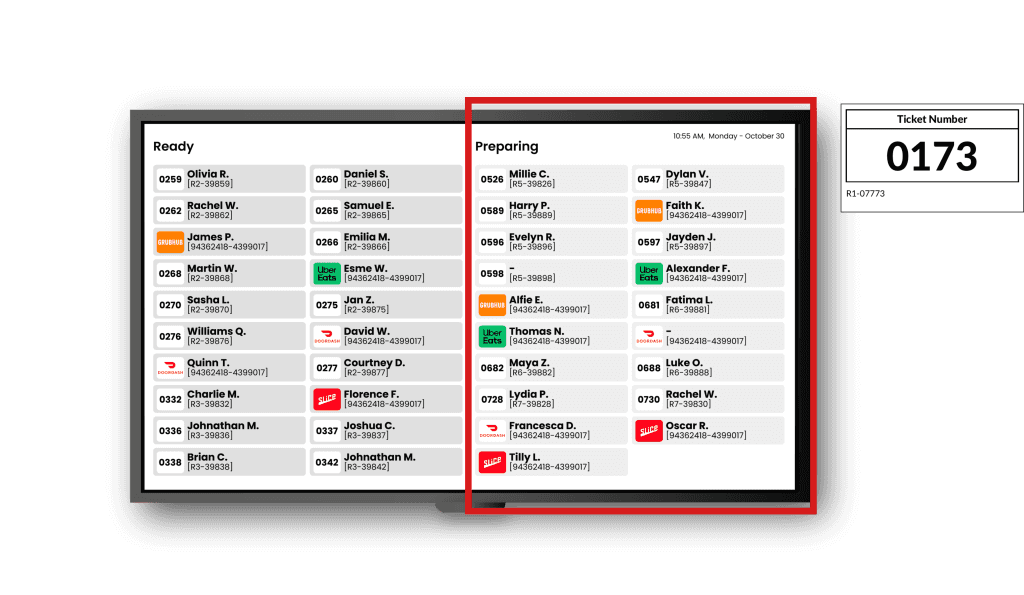
When an order is placed and sent to the kitchen, the order shows on the OSB screen in 'Preparing' section and a ticket is with a ticket number is printed for the customer (the ticket is not printed for online orders).
Marking order as Ready / Done
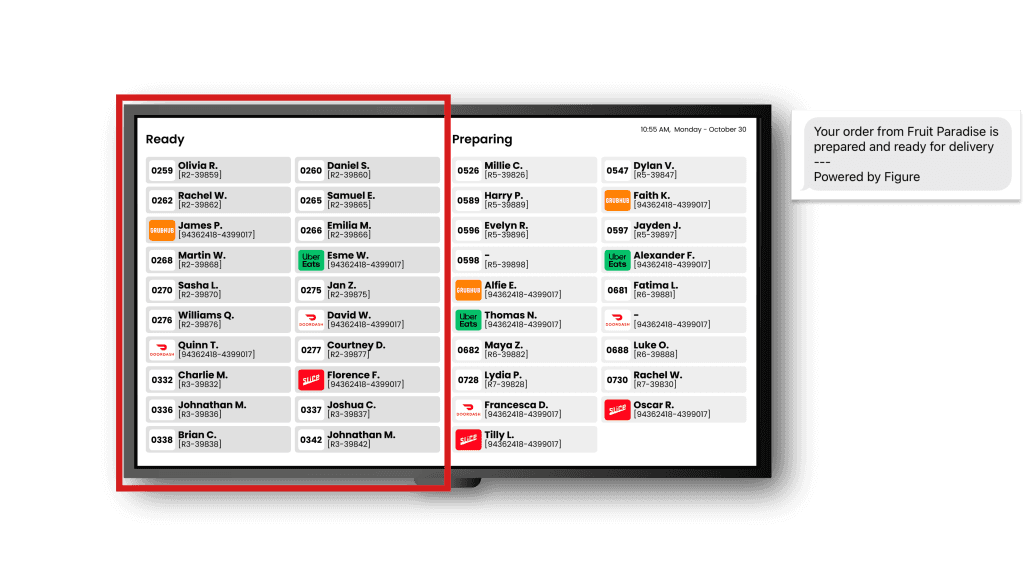
When the order is marked as ready by either marking it as 'Done' in the Expediter KDS (learn more about Expediter KDS in this article) or marking it as 'Ready' in the POS (learn more about marking order as ready in this article), the order transfers to the 'Ready' section on the OSB screen and a text message is sent to the customer.
Information displayed on the OSB screen
Tickets
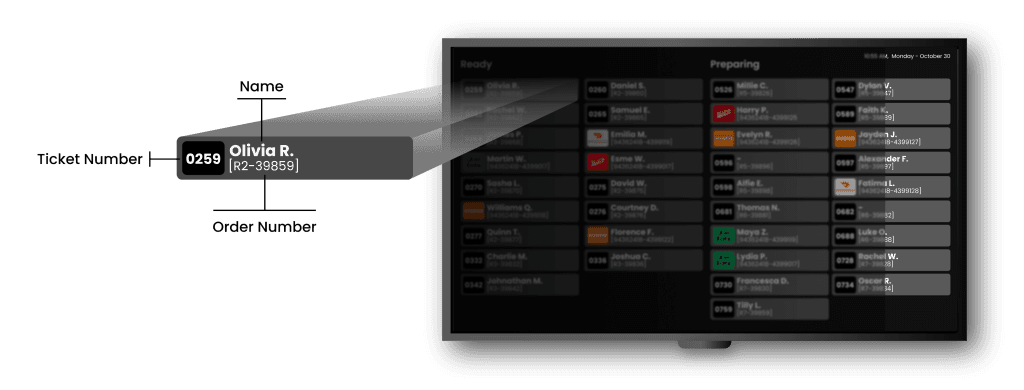
Each ticket displays the customer name, ticket number (except for orders from third parties – there is a logo of the platform displayed) and order number.
Configuration and Customization
For the initial set up of OSB reach out to support@figure.dev and one of our representatives will walk you through the process.
Screen layout
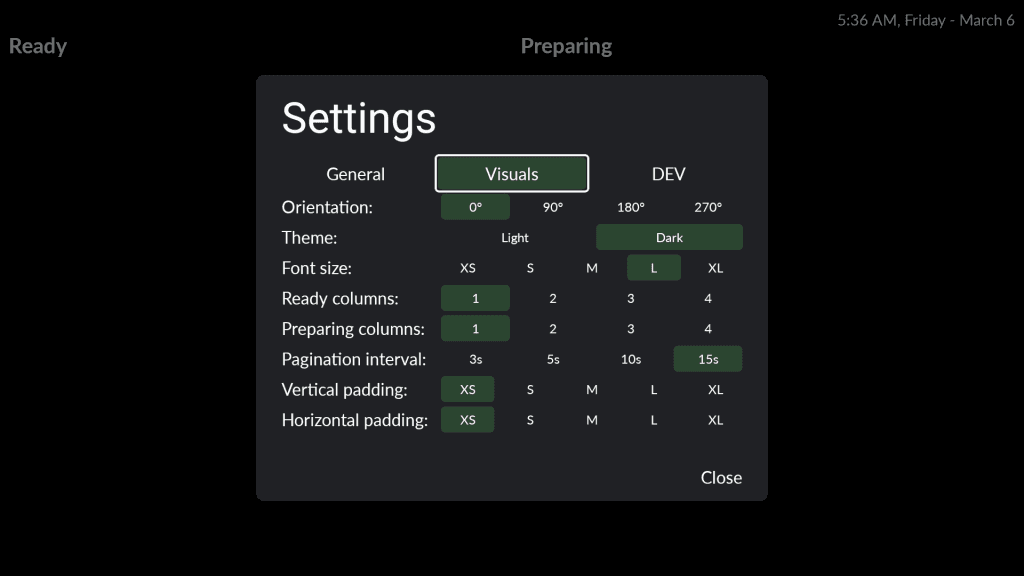
The OSB screen layout can be customized in the OSB settings (triggered by pressing the down button and confirming on the remote controller).
Duration
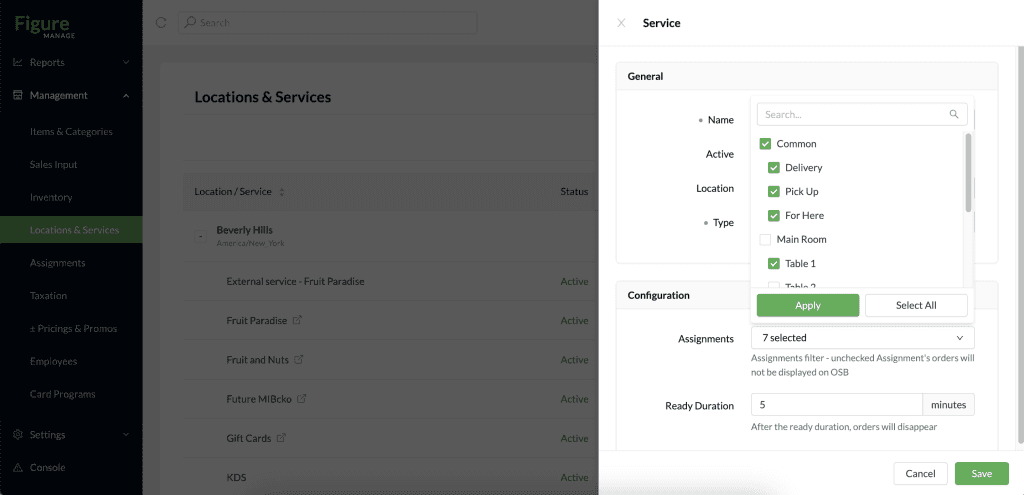
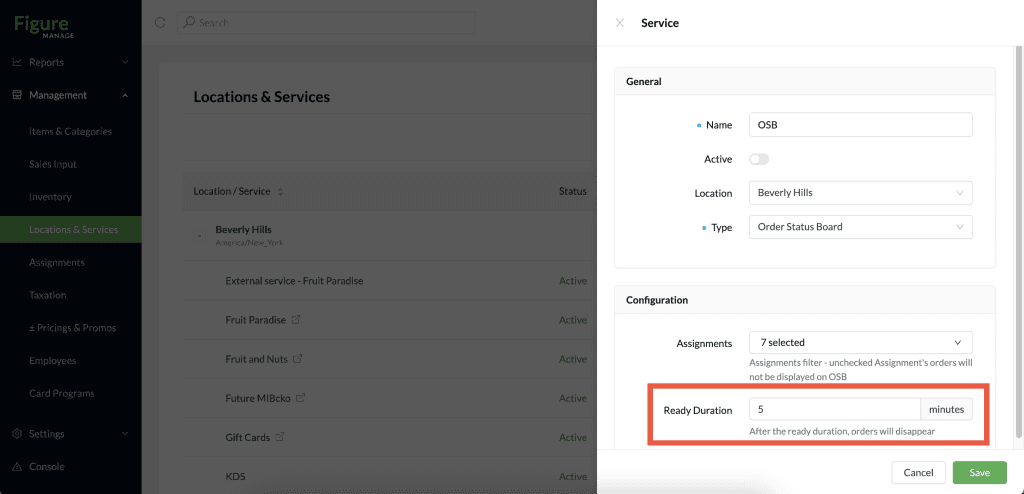
You can set the duration for which the order remains in the 'Ready' section until it disappears. You can do this in Figure Manage > Management > Locations and services.
There, open the deatil of the OSB service which has been set up prior and set the duration.
Which tickets to display on OSB
You can choose assignments that will be displayed on OSB.
To configure this, go to Figure Manage > Management > Locations and services.
There, open the detail of the OSB service which has been set up prior and select the assignments for which you want the tickets to be shown on OSB screen.
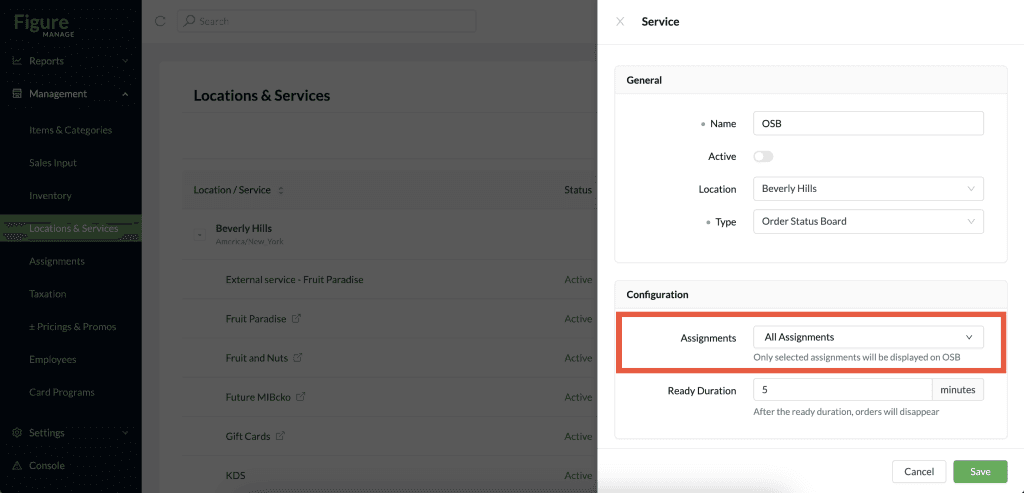
Select the assignments: