The Price Input Mode setting controls how the POS interprets numbers entered into price-based fields. This determines how the system converts the numbers typed on the keypad into a monetary value.
With this setting, you can choose whether numbers entered on the POS are interpreted as whole currency values or cent-based values.
This feature helps streamline price entry and ensures consistency across your POS terminals and connected Customer Facing Displays (CFDs).
What is Price Input Mode?
Price Input Mode determines how the POS converts numeric input into a dollar value when entering prices.
For example, depending on the selected mode, typing 150 could be interpreted as either:
$150.00
$1.50
This behavior applies only to fields that accept monetary values, such as price adjustments or manual price entry.
Price Input Mode options
There are two available input modes.
Whole Number Input
With Whole Number Input, numbers entered are interpreted as full currency values.
Example:
Entered Value | Result |
|---|---|
12 | $12.00 |
150 | $150.00 |
1200 | $1,200.00 |
This option works best when staff frequently enter whole dollar amounts.
Cent-Based Input
With Cent-Based Input, numbers entered are automatically interpreted as cents.
Example:
Entered Value | Result |
|---|---|
1 | $0.01 |
150 | $1.50 |
1200 | $12.00 |
This eliminates the need to manually enter a decimal point when entering prices and can speed up price entry for staff.
When enabled, entering 150 automatically registers as $1.50.
Where to configure Price Input Mode
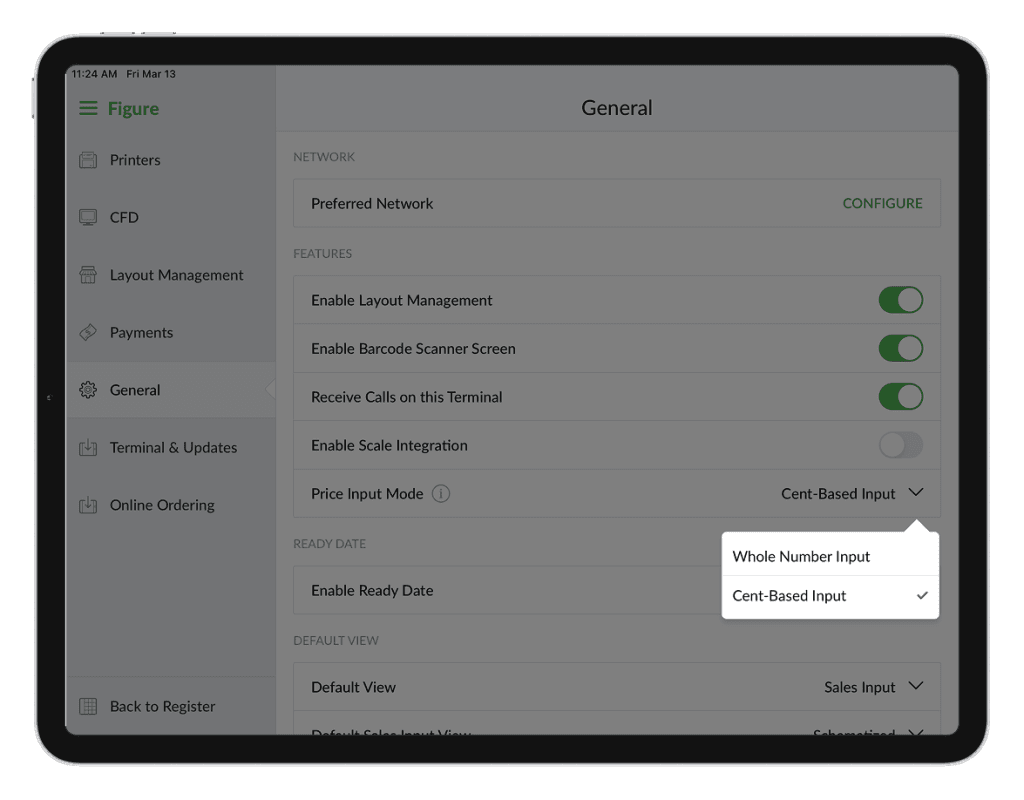
Price Input Mode is configured directly on the POS terminal (this setting is not available in Figure Manage).
To configure it:
On the POS > Main Menu (top left corner) > Settings > General
Find Price Input Mode
Choose either Whole Number Input or Cent-Based Input
Important notes
The setting applies only to price-based fields
It affects both the POS terminal and the connected Customer Facing Display (CFD)
The setting must be configured individually for each POS terminal
Changing the setting on one terminal does not change it for other terminals