Adjust item prices for your Grubhub and UberEats platforms relative to the prices set on POS or Make It Butter. Adjust prices individually or apply percentage increases across the menu with ease. Manage it all seamlessly on Figure Manage and sync directly to your aggregators.
To start receiving UberEats or Grubhub orders in Figure POS, please, reach out to support@figure.dev.
Percentage Increase For All Products
Set a percentage increase applied to all Items, Modifiers and Options on Grubhub or UberEats. See the steps below.
[1] Go to Figure Manage > Management > Locations & Services.
[2] Find the Aggregator type service for Grubhub or UberEats – it needs to be set for each platform separately.
[3] Click on the Aggregator service to open it's detail.
[4] Tick the checkbox by the Increase Price By and set the required percentage that will be applied to all items on that respective platform – Grubhub or UberEats.
You can also enable the Round Up Prices to make sure the prices are rounded up to either .49 or .99 cents.
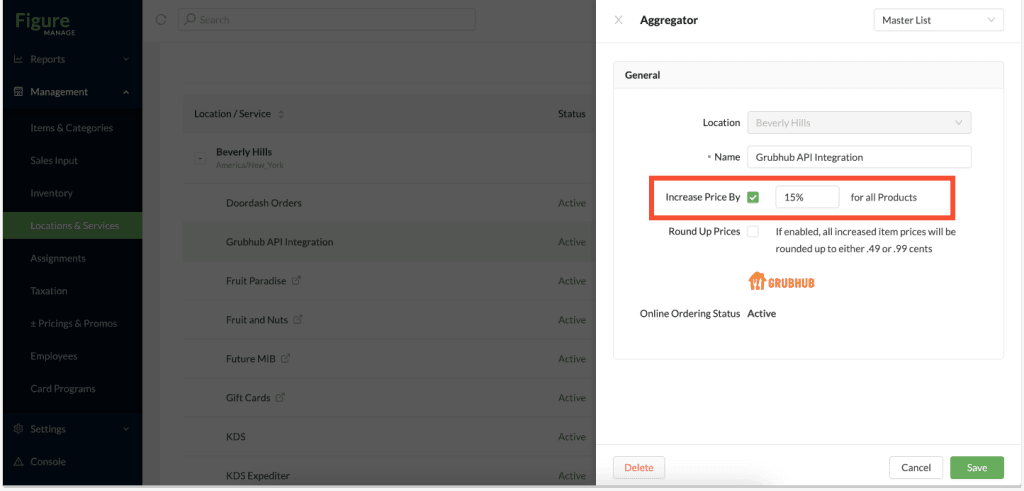
[5] Click Save
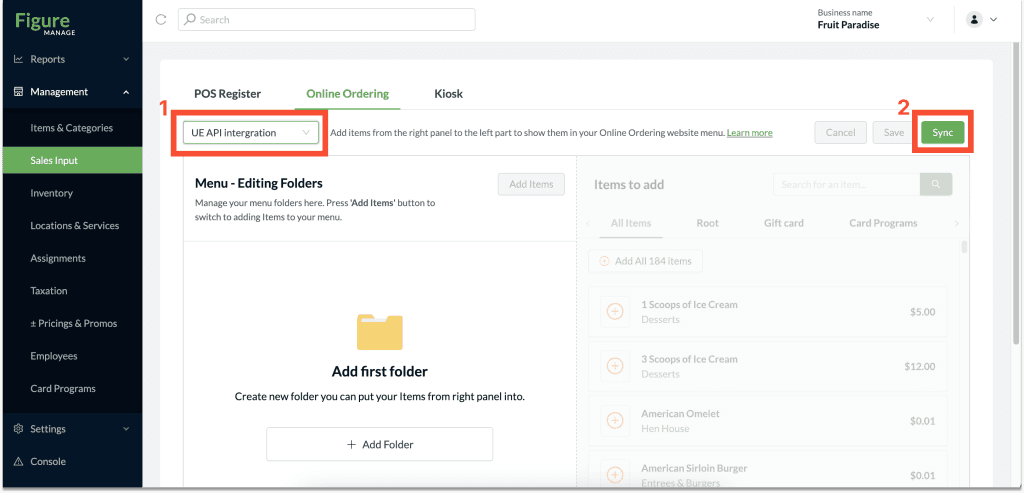
[6] Important!: Go to Management > Sales Input. Select the service for which you just made the price adjustments in the service picker and press Sync.
The price change will be reflected on the Grubhub / UberEats platform within 10 minutes.
Price Overrides Per Item
This way it is possible to override prices for individual items.
[1] Go to Figure Manage > Management > Items & Categories
[2] Find an item for which you would like to override the price and click on the item to open it's detail
[3] Important!: Select a location in the top right corner! Without selecting a location, you will not be able to override the price.
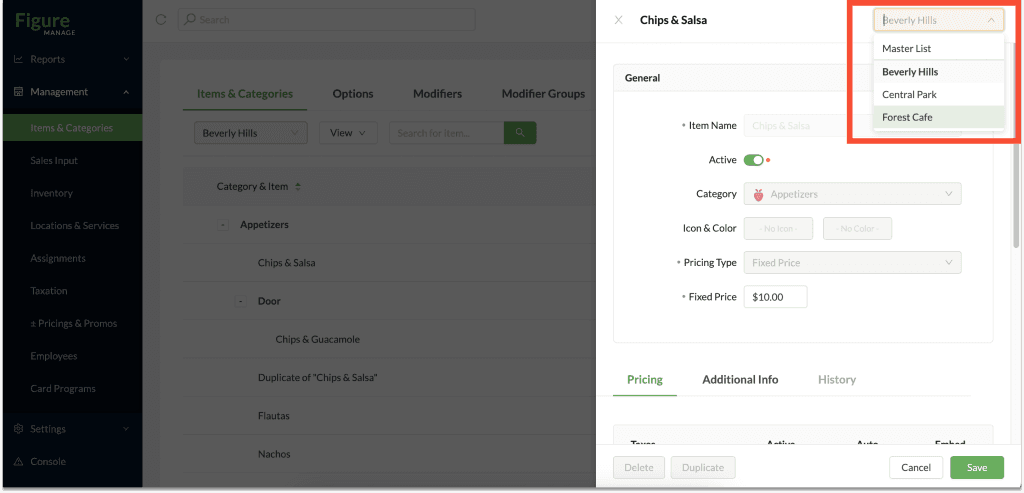
[4] In the item detail, scroll down to see the Aggregator Price Overrides section.
Note: What will be displayed there depends on what kind of services are integrated – if only Grubhub is integrated, only Grubhub box will appear in this section.
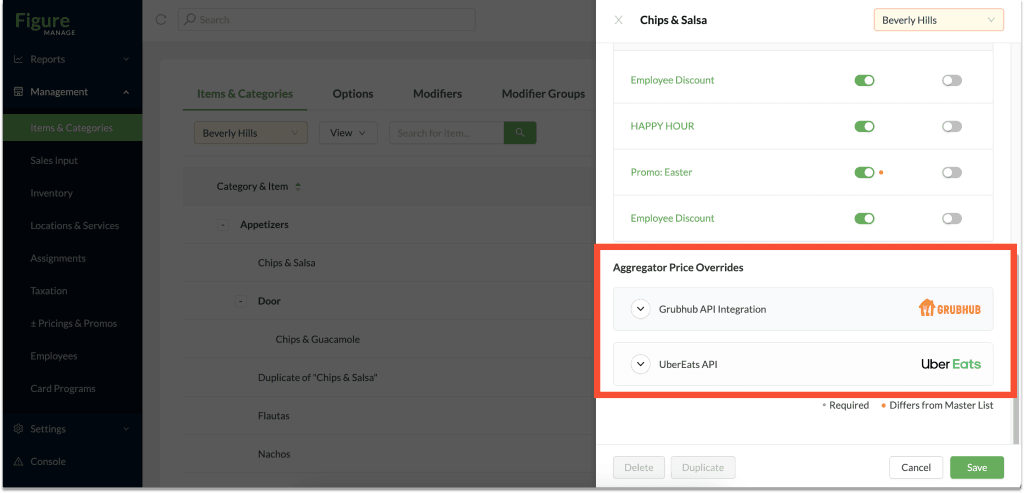
[5] Expand one of the integrations by clicking on the box / button.
[6] Enter the price that should be applied on that platform (Grubhub / UberEats).
Note: If a percentage increase have been already applied, you will see it stated in the brackets in the Current Price column.
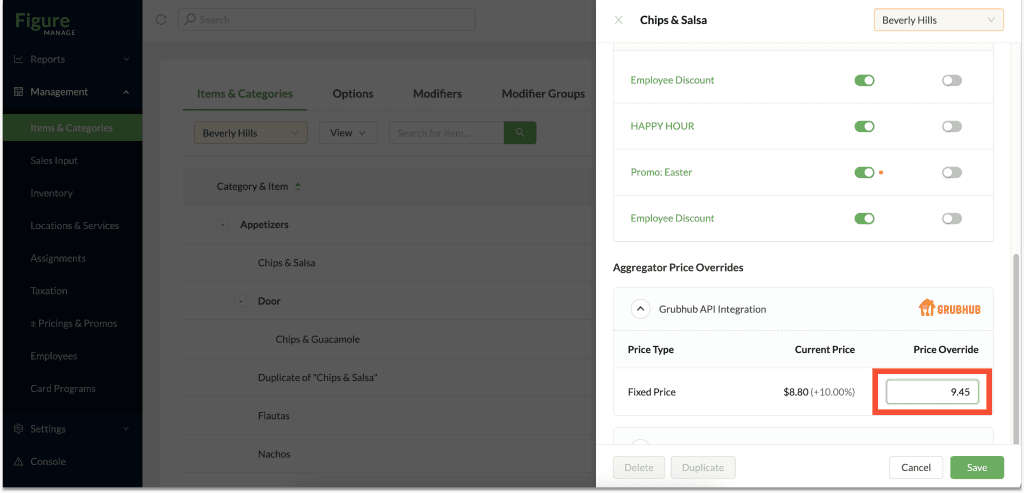
[7] Click Save
[8] Important!: Go to Management > Sales Input. Select the service for which you just made the price adjustments in the service picker and press Sync.
The price change will be reflected on the Grubhub / UberEats platform within 15 minutes.
These price adjustments will not affect prices in Figure POS, Make It Butter or Kiosk.