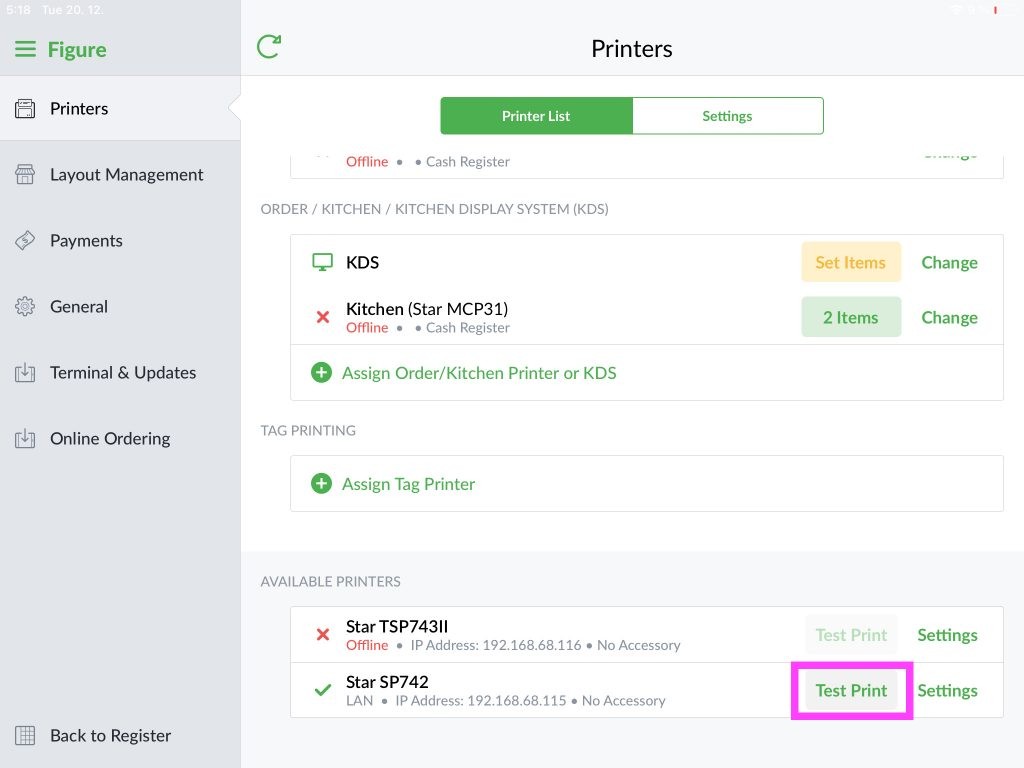
If your printer is not working or does not print 'Test' receipts, try the following troubleshooting steps:
Ensure all network cables and power cables are securely plugged in.
Ensure the printer has paper in it and the paper is replaced correctly.
Restart the power for the printer.
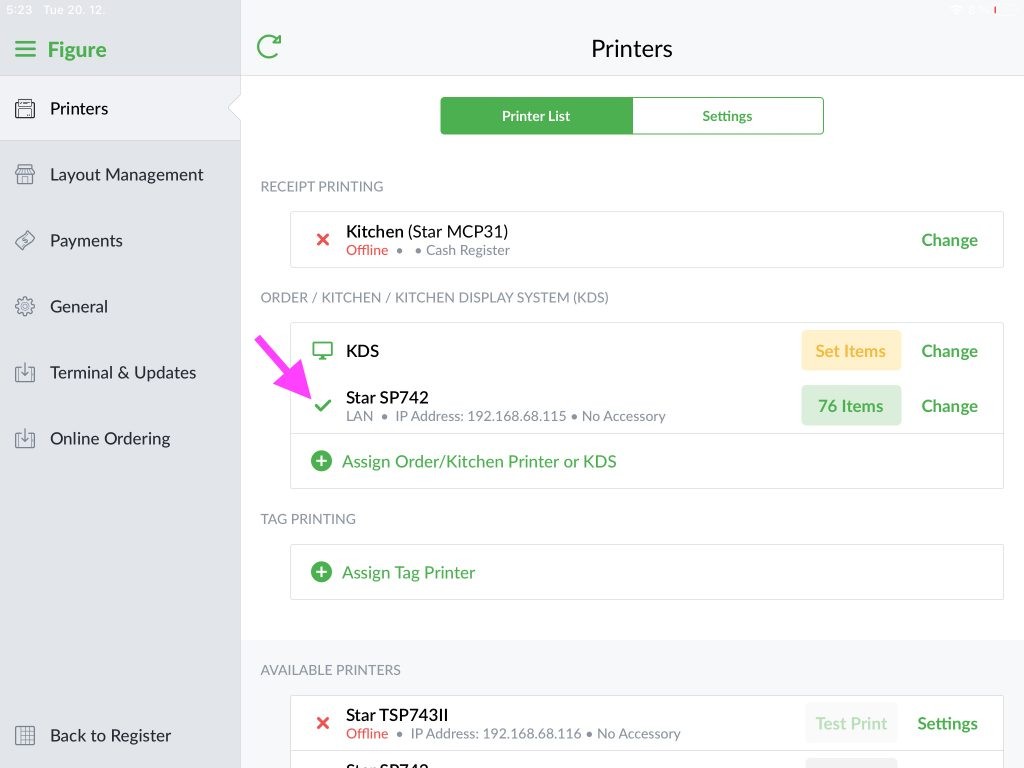
Make sure the printer is connected (Green Check Mark next to the connected printer) in POS > Menu > Settings > Printers:
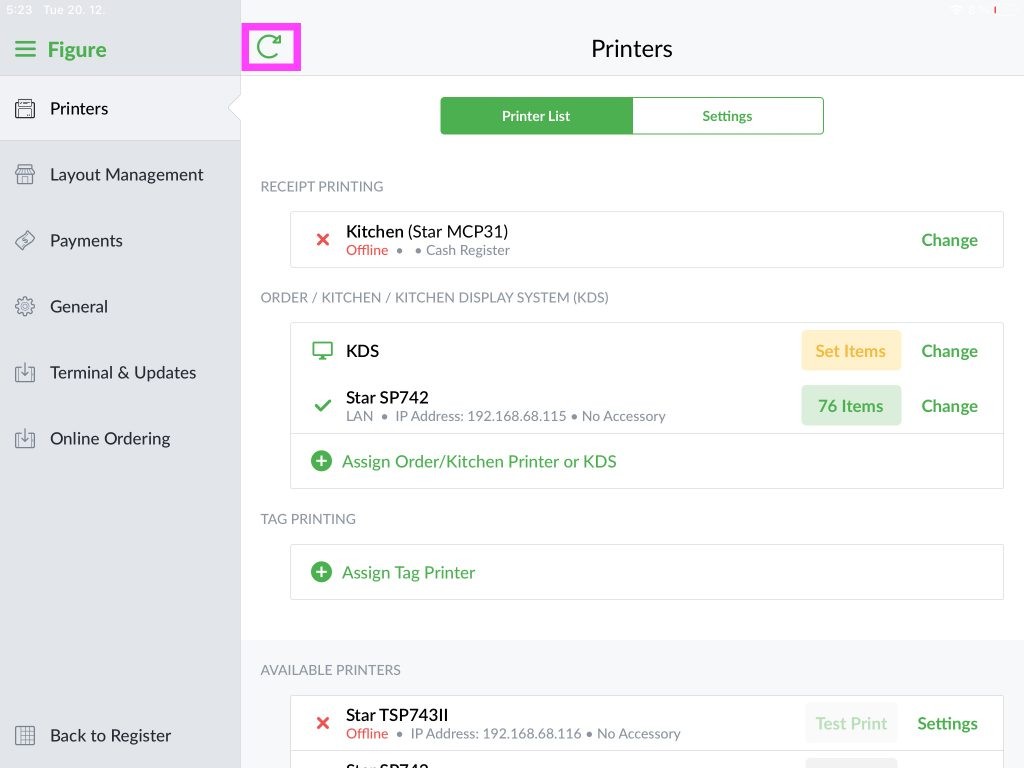
In the Figure app, go to Settings > Printers > Printer List > Refresh:
Make sure the iPad device is connected to the same WiFi network as the printer
If the iPad and printer are on the same network and you are still unable to connect to the printer, follow these steps below:
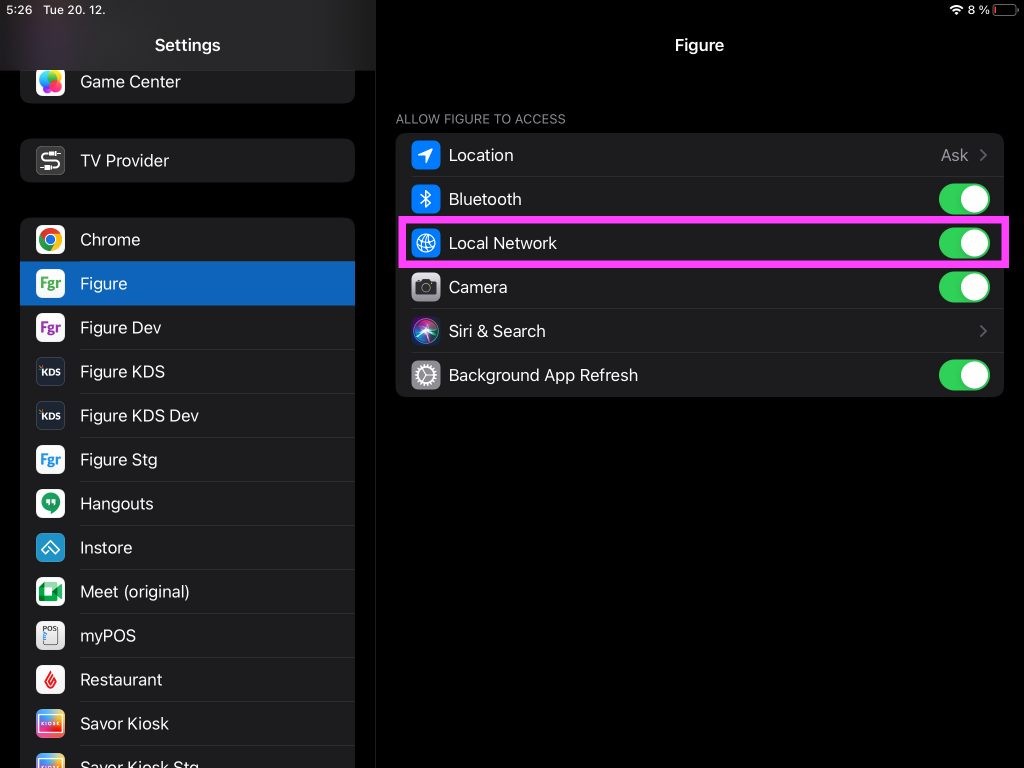
In your iPad go to Settings > Figure (Scroll down) > Enable Local Network
How to print a test receipt
Go to your POS > Settings > Printers > scroll down, find your available printers and hit Test Print