Print promotional messages (and coupons) with your sales receipts to inform customers about your offerings.

How to set up a Promo Note
[1] Log into Figure Manage website with your credentials and go to Management -> ± Pricings
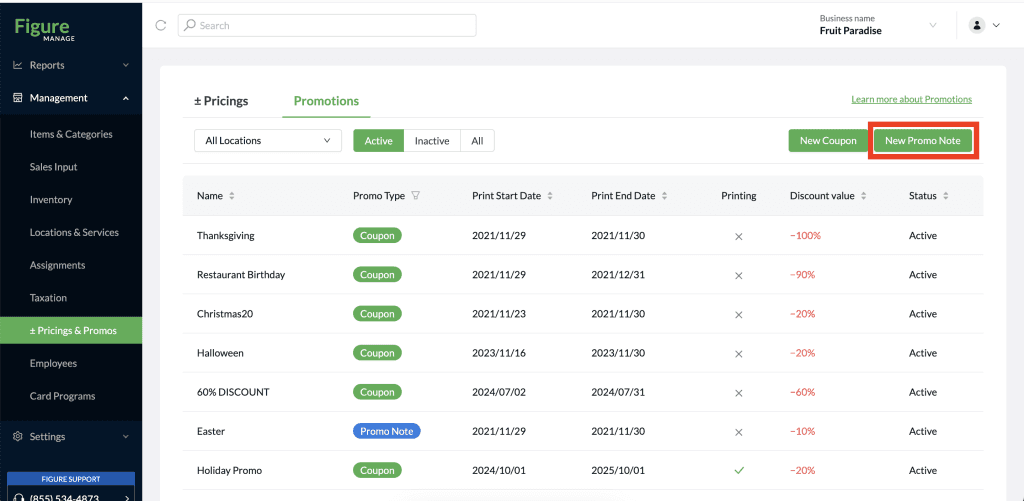
[2] Go to Promotions tab
Here you can see the list of already existing promotions or create a new one.
[3] Click New Promo Note
[4] Fill out the fields:
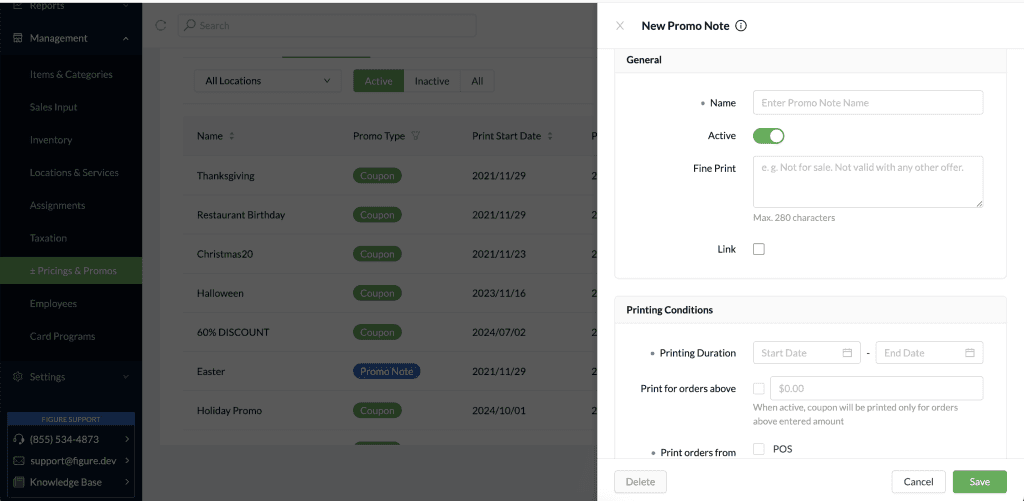
Detailed description of the fields:
Name
The name will be displayed in the list of promotions in Figure Manage and it will be printed on the coupon/receipt.

Active
With this button you can de/activate the promotion. No note will be printed when it is deactivated.
Fine Print
Promotional message.

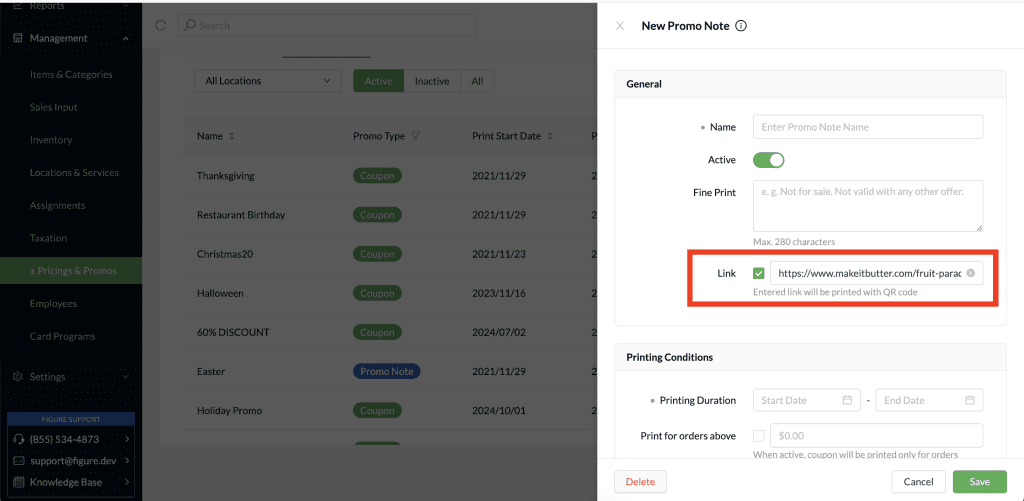
Link
You can print any URL (and automatically generated QR code) alongside the Promo Note.
If you have Make It Butter (online ordering) enabled, the Make It Butter's link appears by default. You can customize the URL—for instance, by using your restaurant's website.
Printing duration
Set the duration when the Promo Notes will be printed with the sales receipt.
Print for orders above
Set the limit for issuing the Promo Note.
Orders from
Select for which order – from which sources – should the Promo Note be printed. If you want the Promo Note to appear only for Make it Butter orders, select just that option.
Locations section:
Choose at what locations this Note will be printed.
How the Promo Note is issued / printed
After setting the printing conditions above, the Promo Note will automatically print with the customer copy of the sales receipt whenever an order meets those conditions.
Note: Promo Notes only print on physical printers and are not included with email receipts.