In Figure POS, you can request delivery though one of our delivery partners (Ondy, DoorDash, Relay, A-Team). See how you can do that below.
What is needed to be able to request delivery
To request delivery, you firstly need to have the delivery partners set in the system – for that, please, reach out to us at support@figure.dev. We'll be happy to do it for you!
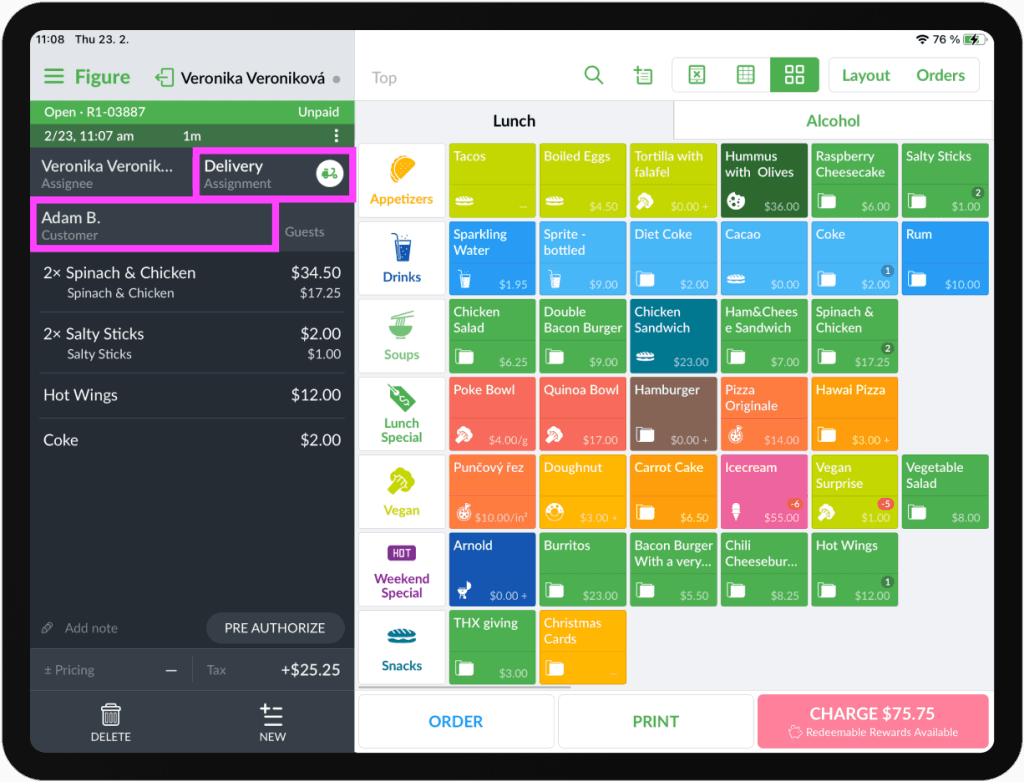
Then, the order has to have the assignment set as 'Delivery' and a customer has to be assigned to the order. The customer has to have an address and a phone number in their profile.
How to request delivery
[1] Create an order with a customer assigned and a Delivery assignment
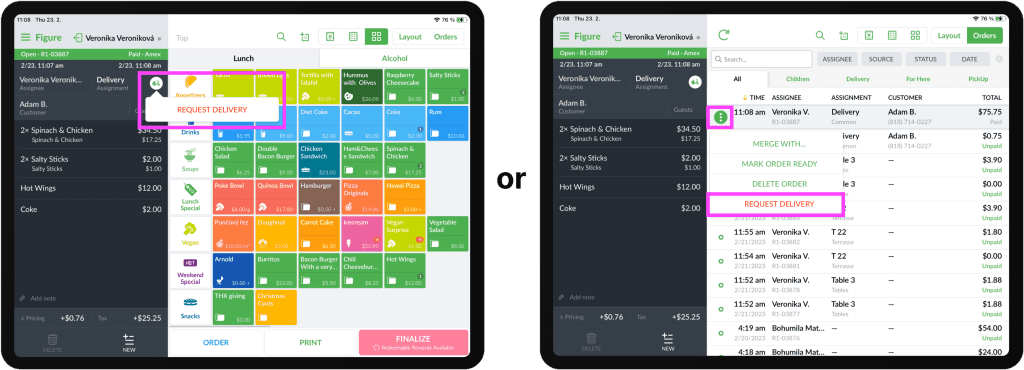
[2] To initiate the delivery request, there are two ways how to do it – click the scooter icon or click the 3 dots when in the Orders list and hit REQUEST DELIVERY:
[3] The delivery options (partners) you have set in your system will appear as options to choose from. It can be only 1 of them or multiple. In this example below, you can see Doordash and Ondy - both of them are set for the restaurant.
Choose a delivery partner by clicking on their logo,
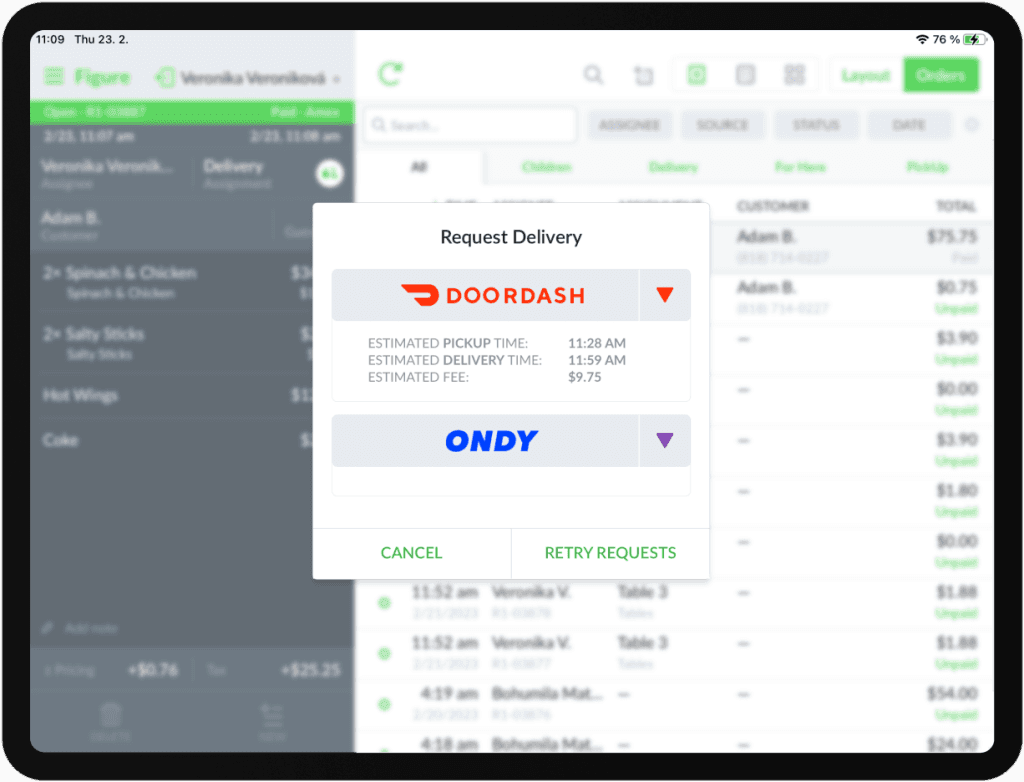
If there are any errors displayed in this window, you can try to RETRY REQUEST
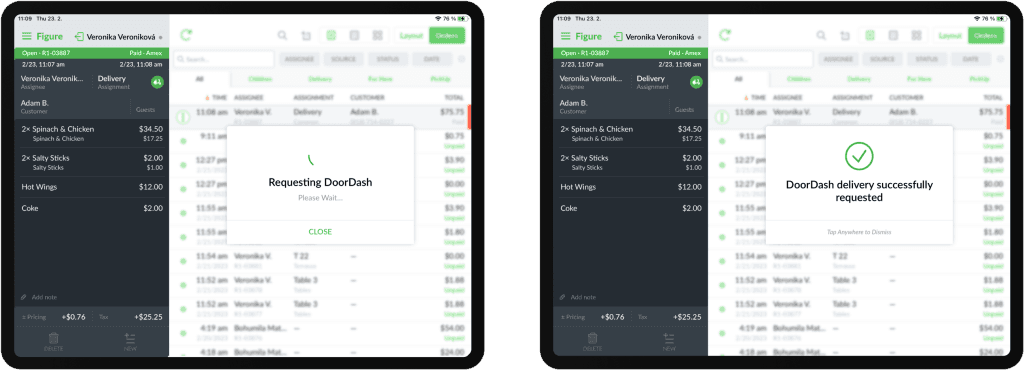
[4] After choosing a delivery partner, the delivery request will be send to the delivery company. You will see a success message in your POS:
How to check the delivery status
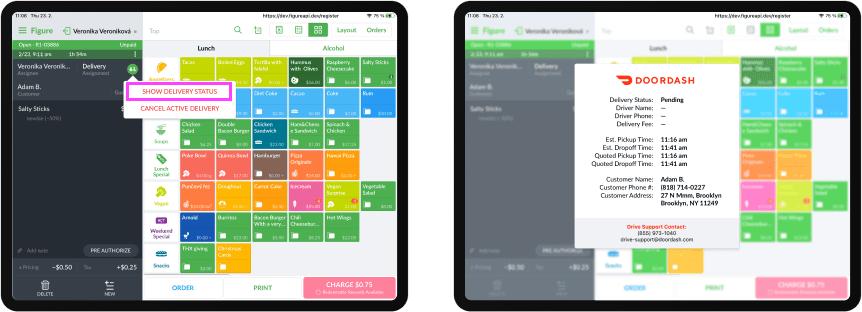
[1] Click the scooter icon or the three dots when in the Orders list
[2] Hit SHOW DELIVERY STATUS
How to cancel the delivery
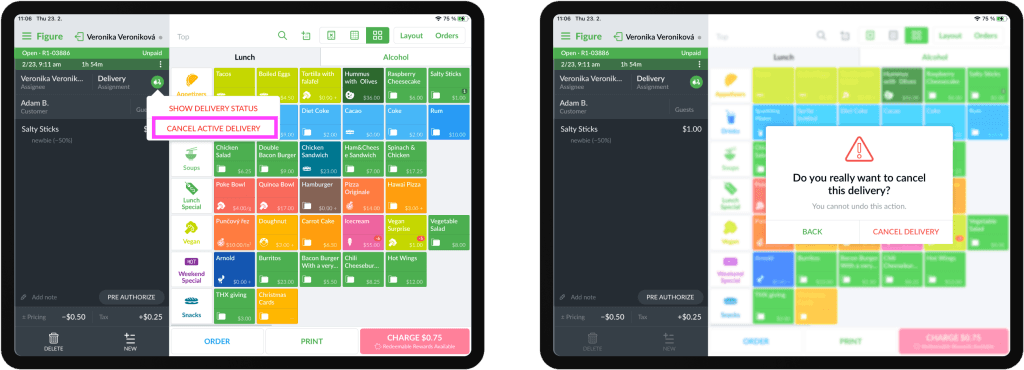
[1] Click the scooter icon or the three dots when in the Orders list
[2] Hit CANCEL ACTIVE DELIVERY
[3] Then, confirm it in the window that appears by hitting CANCEL DELIVERY
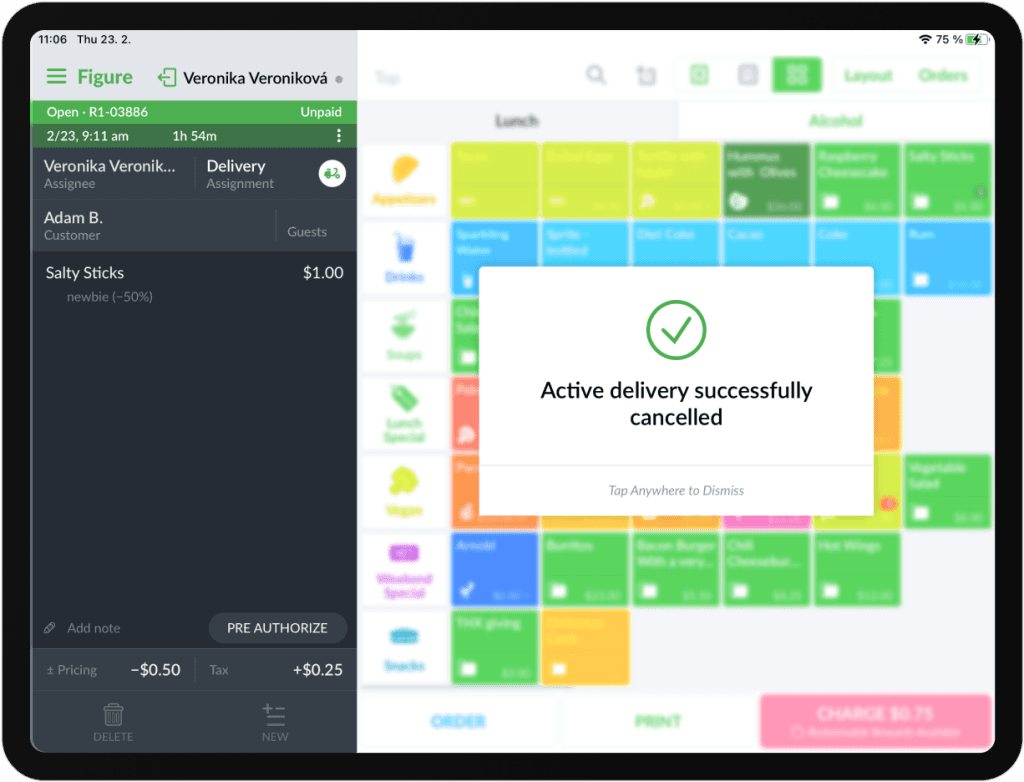
Then, you will see the confirmation: