To speed up service and reduce manual taps, you can set a Default Assignment for every new order created on a specific POS terminal. This is particularly useful for stations dedicated to a single order type, such as a "To Go" window, a "Delivery" tablet, or a specific "Bar" terminal.
Why use Default Assignments?
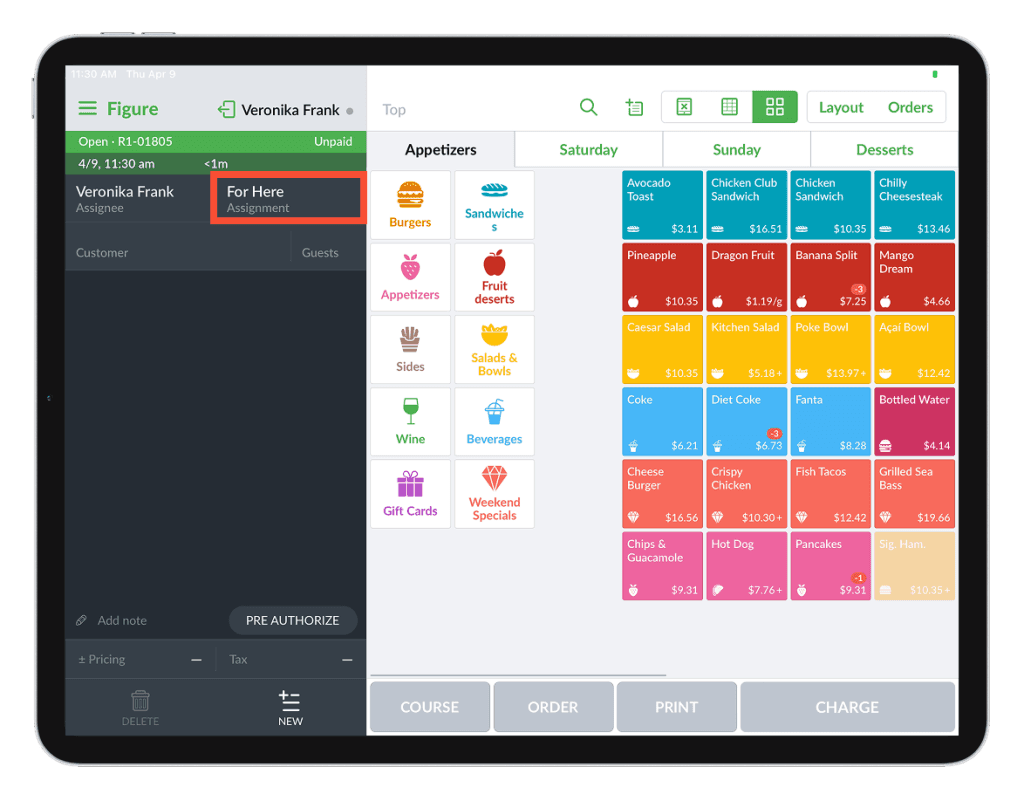
Instead of manually selecting an assignment (like For Here or To Go) for every single transaction, the POS will automatically apply your chosen selection the moment you start a new order.
How to configure a Default Assignment
Open the POS Menu and navigate to Settings.
In the left-hand sidebar, select General.
Scroll down to the Order Flow section.
Locate Default Assignment and tap the dropdown menu (it may say None by default).
Select your preferred assignment from the list (e.g., To Go, Delivery, or a specific Table/Bar section).
The setting saves automatically.

What happens on the Register?
Once enabled, every time you start a new order:
The assignment is instantly applied (visible at the top of the order summary).
Your staff can still manually change the assignment if a specific customer has a different request.
Kitchen tickets will automatically include this assignment, ensuring the KDS or printers route the order correctly.
Tip: If your terminal handles a high mix of different order types (e.g., 50% For Here and 50% To Go), it may be best to keep this set to None to ensure staff make an intentional selection for every guest.