Items on the Order / Kitchen receipt can be sorted alphabetically, by seats or by default – as they are entered/sorted in the POS. See how to change the setting for item sorting:
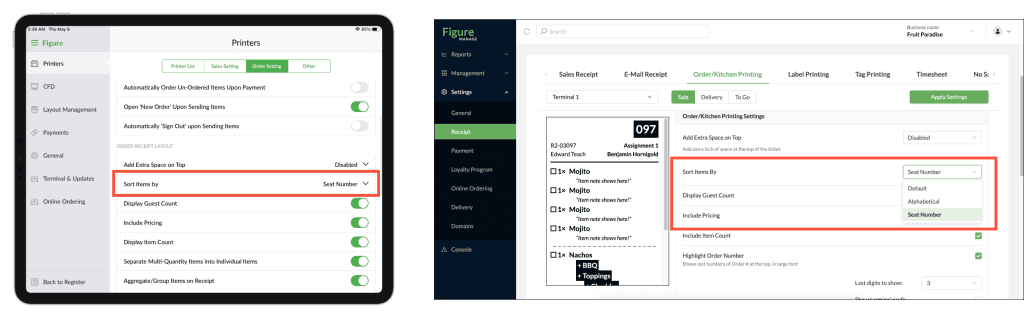
[1] The Order/Kitchen Printing can be customized either in POS > Settings > Printing or in Figure Manage > Settings > Receipt. Go to one of the setting pages.
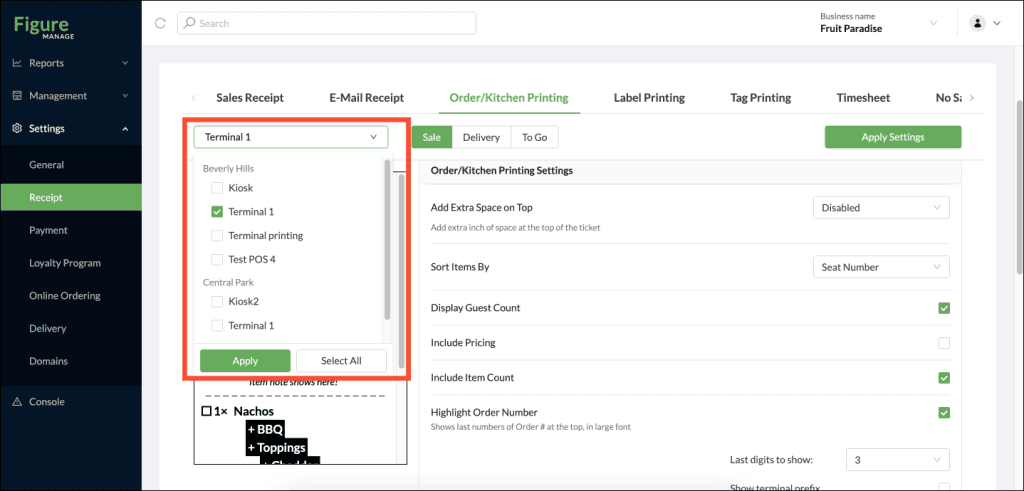
[2] If in Figure Manage, select a terminal / terminals at the top left corner for which you want to create. (When you are changing the setting in POS, it will be reflected only on that particular POS terminal).
[3] Find a setting called 'Sort Items By' and select one of the options of how the items will be sorted.
Default – the items will be printed in the same order as they are shown in the POS order
Alphabetical – items will be printed in the alphabetical order
Seat Number – items will be sorted by the seat number (see the example below)
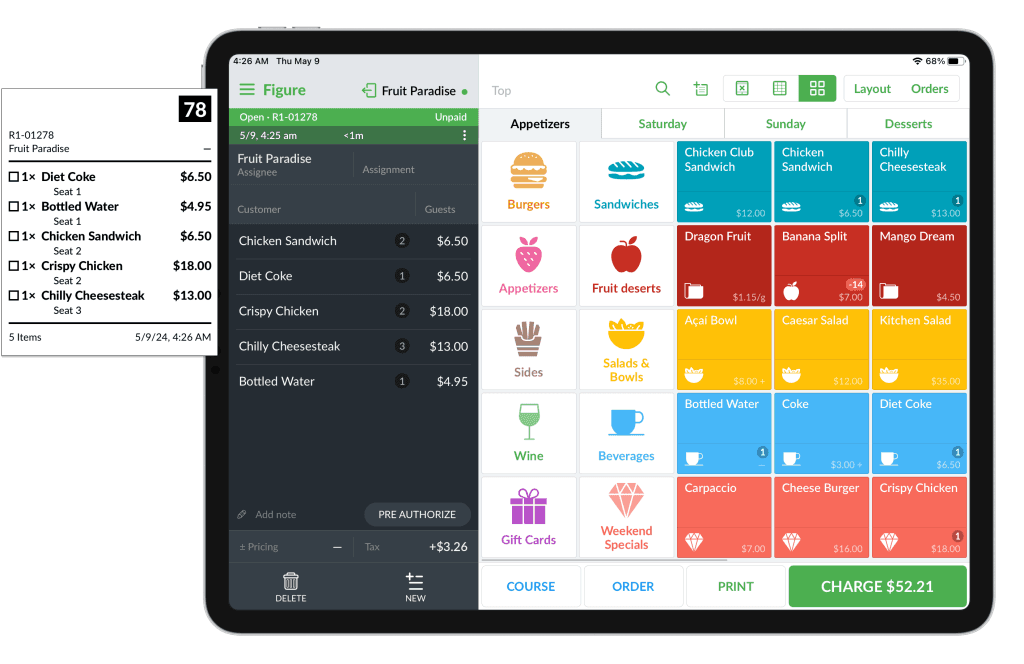
Items sorted by the seat number on the kitchen receipt.
[3] Press Apply Settings at the top right corner. The change will be reflected in the selected POS.