Introduction
The Summary Report provides a high-level financial and operational overview of transactions processed through POS, Online Ordering, and Kiosk systems. It is designed to give managers and business owners a quick yet comprehensive understanding of sales performance, revenue composition, payment behavior, and operational breakdowns for a selected date range, location, and assignee.
Summary Report in Figure Manage
Basic Navigation
To find Summary report, go to Figure Manage > Reports > Summary.
The Summary Report is organized into clearly defined sections, with the option to export the data in CSV or XLS format. Users can filter the data by location, assignee, or a selected date range.
Report Filters
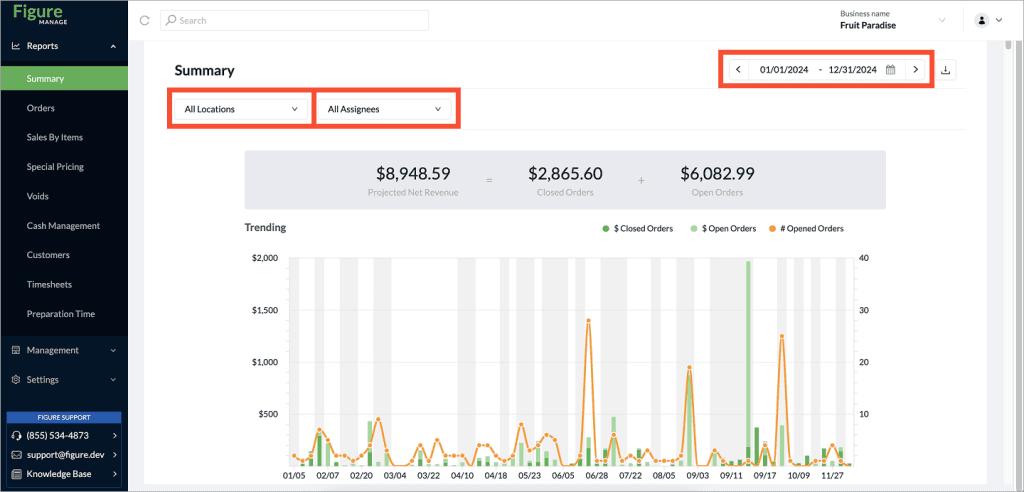
You can apply filters to view data for specific locations, assignees, and within a defined date range.
Select a location / locations – the whole report will only show data related to the selected location/s
Select Assignee/s – the whole report will only show data related to the selected employee/s
Select a date range – the whole report will only show data related to the selected date range
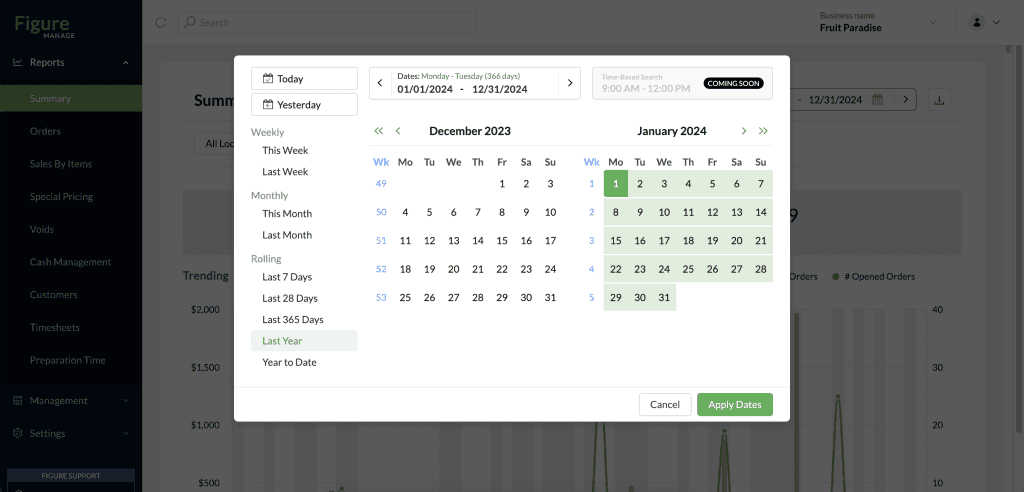
In our enhanced date picker, you can select custom dates, or predefined time range:
Report's Sections
Quick Overview of Projected Net revenue split into Closed orders and Open Orders

Bar Graph
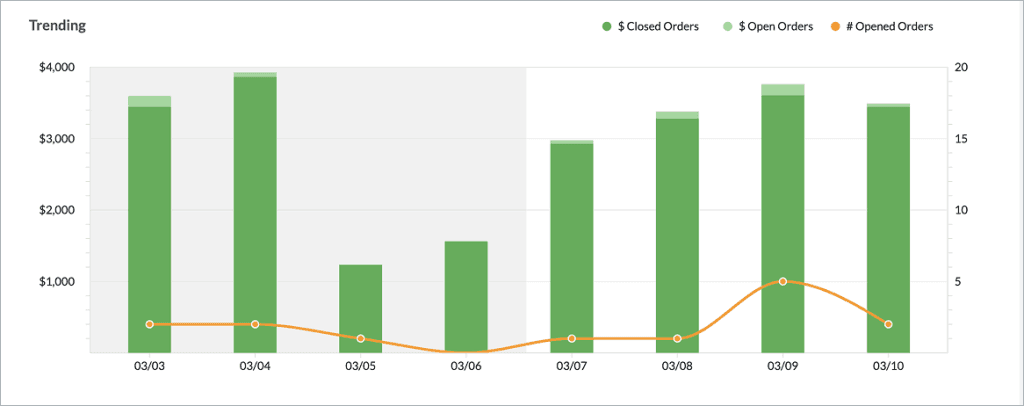
This report visualizes daily revenue trends and provides a quick overview of Projected Net Revenue, split into Closed Orders and Open Orders, over a selected date range
This report highlights how much revenue is being generated each day and how it breaks down across closed and open orders
Value of Closed Orders: The portion of the revenue that has already been finalized and completed.
Value of Open Orders: Revenue tied to transactions that are still in progress (e.g., not yet paid or fulfilled).
Number of Opened Orders each day
Net Collected Breakdown
breakdown of Net Collected to
Gross Revenue
Voids, Refunds, Special Pricings, Losses and Forfeits
Net Revenue
Taxes, Tips and Gratuity, Card Service Fee, Cash Discount, Service Fee
Net Collected By Payment Type
Net Collected broken down to payment types such as External (Uber Eats, Grubhub,...), Card (Visa, MasterCard, Amex,...) and Cash
Net Collected by Payment Type, by Employee
How much each employee collected using different payment methods.
Net Collected Breakdown By Employee
showing gross revenue, voids, refunds, special pricing, taxes, and totals per employee
Net Collected By Source
Source = POS, Kiosk or Online (Make It Butter), External (Uber Eats, Grubhub, DoorDash,...)
Net Revenue By Category
'Category' is a folder created in Items & Categories that groups items (for example items 'Beer' and 'Water' are under a 'Drinks' category)
Net Collected By Assignment
Shows how much was collected per assignment = table, Delivery, For Here,...
Net Collected Breakdown By Payment Type
This report provides a detailed breakdown of Net Collected amounts, categorized by different payment types such as Cash, Card, Loyalty, External, and Card Program.
Sales Tax Report
This section is essential for accounting and compliance purposes.
Tips & Gratuity by Assignment
This final section summarizes total tips and gratuity amounts by assignment, supporting payroll and staff compensation reporting.
Terms Explanation
This section provides clear definitions of key terms and concepts used in the reports and transactions. Understanding these terms is essential for accurately interpreting data and making informed decisions.
Projected Net Revenue is an estimated amount of profit a business anticipates to earn after accounting for all the projected costs.
Closed Orders refer to orders where all necessary processes, such as payment, delivery, or service, have been fully executed. These orders are no longer active and have been finalized.
Open Orders refer to active orders that have been initiated but have not yet been fully processed, fulfilled, or completed. These orders are still in progress and may involve pending actions, such as payment processing, item preparation, or shipment.
Net Revenue refers to the amount of income a business retains after deducting all costs, expenses, and taxes from its Gross Revenue. It reflects the true earnings of the business and provides a clear picture of its overall profitability after accounting for all necessary financial obligations.
Gross Revenue is the total income generated by a business before any deductions are made. It includes all earnings from sales, services, or other business activities, and represents the company’s overall revenue prior to subtracting expenses, costs, or taxes.
Net Collected refers to the total amount of money a business has received from customers, after accounting for any refunds, returns, or adjustments. It represents the actual funds successfully collected by the business.
Special Pricing refers to a discount or any other form of adjustment that modifies the item or order total. This can either increase or decrease the cost of an item or order based on specific conditions.
CSV / XLS Export of the Summary Report
The CSV / XLS export includes a separate row for each day within the chosen date range, offering a detailed daily breakdown of the data.
Export the report by clicking the download button at the top right corner of the page.
The export always respects the page filters (selected location/s, assigness/s and the date range).

Columns in the exported report:
Date
Location
Gross Revenue
Voids
Refunds
Special Pricing
Losses And Forfeits
Net Revenue
Taxes
Tips
Gratuity
Net Revenue + Tax + Tip + Gratuity
Card Service Fee
Cash Discount
Refunds - Historical
Net Collected
Collected - Cash $
Collected - Card $
Collected - All External $
Collected - 3rd Party $
Collected - Loyalty $
Collected - Card Program $
Collected - Cash #
Collected - Card #
Collected - All External #
Collected - 3rd Party #
Collected - Loyalty #
Collected - Card Program #
Transaction Count
Order Count
Guest Count
Summary Report in POS
To find Summary report, go to POS > Main menu (top left corner) > Reports > Summary.
The Summary Report is structured into clearly defined sections and consistently displays data for the relevant location. Users can filter the report by assignee or select a specific date range. Additionally, the Summary Report can be printed for easy sharing or record-keeping.
Print Summary
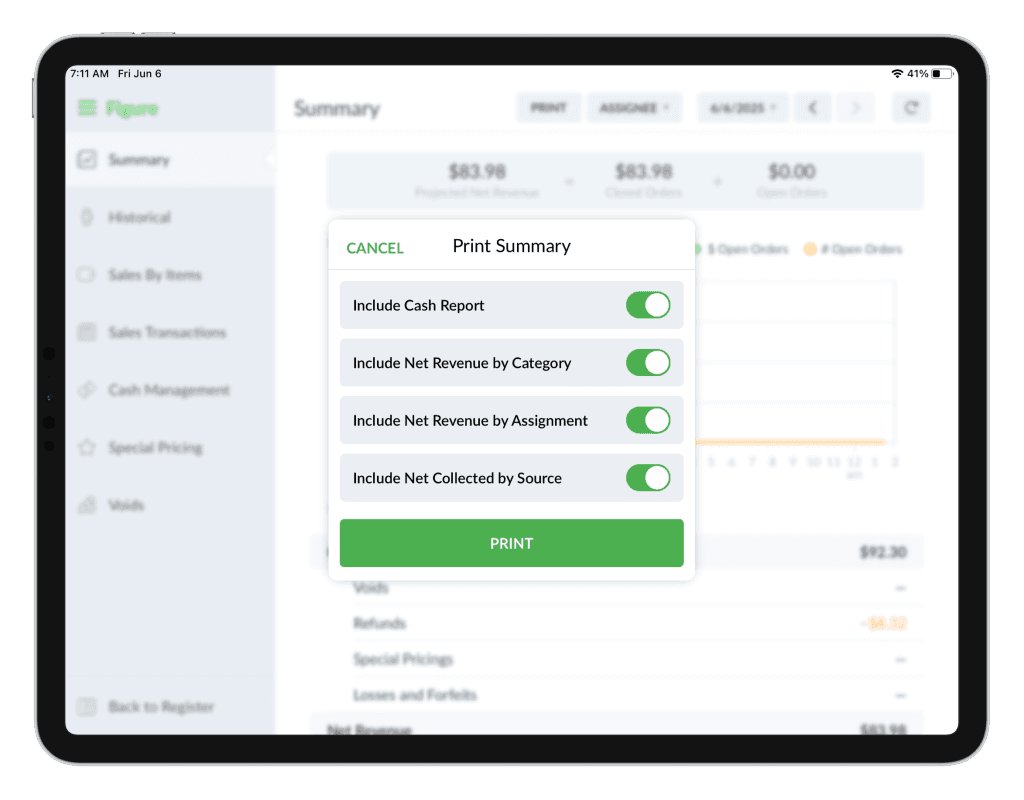
Navigate to POS > Menu > Reports > Summary and tap PRINT at the top.
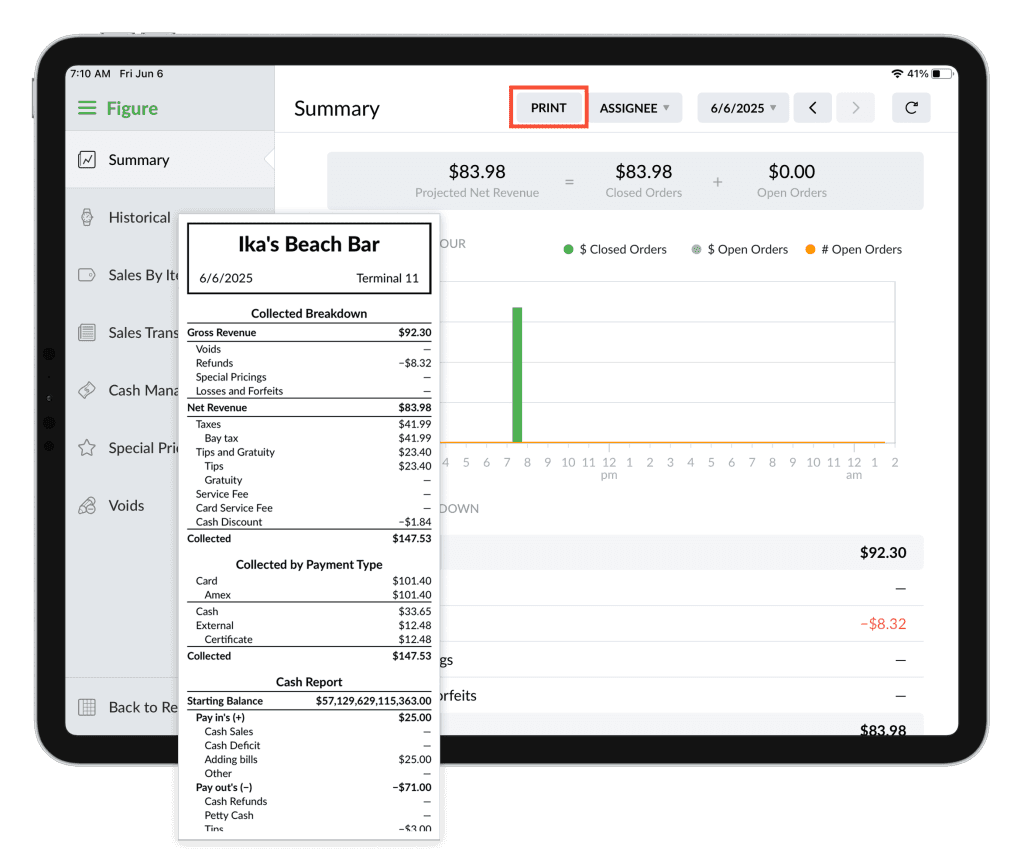
From there, select the type of reports you’d like to print.
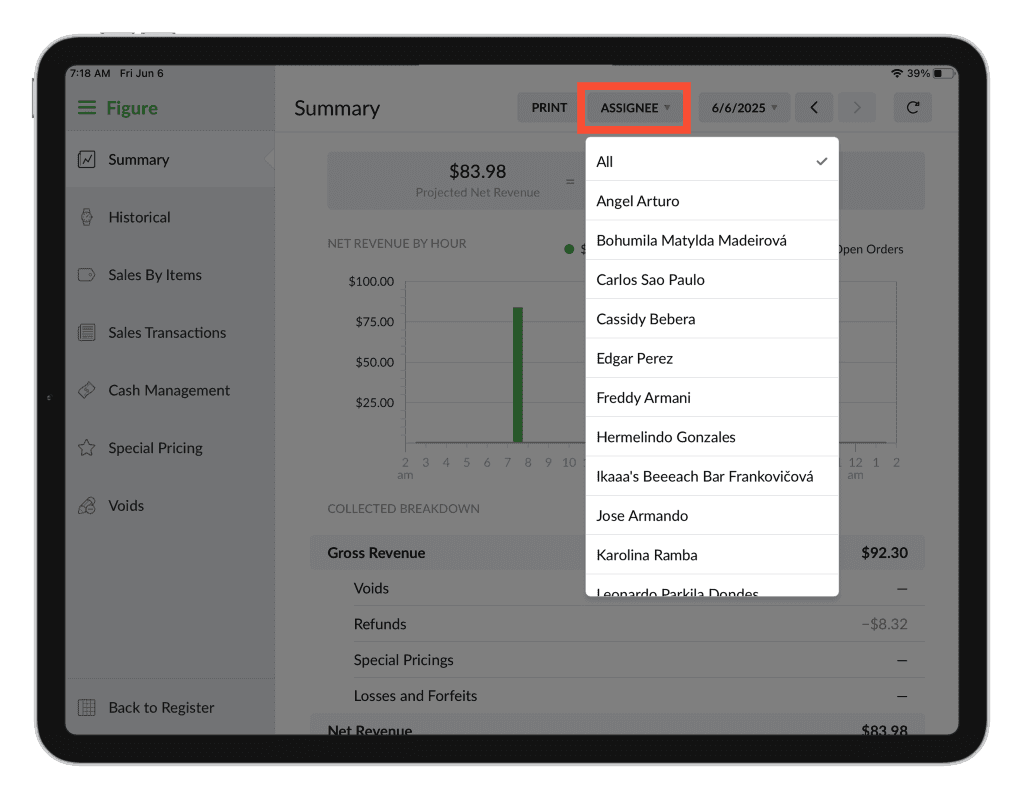
You can also select for which assignees you want to print the report for – to easily see their sales and earned tips.
This report can be printed from any terminal — it summarizes data from all terminals into a single printout.