Introduction
What are taxes? Taxes are the basic fees applied to items.
For example, all your beverage menu can have the alcohol tax + the sales tax. Your food menu can have the sales tax + covid tax + city tax.
What is Auto Tax? Auto Tax means that the tax is automatically applied to the items & categories you choose. Every time somebody will order that item, the tax will be applied.
You have Sales Tax 8.64% applied to all your Sushi Menu. Every time somebody will order a sushi dish, then the Sales Tax will be automatically applied.
What is Embedded (Inclusive) Tax? Embedded (Inclusive) Tax refers to a tax that is already included in the displayed price of a product or service. This means the customer pays the total price without any additional tax added at checkout. The tax portion is “embedded” in the price and later separated by the seller for reporting purposes. This method is commonly used in countries with VAT (Value Added Tax) systems to simplify pricing and enhance transparency for consumers.
Example: pizza costs 19$. If you add a 10% inclusive tax to the pizza, then the pizza is still 19$, from which 1.9$ is the included tax.
What is Active Tax? Active tax means that the tax is functional and can be applied to any item or category. If you de-activate a tax, then you can no longer use it for any item.
How to create taxes
[1] Log into Figure Manage website with your credentials and go to Management > Items & Categories
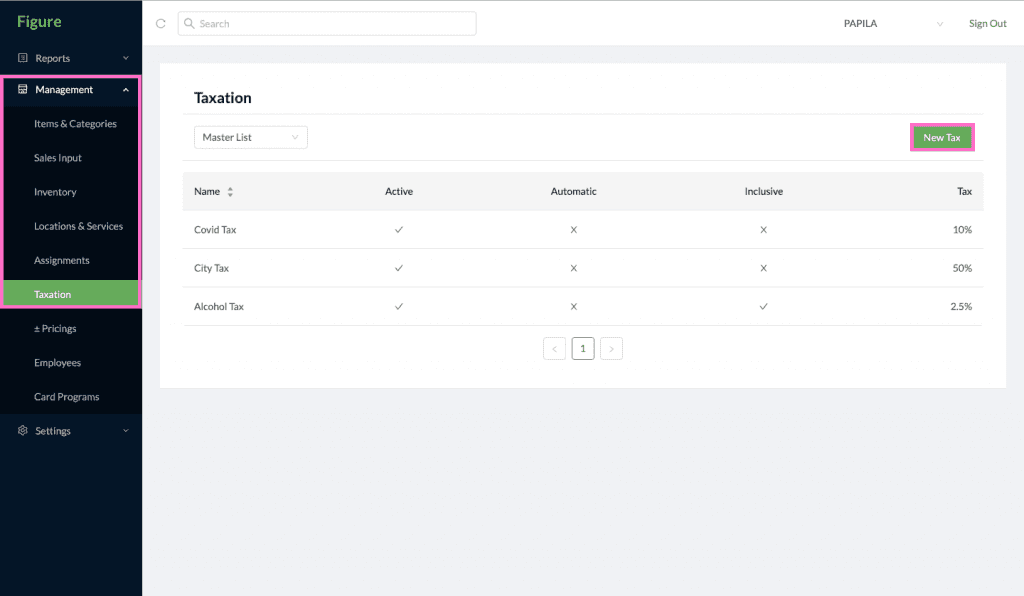
[2] Go to Management -> Taxation
[3] Click on New Tax
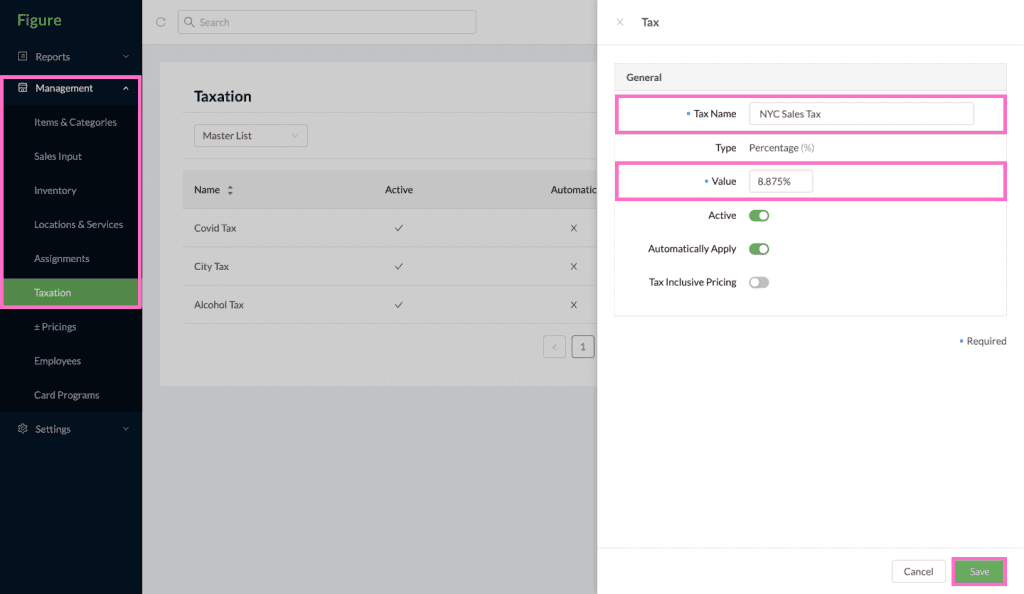
[4] Write Tax Name
[5] Write the Tax Percentage
[6] Choose if the tax should Automatically Apply
[7] Choose if Tax inclusive pricing
[8] Click Save
How to apply TAX to categories
[1] Log into Figure Manage website with your credentials and go to Management > Items & Categories
[2] Go to Management > Items & Categories
[3] Click on Category Name -> Category details will appear on the screen in the right side (see image below)
[4] Scroll down to Taxes part in the Category details (see image below)
[5] Choose if the Tax should be active / auto / embeded (inclusive)
[6] Click on Save

How to apply TAX to items
[1] Log into Figure Manage website with your credentials and go to Management -> Items & Categories
[2] Go to Management -> Items & Categories
[3] Click on Item Name-> Item details will appear on the screen in the right side (see image below)
[4] Scroll down to Taxes part in the Item details (see image below)
[5] Choose if the Tax should be active / auto / embed / inclusive
[6] Click on Save

Tip:
Check other articles: