Introduction
This article guides you through configuring tipping settings in your POS system, including enabling the Tip Guide, selecting the calculation method, and customizing tip options. These settings help you manage how tips are suggested and collected during customer transactions.
The Tip Guide
You can configure the Tip Guide for Online Ordering (Make It Butter) which will affect the checkout on the Make It Butter website, or for Receipts which will affect sales receipts, CFD, Kiosk and POS.
find the tipping settings for Receipts in Figure Manage > Settings > Receipts > Sales Receipt
at both places, always select the terminal you want to configure the tipping for
toggle Enable Tip Guide to the ON position (checked) to show the tip guide on the receipt
find the tipping settings for Online Ordering in Figure Manage > Settings > Online Ordering
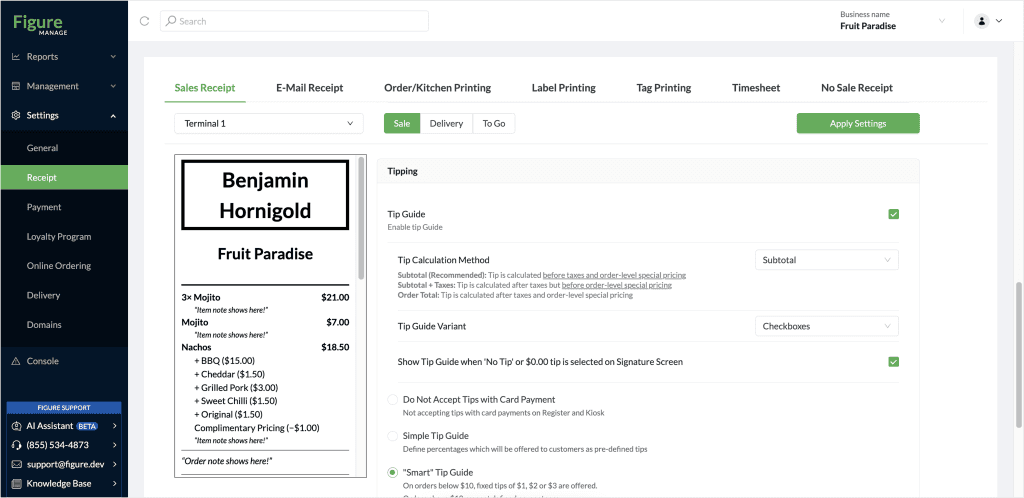
Tip Calculation Method NEW
Select your preferred tip calculation method.
Subtotal (Recommended): Calculates the tip before taxes and order-level special pricing.
Subtotal + Taxes: Calculates the tip after taxes but before order-level special pricing.
Order Total: Calculates the tip after taxes and order-level special pricing.
Tip Guide Variant
Choose how tips are presented – if with Checkboxes or as a Classic variatn.
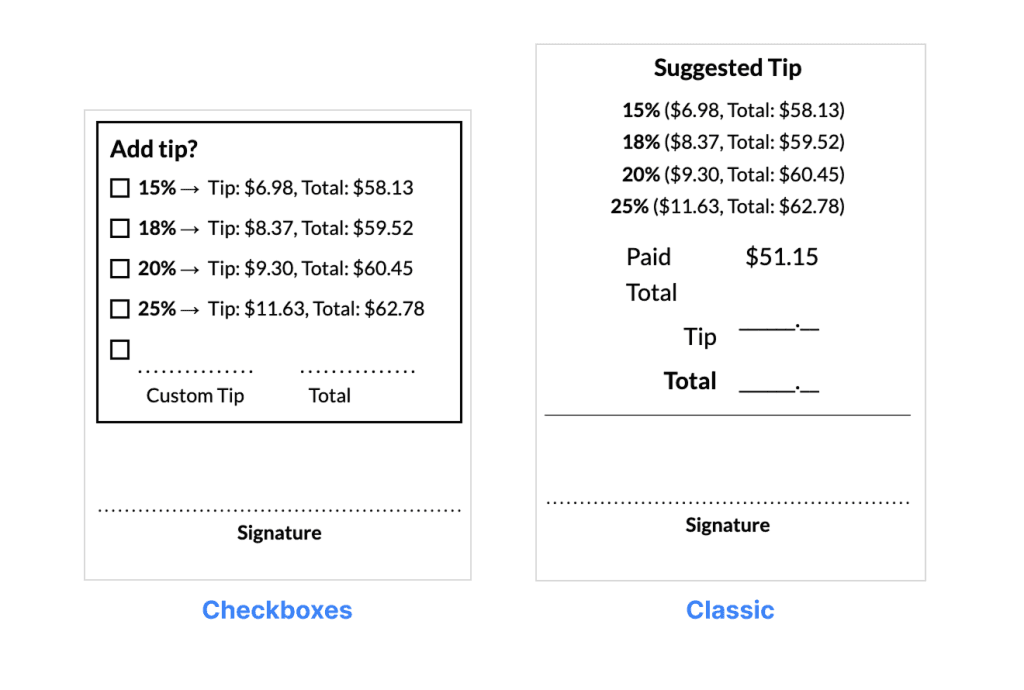
Show Tip Guide When 'No Tip' or $0.00 Tip is Selected
Enable this option to show the Tip Guide even if a customer initially selects "No Tip" on the POS or CFD. This allows the customer to change their mind and fill in the tip later on the printed receipt.
Tip Guide Options
a) Do Not Accept Tips with Card Payment
Disables tipping when using card payments on Register and Kiosk.
b) Simple Tip Guide
Lets you define fixed percentage-based tips.
One tip amount can be set as Default
Customers can always enter a custom tip amount.
No Tip option is always available to customer
c) "Smart" Tip Guide
For orders under $10, offers fixed tip options ($1, $2, $3).
For orders over $10, uses predefined percentage-based tips.
One tip amount can be set as Default
Customers can always enter a custom tip amount.
No Tip option is always available to customer
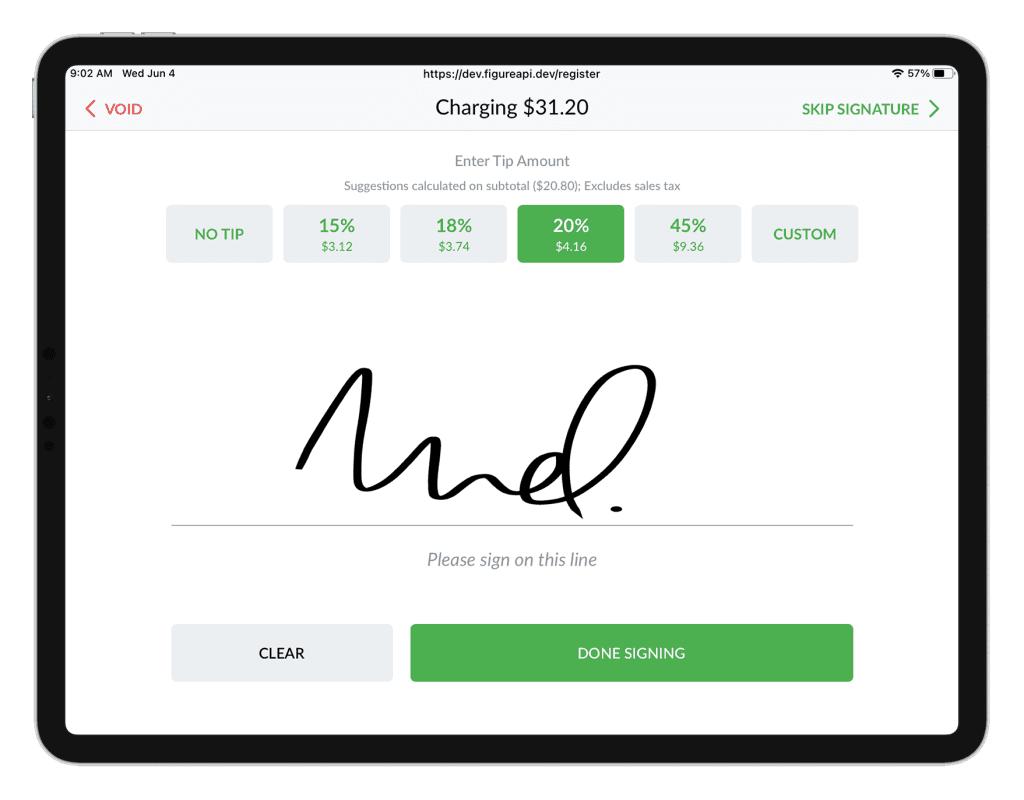
Enable the Signature screen with tip suggestions for POS and Kiosk
To enable the signature screen with tip suggestions on POS + CFD or Kiosk go to Figure Manage > Settings > General > Card Processing. There, enable the Enable Signature Screen for Card Payment.
You can also select the ability to skip the signature screen.
Tip: You can configure the Cash Drawer to open upon card tip adjustment. Set this in Figure Manage > Settings > Payment > Cash Payment