How to Close Out the Day in Figure POS

Deborah Lee
Product Manager
Follow these steps to review orders, adjust card tips, settle cash drawers, and finalize your shift.
Related Figure products

Overview
Follow these steps to review orders, adjust card tips, settle cash drawers, and finalize your shift.
Step 1: Review and Close Orders
Open Orders (top‑right tab).
At a glance: gray check = closed, circle = open.
Filter to open checks: Status > Open > Apply.
Open each check:
If items are blue (sent/made) and payment is collected, close the check.
If it’s a test/no‑send ticket, delete it.
If payment is missing, decide to collect payment or delete the check.
Configure void reasons and deletion permissions in the back office to track who deletes and why.
Step 2: Adjust Credit Card Tips
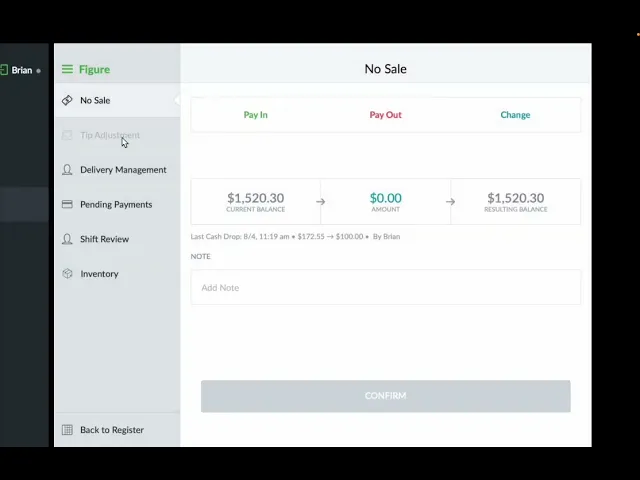
Go to Figure (top‑left) > Operations > Tip Adjustment.
Review the day’s credit card transaction list.
Bulk adjust tips in the adjustment column.
Important: Click Adjust Tips to apply changes.
Do this before the credit card batch is settled; tips cannot be changed after settlement.
Optionally filter by staff to view specific transaction sets.
Step 3: Settle Cash Drawer (Cash Drop)
From Register, open No Sale > Payout for the drawer.
Perform a Cash Drop to reset the drawer to the starting balance (e.g., $0 or your bank, such as $100).
Repeat on all terminals that accept cash.
Step 4: View/Print Daily Sales Report
From Register, tap Figure > Reports to view sales for the day.
Optional: Print the report (top of screen) and choose the categories to include.
You can always view sales in the back office at figurpos.com or in the Figure mobile app.
Step 5: Sign Out and Clock Out
Return to Register.
Sign out of your POS session.
Clock out to complete your day.
Notes
Close or delete every open check to ensure accurate reporting and reconciliation.
Adjust tips before batch settlement to avoid discrepancies.
Apply cash drops on each cash‑accepting terminal to standardize end‑of‑day cash handling.