CFD introduction
CFD gives customers an overview of each order's details. Leave no room for confusion over payment totals and improve customer satisfaction.
Order Transparency
CFD shows itemized prices, modifiers, discounts and exclusions.
Order Accuracy
Customers can review and confrim their orders, minimizing errors.
Faster Checkout
With clear visuals, transactions are quicker, reducing wait times.
If you are interested in setting up a CFD, please reach out to support@figure.dev.
How to connect CFD to POS
If your CFD initial set up is complete (if you wish to set up CFD, reach out to support@figure.dev) and you need to connect a specific CFD to a specific POS terminal, there are three ways how to achieve it - by Automatic detection of Available CFD terminals, from QR Code or Manually. See steps for each below.
When connecting the CFD, always have the CFD app open on your iPad.
Automatic detection of Available CFD terminals
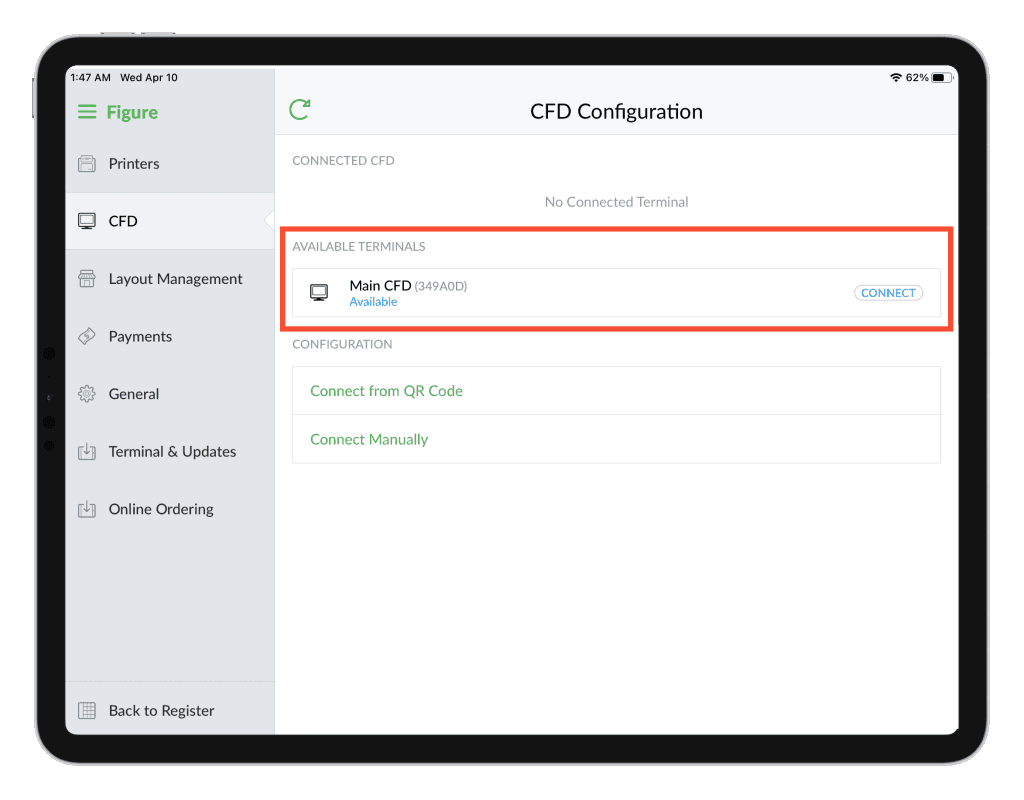
[1] Go to POS > Settings > CFD and see the AVAILABLE TERMINALS section (make sure your CFD app is open at this moment)
[2] Select the CFD you would like to connect to this POS terminal by clicking CONNECT
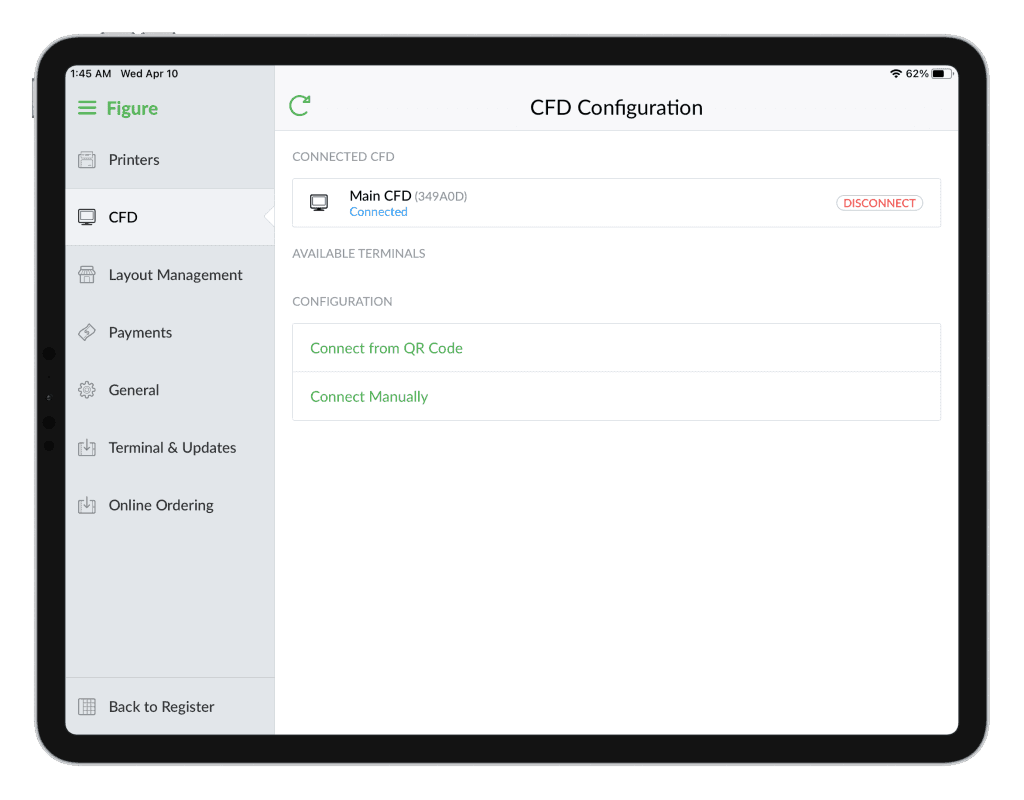
The CFD will show as connected:
Connect from QR Code
In case the CFD does not show in the AVAILABLE TERMINALS, it can be connected by QR code or manually. To connect from QR code, follow the steps below.
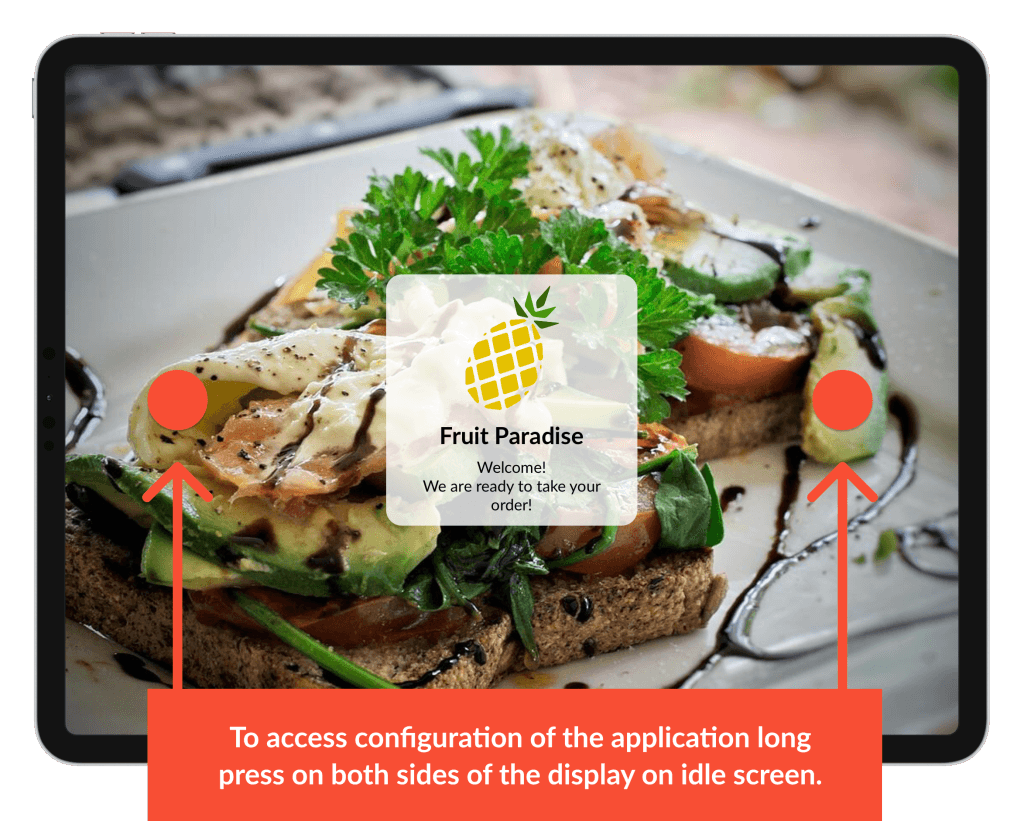
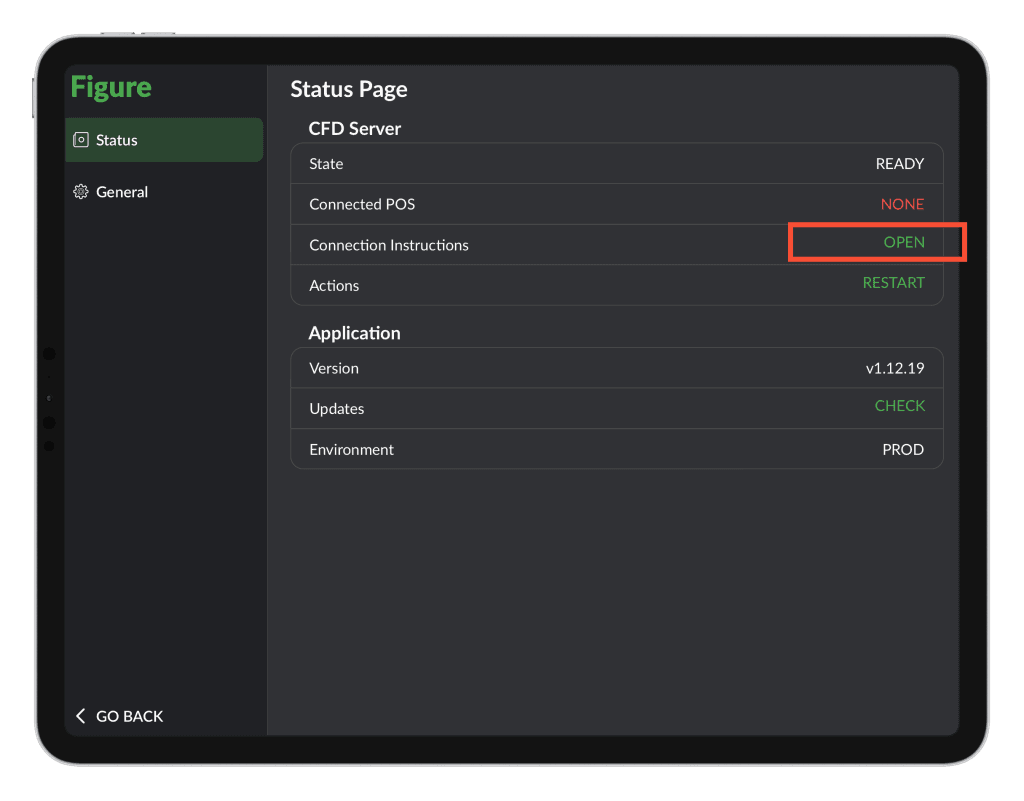
[1] Open the CFD application and go to CFD configuration – Status.
To access the configuration, perform a gesture as described below:
[2] Press OPEN by the Connection Instructions to display the QR code
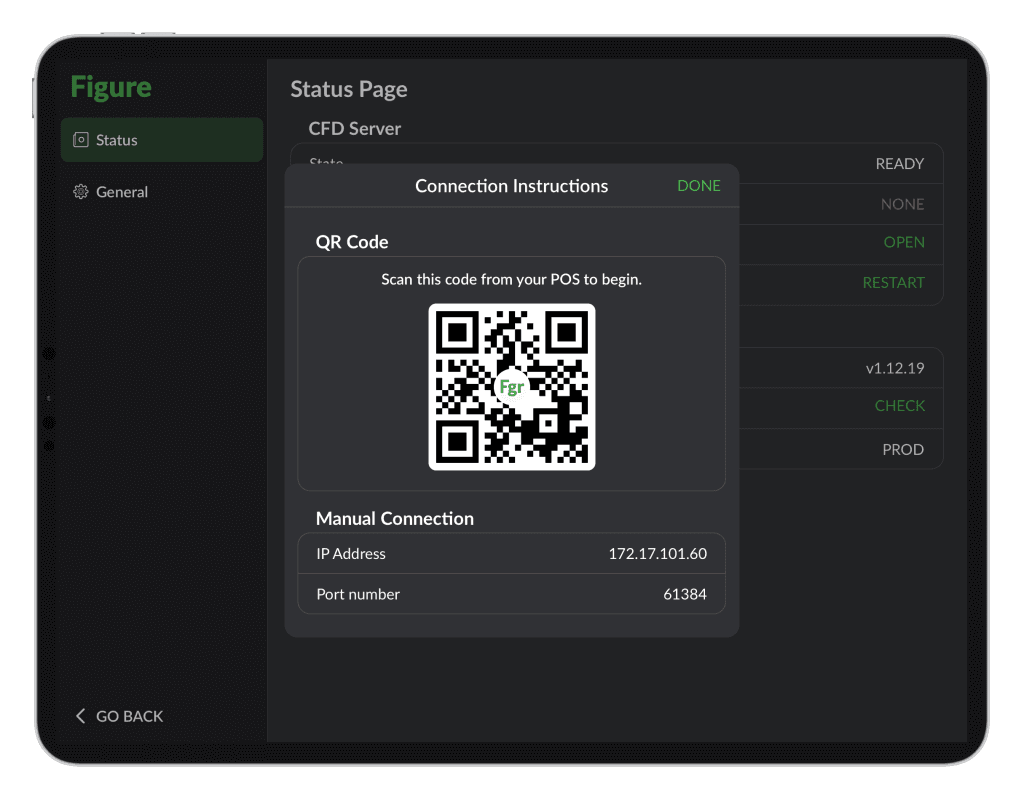
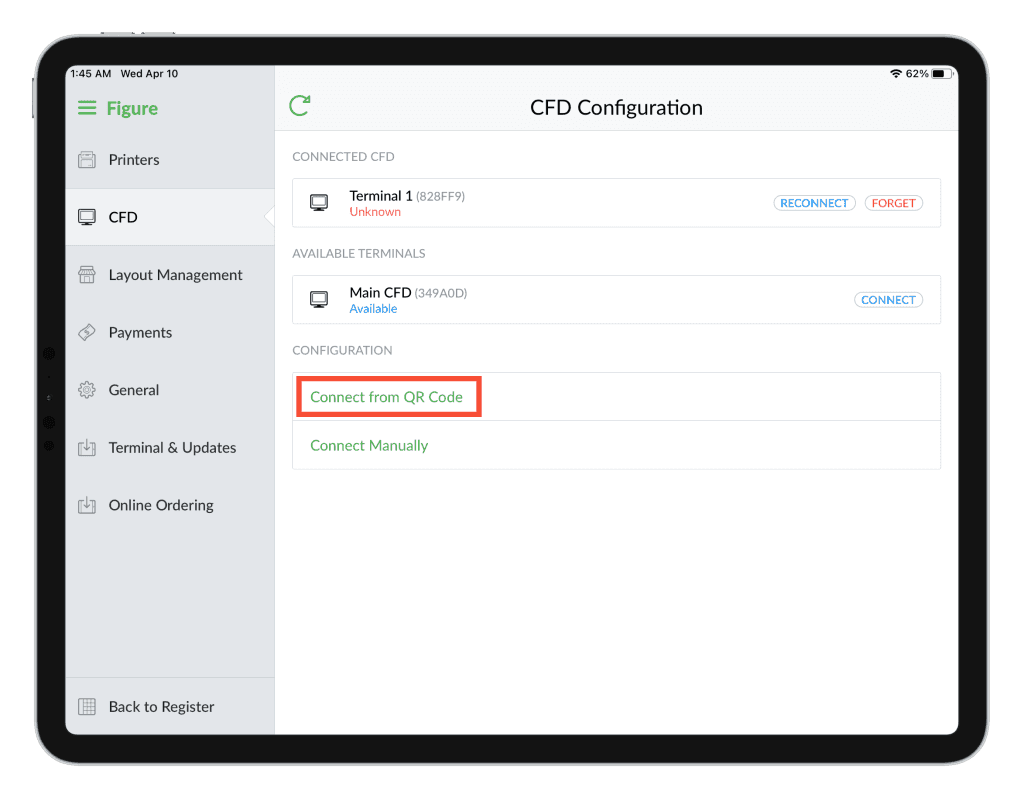
[3] In POS, go to Settings > CFD and press the Connect from QR Code to trigger the camera
[4] Scan the QR code displayed on the CFD with the POS camera
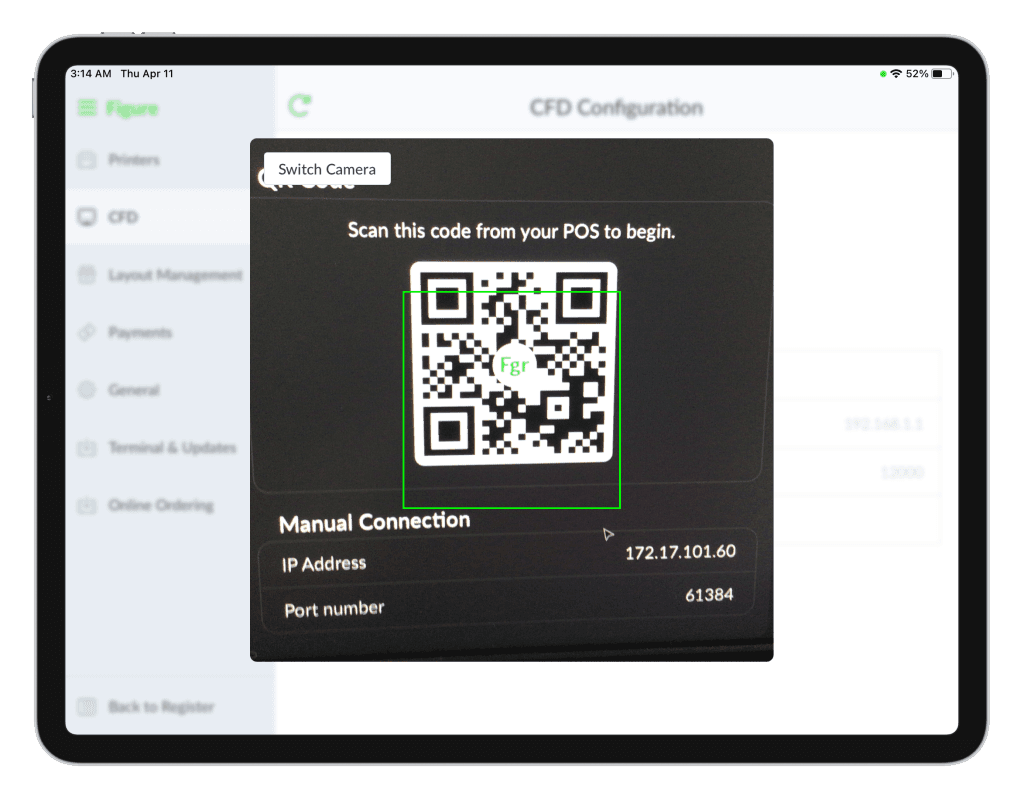
The CFD will show a Connected.
Connect Manually
In case the CFD does not show in the AVAILABLE TERMINALS, it can be connected by QR code or manually. To connect Manually, follow the steps below.
[1] Open the CFD application and go to CFD configuration – Status.
To access the configuration, perform a gesture as described below:
[2] Press OPEN by the Connection Instructions
[3] Enter the IP Address and Port Number shown on the CFD to the highlighted fields in POS and press Confirm
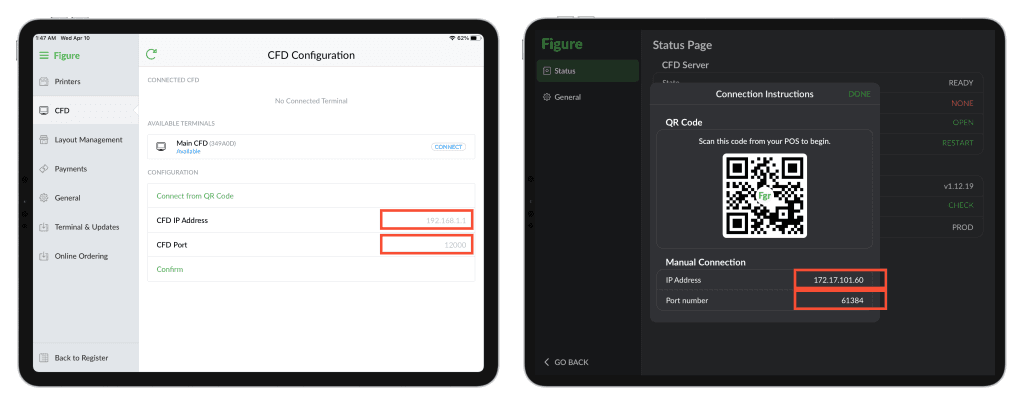
The CFD will show as connected.
CFD customization
Idle screen – images, logo, title and description
The idle screen is presented when the CFD is not in use. In the picture below, you can see what can be customized on that screen.
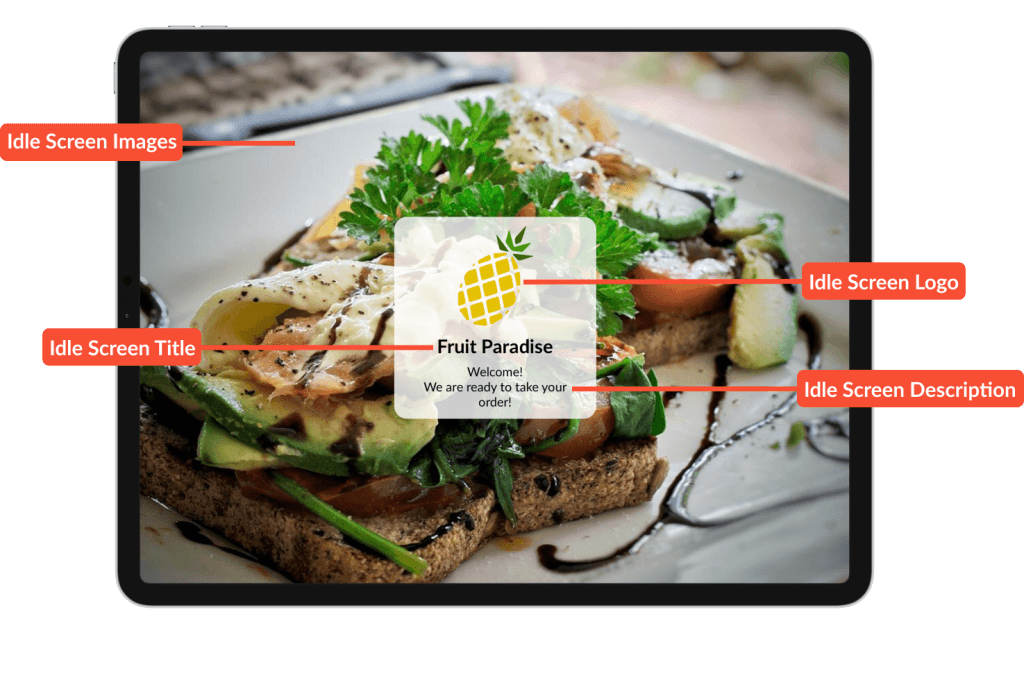
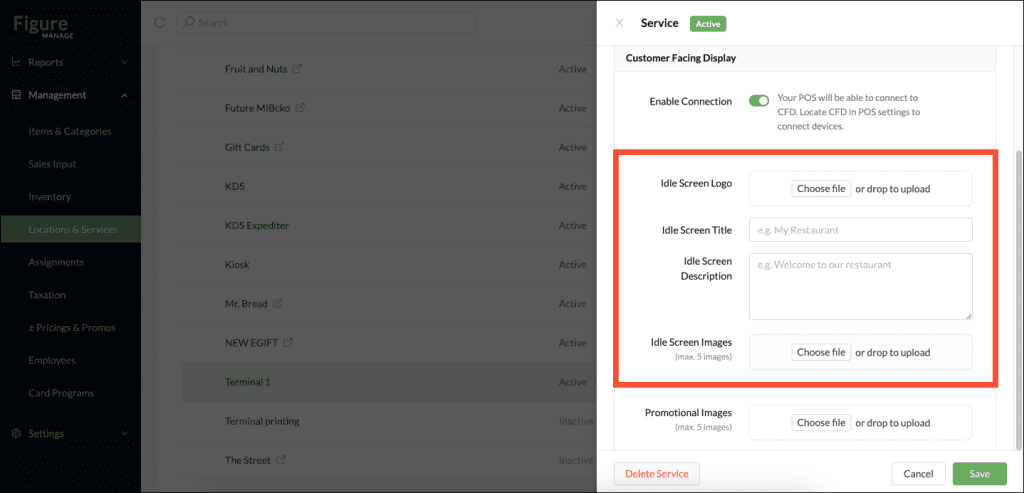
[1] go to Figure Manage > Management > Locations & Services
[2] click on the POS terminal that is connected to your CFD
[3] there, you can edit:
Idle Screen Logo
Idle Screen Title
Idle Screen Description
Idle Screen Images
max 5 images
Idle Screen Images are presented in slides
it is possible to set how long it will take until next image slide with setting ‘Play Each Slide For'
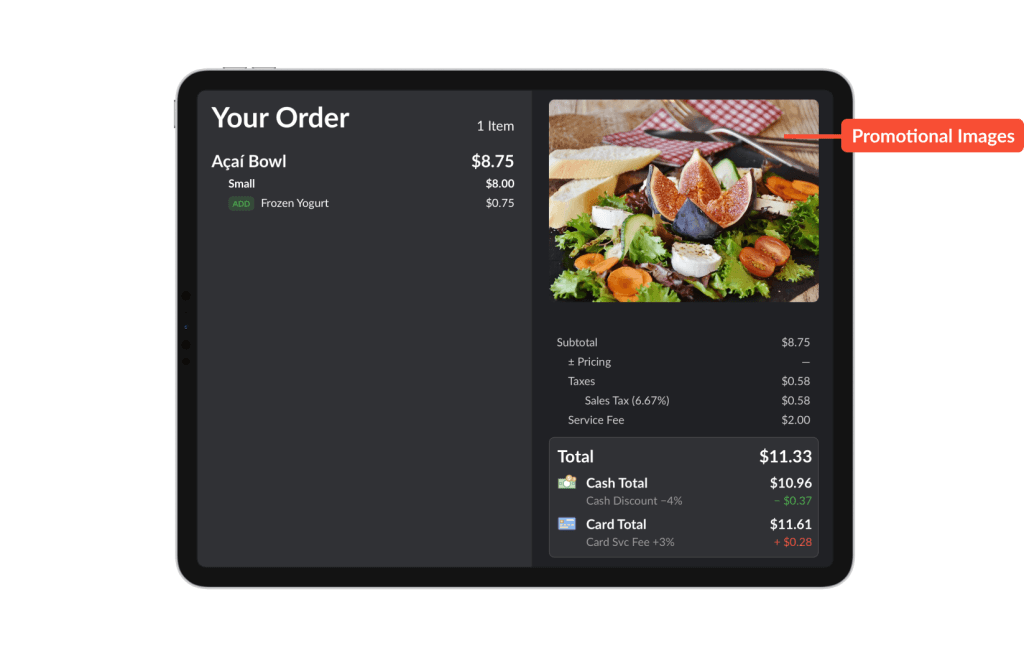
Promotional Images
Promotional Images are presented by the order details.
It is possible to upload up to 5 images and set the time between the slides.
See Promotional Images in action in a short video below:
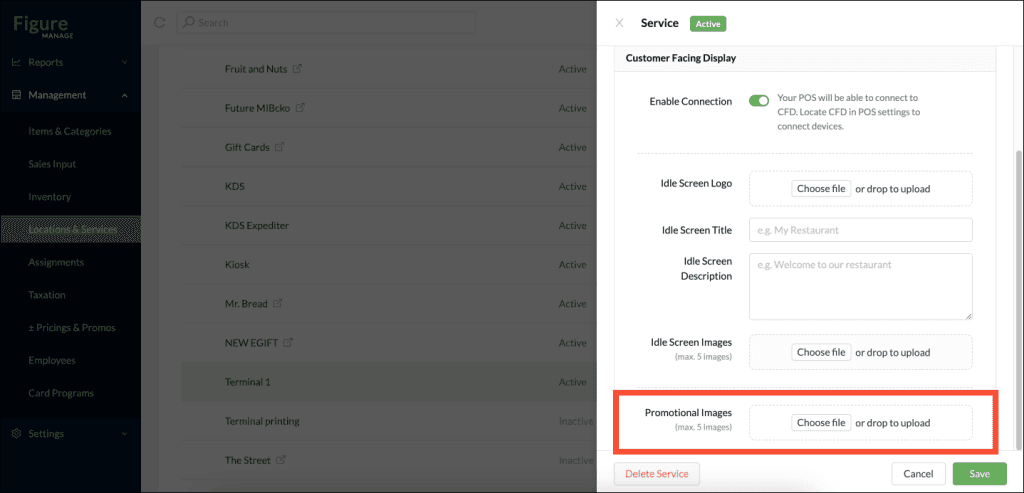
To set up the Promotional Images, follow the steps below:
[1] go to Figure Manage > Management > Locations & Services
[2] click on the POS terminal that is connected to your CFD
[3] there, you can edit the Promotional Images
See how to set them up in a short video:
Color Theme
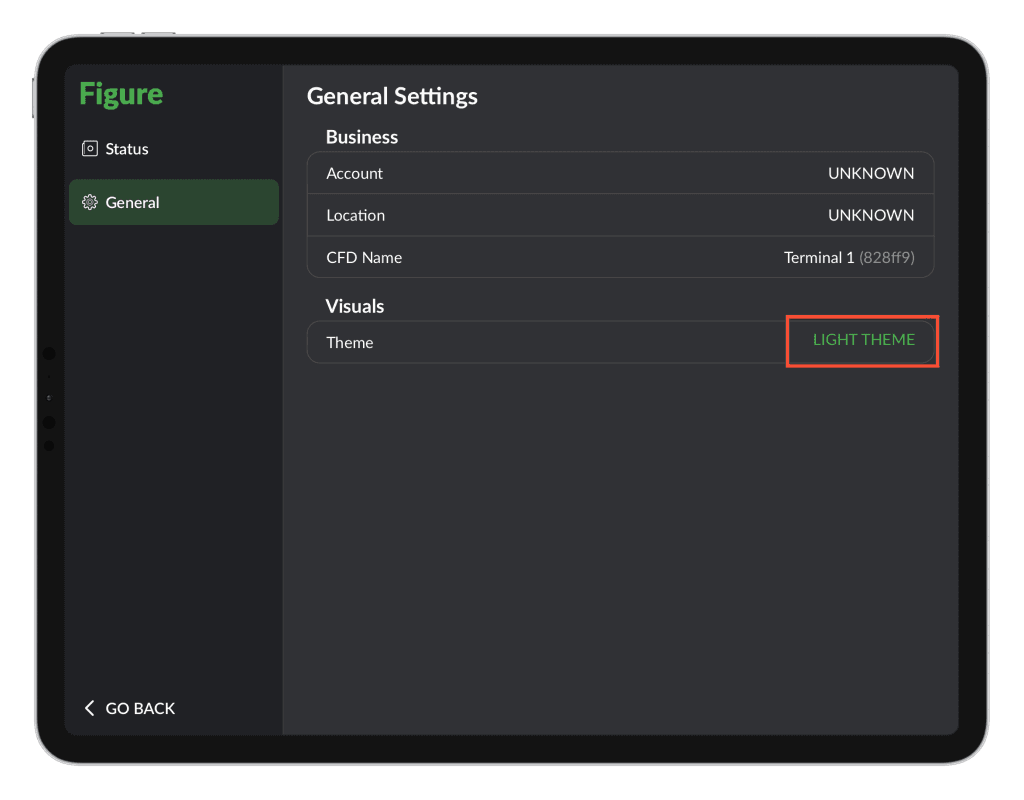
You can choose Dark or Light theme of your CFD.
This will be set while the initial setup of the CFD but it can be changed anytime in the CFD configuration.
To access the configuration, perform a gesture as described below:
Then, you can change the theme:
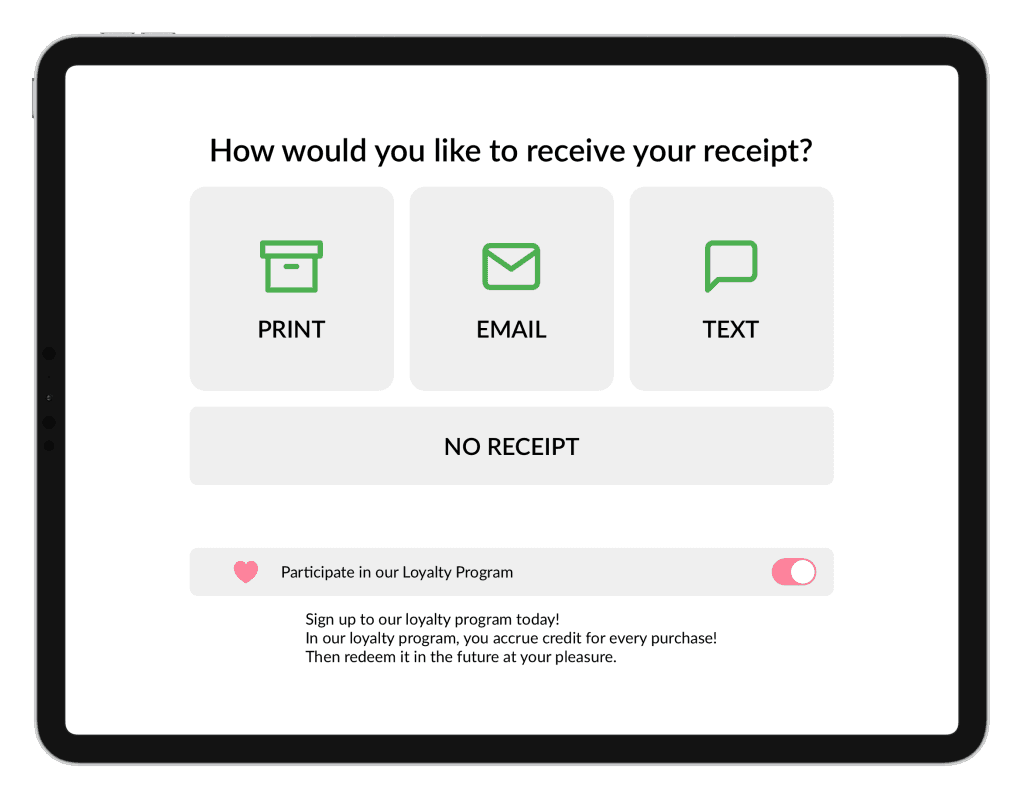
Enroll in Loyalty Program NEW
Now, customers can enroll to Loyalty Program via CFD by enabling the 'Participate in our Loyalty Program' during the checkout process.
Loyalty Program on CFD NEW
Customers can now enroll in loyalty, sign in, view their rewards balance, and choose when to apply rewards—all directly from the Customer Facing Display (CFD).
This is enabled by default – no configuration is needed.
Customers can sign in by entering their phone number. For customers already enrolled in the Loyalty Program, Loyalty Rewards will become available as a payment method. Customers who are not yet enrolled can easily join the Loyalty Program and start earning Loyalty Rewards.
You can learn more about Loyalty Program in this article.
