Introduction
There are several Payment Types that can be used in Figure:
Cash
Card
External
Loyalty Rewards
Gift Card
The External Payment method is the most flexible one. It can cover all outstanding payment methods – besides the standard ones.
For example, it can be used to track and close out orders that were paid by some special gift certificate or voucher that was created outside of Figure system or orders that were paid on a separate platform like Grubhub or Ubereats (note: we recommend creating an integration with Grubhub, Ubereats, Doordas and Slice to streamline your operations by receiving third party orders directly in Figure POS – learn more in this article)
Enable and configure External Payment
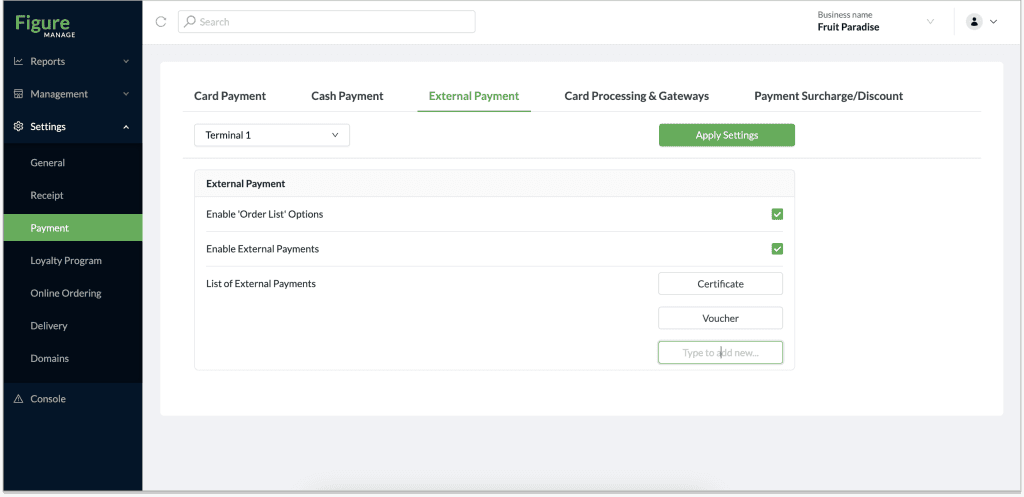
[1] Go to Figure Manage > Settings > Payments > External Payment
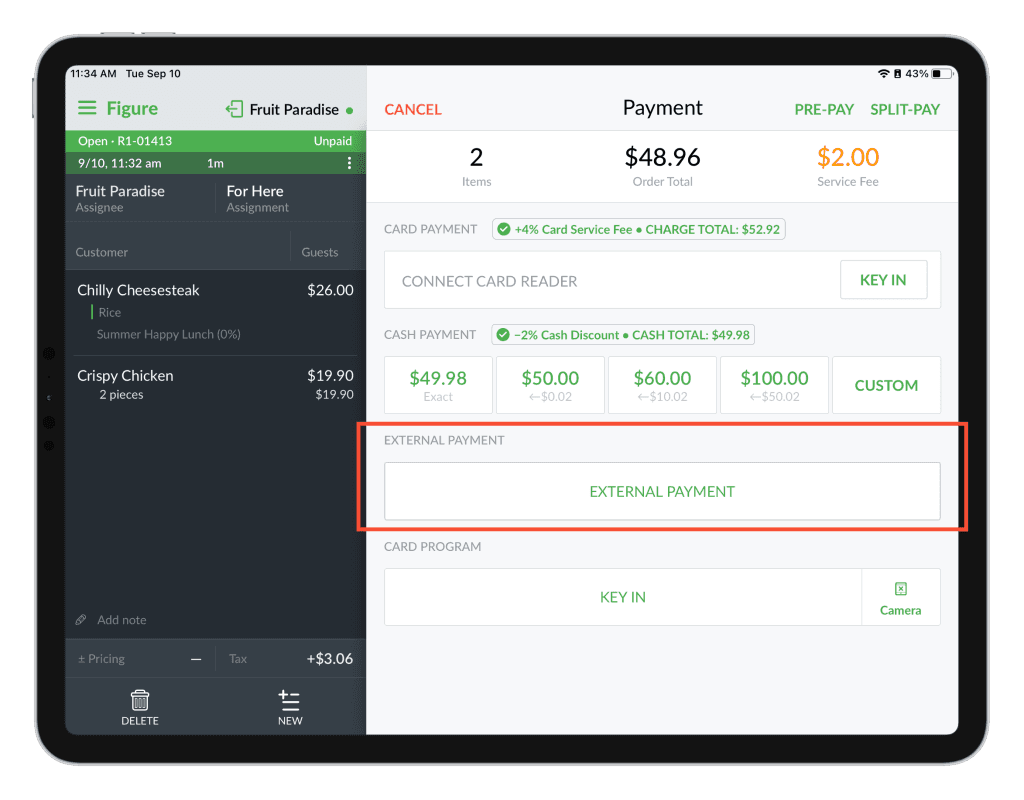
[2] Check 'Enable External Payments' – after this step, you will see and new button EXTERNAL PAYMENT in your POS payment screen

The configuration can end at this step. You will be able to use the EXTERNAL PAYMENT button for unspecified external payments. If you would like to distinguish several types of external payments, you can create the types by following the next steps.
[3] Optional: Create specific external payment types by adding their names in the fields as in the screenshot below.
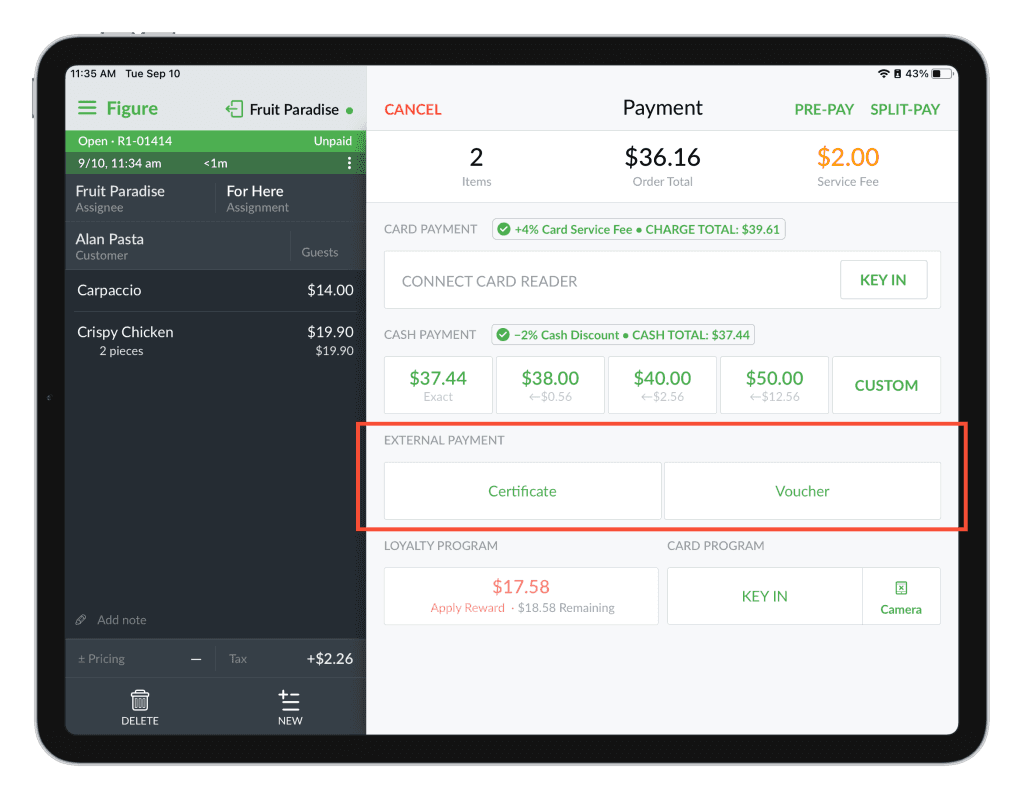
This will replace the EXTERNAL PAYMENT button for buttons with the names added. See below.
Grant Permission to process External Payments NEW
You can choose which employees can process external payments by granting permission to Access Levels in Figure Manage -> Management -> Employees -> Roles & Access.
Learn more about permission in this article.
Pay by External Payment method
To pay by the External Payment method process the order as usual. On the Payment screen, choose the external payment button or one of the created external payment types.
Then, finalize the order se usual.
See payments in reports
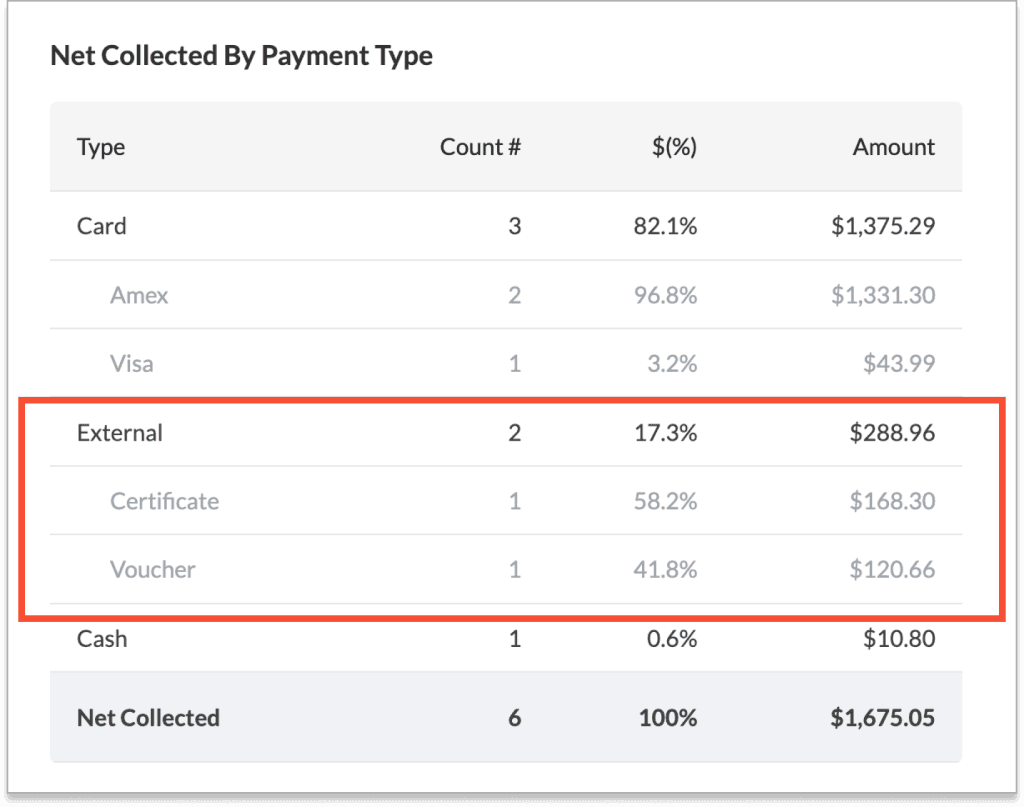
In reports, you can see the External payments in reports among other payment types – specifically in the Net Collected By Payment Type, Transaction Count, Net Collected Breakdown By Payment Type and Net Collected by Payment Type, by Employee in the Summary report (in Figure Manage > Reports > Summary or in POS > Main menu (top left corner) > Daily Summary).