Managing your store's hours of operation ensures your customers always know when your business is open for orders. Whether you're adjusting regular business hours, setting temporary closures for holidays, or fine-tuning hours specifically for Pickup and Delivery, Figure gives you flexible tools to keep your online ordering accurate and up to date.
Figure supports three types of Hours of Operation (HOO):
General HOO – your standard weekly schedule
Custom Temporary HOO – special exceptions for holidays or one-off events
Pickup and Delivery HOO – separate hours for online orders depending on the fulfillment method
Each type of HOO serves a unique purpose and affects how your availability is displayed and managed across various online ordering platforms. This guide walks you through how to set each of them.
1. General HOO
These hours are displayed in the footer of the online ordering website.
[1] Log into Figure Manage website with your credentials and go to Management -> Location & Services.
[2] Open the detail of the location you want to adjust HOO for.
[3] Set the hours of operation for each day. You can mark the day as '24H' which means the store is open all day. Or you can add separate sections for the day by using the '+' button.
[4] Hit Save.
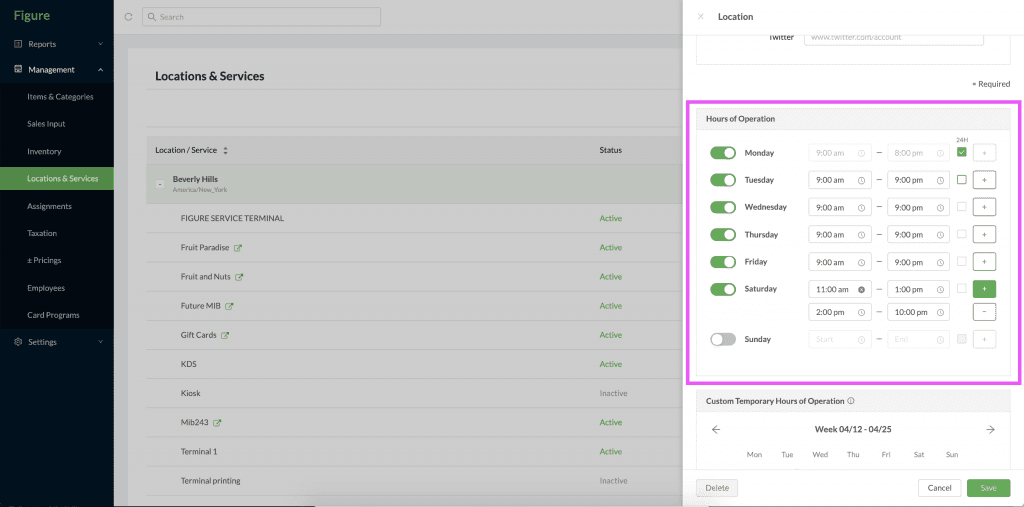
What websites this feature affects:
PLATFORM (website) | Applies / does not apply |
Make it Butter | ✅ |
Grubhub |
|
UberEats |
|
Doordash | ❌ Hours of operation needs to be set on Doordash's platform (learn how) |
2. Custom Temporary HOO
These are special hours that override the general Hours of Operation (HOO). They are ideal for national holidays or special occasions and can be scheduled for the entire year in advance. Upcoming special hours will always be shown in the footer of your online ordering website—displayed above the regular HOO.
Use case:
A restaurant is closed for Thanksgiving and New Year's Eve.
[1] Log into Figure Manage website with your credentials and go to Management -> Location & Services.
[2] Open the detail of the location you want to adjust Custom HOO for.
[3] Find the section Custom Temporary Hours of Operation.
[4] Choose a day in the calendar.
[5] Set the hours of operation for the selected day. To add multiple time slots, use the '+' button. Turning off the switch indicates that the store will be closed for the entire day.
[6] Hit Save.
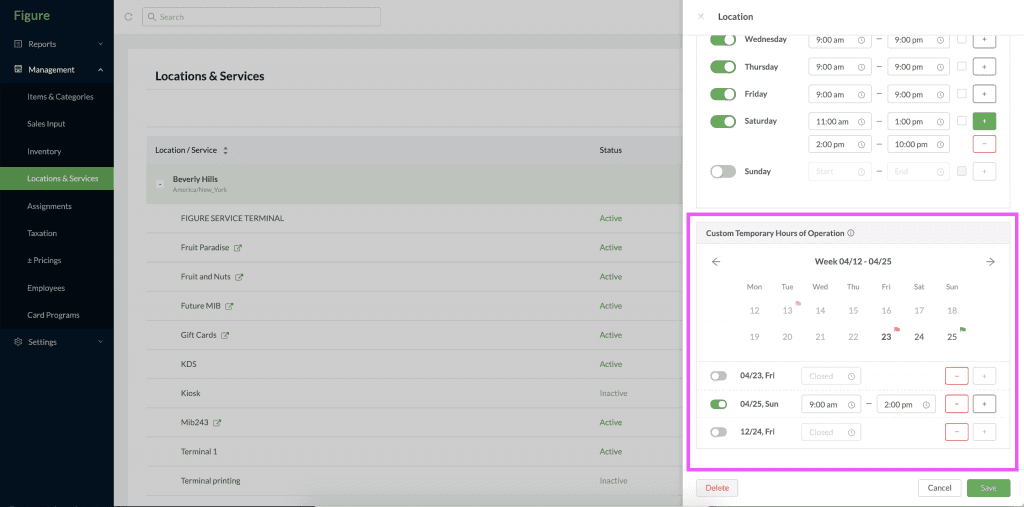
What websites this feature affects:
PLATFORM (website) | Applies / does not apply |
Make it Butter | ✅ |
Grubhub | ❌ Custom Hours needs to be set on Grubhub's platform (learn how) |
UberEats | ❌ Custom Hours needs to be set on UberEats' platform (learn how) |
Doordash | ❌ Custom Hours needs to be set on Doordash's platform (learn how) |
3. HOO for Pickup and Delivery
If Pickup and Delivery are enabled on your online ordering website, you can set separate Hours of Operation (HOO) for each. These Pickup/Delivery-specific hours will override the General HOO.
Note: Pickup/Delivery HOO are not displayed on the website. Once enabled and configured, they will control when customers can place Pickup or Delivery orders based on the specified time slots.
Example use case:
A restaurant is extremely busy during lunchtime and cannot handle delivery orders between 11:00 AM and 2:00 PM. The manager disables Delivery during that period, allowing only Pickup orders. As a result, customers can place Pickup orders during that time, but Delivery is unavailable.
[1] Log into Figure Manage website with your credentials and go to Settings -> Online Ordering.
[2] Find the Delivery or Pickup section.
[3] Find the line 'Set Hours Of Operation for Delivery/Pickup', mark the checkbox and hit 'Modify'.
[4] Sett HOO. You can mark the day as '24H' which means the store is open all day. Or you can add separate sections for the day by using the '+' button.

In the following example:
Monday: Delivery is disabled for lunchtime (11:00 am - 2:00 pm).
Tuesday to Friday: Delivery is enabled only for the afternoon (2:00 pm - 8:00 pm)
Saturday and Sunday: Delivery is enabled all day.
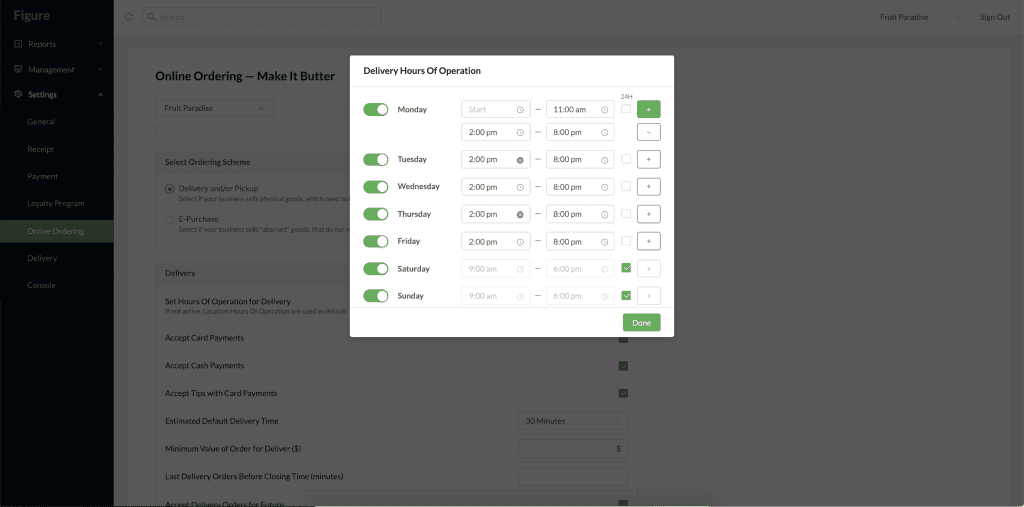
What websites this feature affects:
PLATFORM (website) | Applies / does not apply |
Make it Butter | ✅ |
Grubhub |
|
UberEats |
|
Doordash | ❌ Hours of operation need to be set on Doordash's platform (learn how) |