This article is solving this case: The kitchen printer/KDS works correctly and prints other items, but it does not print only one or multiple specific items.
If the printer does not print at all, please check our troubleshooting guide.
First, please, determine whether the order within which the item was not printed, is an order created in Figure [Figure POS, Kiosk, Make It Butter] or if it a 3rd party order [Grubhub, Uber Eats, Slice, Doordash]. Based on that, choose an appropriate section to follow the steps there:
>> The order is Figure order (Figure POS, Kiosk, Make It Butter)
>> The order is a 3rd party order (Grubhub, Uber Eats, Slice, Doordash)
The order is a Figure order (Figure POS, Kiosk, Make It Butter)
Check that the item is correctly set for printing:
Go to POS > Menu > Settings > Printers
In the section ORDER / KITCHEN /KITCHEN DISPLAY SYSTEM (KDS), find the printer/KDS that is to troubleshoot
Click on the button with the number of items (if it says only Set Items, that means that no items are set to be printed on this printer yet)
Find the item that was not printed and check if the button is green – if not, switch is to green (= enabled for printing)
Hit DONE
The order is a 3rd party order
Usually, whenever items don't print to the assigned kitchen printer, it's because the item name in the other platform is not identical with the name in Figure's Items & Categories. If just one letter is off, then the system does not associate that item from Uber with the one in your menu so it doesn't go to the assigned printer. It is an uncategorized item so the kitchen assignments don't work.
There are multiple ways to fix this:
a. Match the name of the item in Figure with the name in the 3rd party platform
b. Use Alternative Name to map and connect the mismatching names
c. Turn on Uncategorized items for your kitchen printer/KDS
a. Match the name of the item in Figure with the name in the 3rd party platform
You can match the name of the item from the 3rd party platform with the exact name as found in Figure – manually rename the item to match. Rename the item on the 3rd party platform, or rename it in Figure.
To rename the item in Figure's Items & Categories:
Go to Figure Manage -> Management -> Items & Categories
Find the item, click it
Change the Name and Save it
Make sure that this item is set for printing-
b. Use Alternative Name to map and connect the mismatching names
You can use our feature called Alternative names to map and connect the mismatching names. You can do that by reading this article.
or what's the brief recording below.
Make sure that this item is set for printing.
c. Turn on Uncategorized items for your kitchen printer/KDS
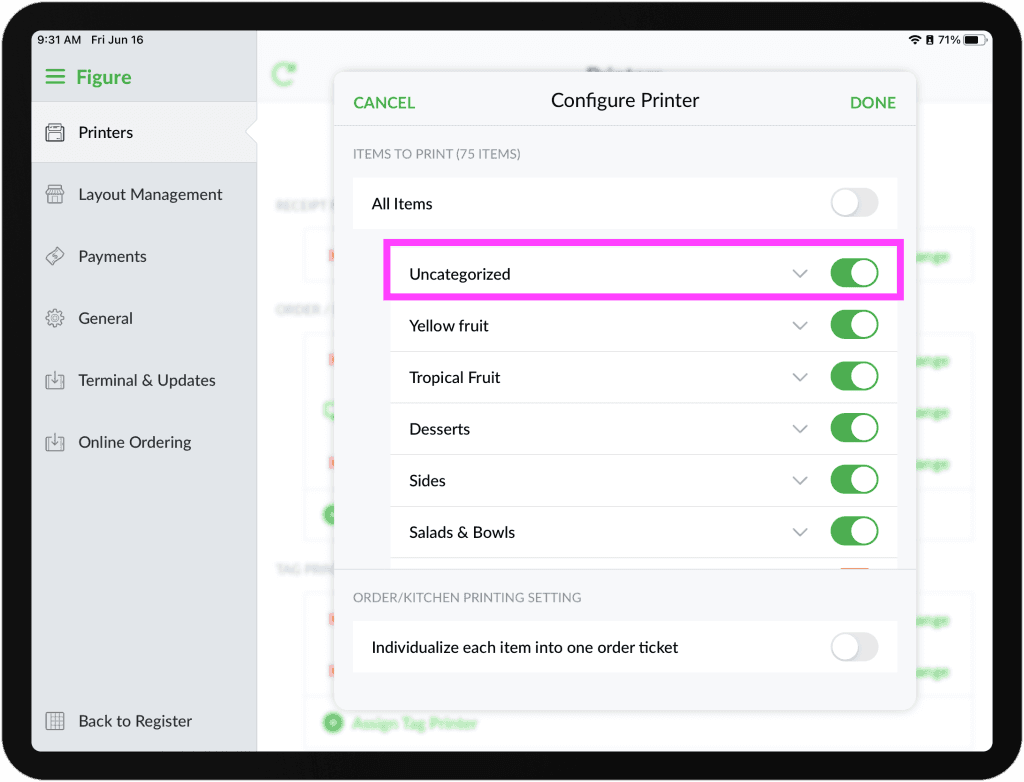
You can turn on Uncategorized items for your kitchen printer. Whenever an unmatched item comes in, it is uncategorized. Turning on Uncategorized items in your kitchen catches all of them and sends it to the kitchen. You can do it by following the steps below:
Go to POS > Menu > Settings > Printers
In the section ORDER / KITCHEN /KITCHEN DISPLAY SYSTEM (KDS), find the printer should be set to print the item/s
Click on the button with the number of items (if it says Set Items, that means that no items are set to be printed on this printer yet)
Enable the Uncategorized