Figure Kitchen Display System (KDS) brings your kitchen together into one smooth operation. Use Figure’s Kitchen Display System in your restaurant to keep your team on the same page.
You can either use only KDS (one or multiple) or KDS + KDS Expediter.
How to set up KDS
To start using KDS, you will create a new service in the Figure Manage website. After, you will easily connect your POS with your KDS.
Create the KDS service in Figure Manage
[1] Log into Figure Manage website with your credentials and go to Management > Locations & Services.
[3] Create a new Service with a type 'Kitchen Display' and hit Save.
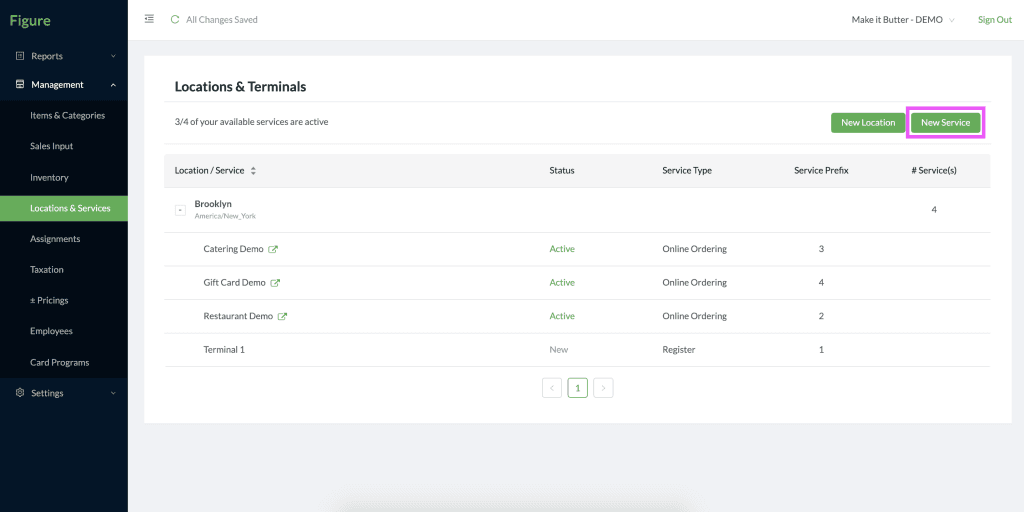
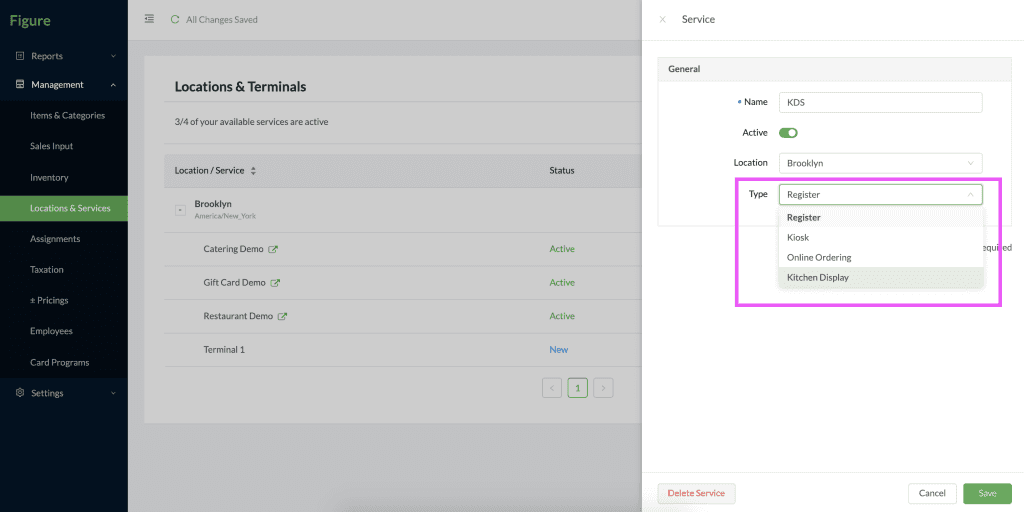
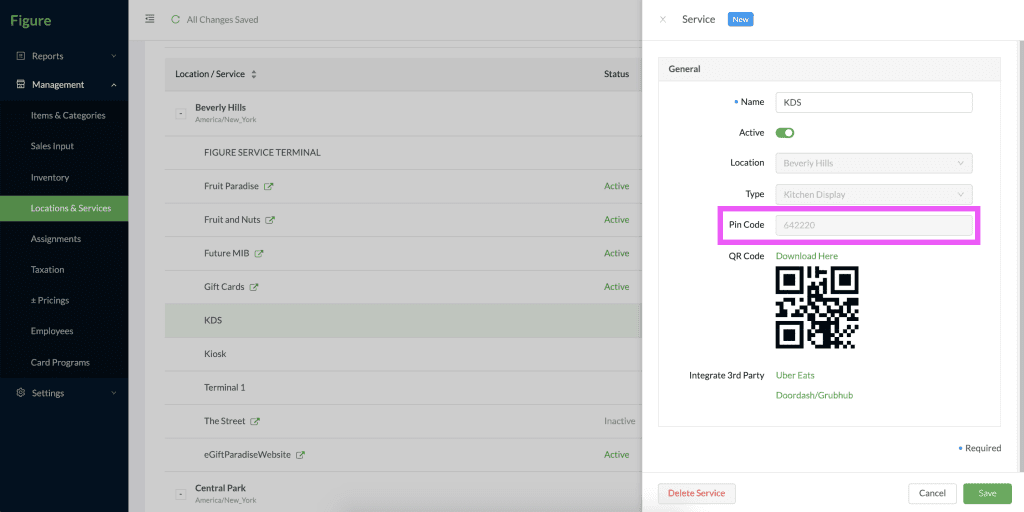
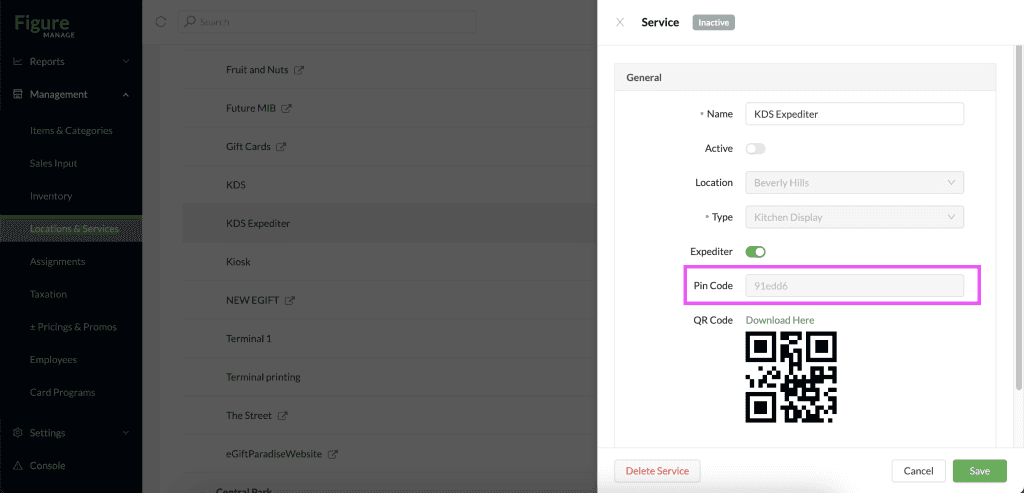
[4] The setup in Figure Manage is done at this point. When opening the service detail, you can see a Pin Code and QR code for your KDS which you will use to sign in to the KDS app.
Connect the KDS with Figure POS
Now, the KDS has to be set up the same way as a kitchen printer.
[1] Go to Main menu > Settings > Printers. See the ORDER / KITCHEN / KITCHEN SIPLAY SYSTEM (KDS) section and click Assign Order/Kitchen Printer or KDS
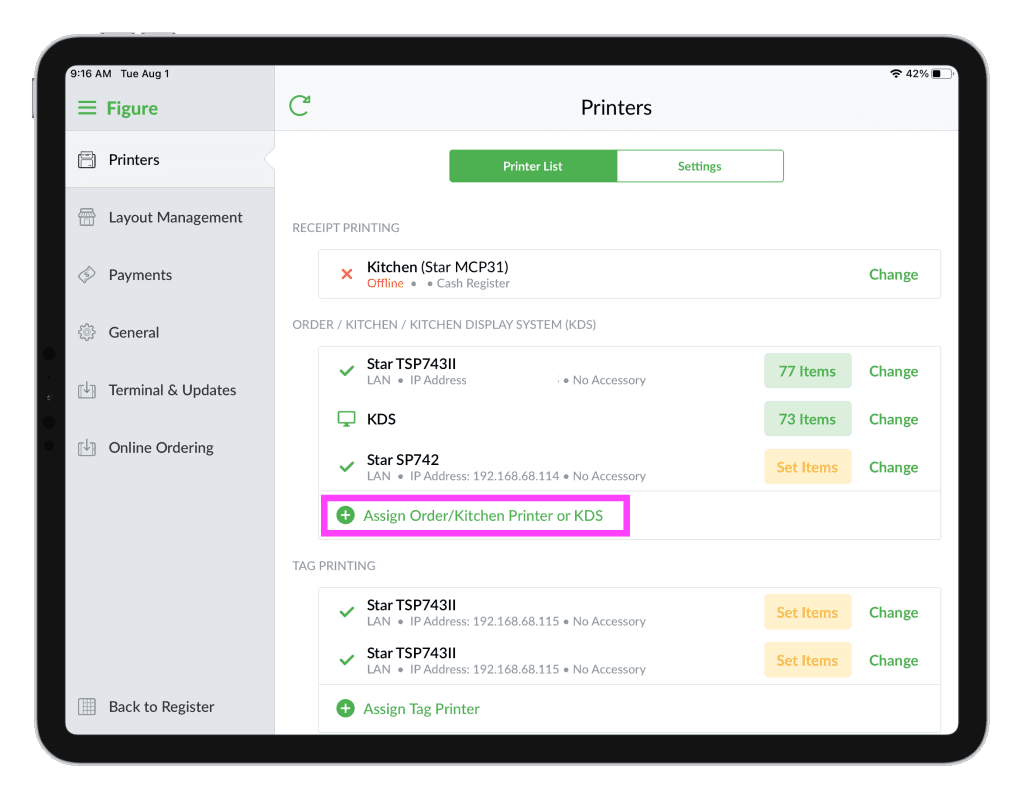
[2] Select your newly created KDS.
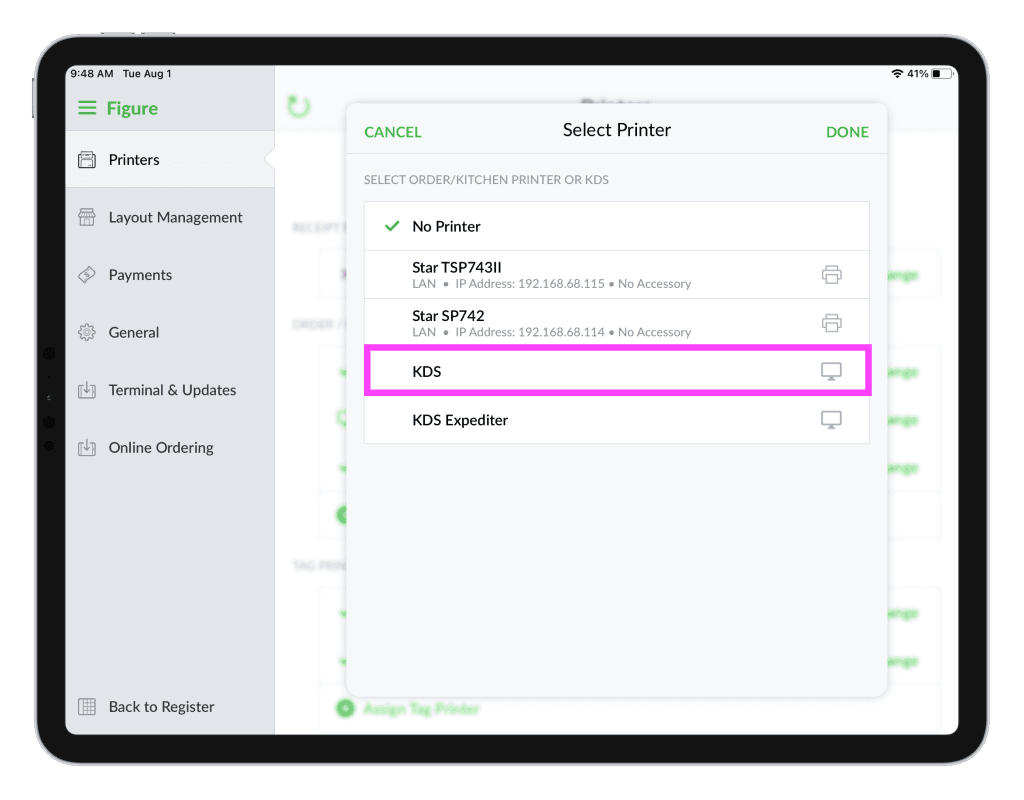
Set items and assignments to be sent to the KDS
See this article to learn how to configure items that should be sent to KDS: Configure Items for Printing
Activate the KDS app
[1] Download the Kitchen Display from App Store for iOS or Google Play for Android tablets and open the app.
[2] Log in with the Pin Code or theQR code you can find in the service detail in a Figure Manage website.
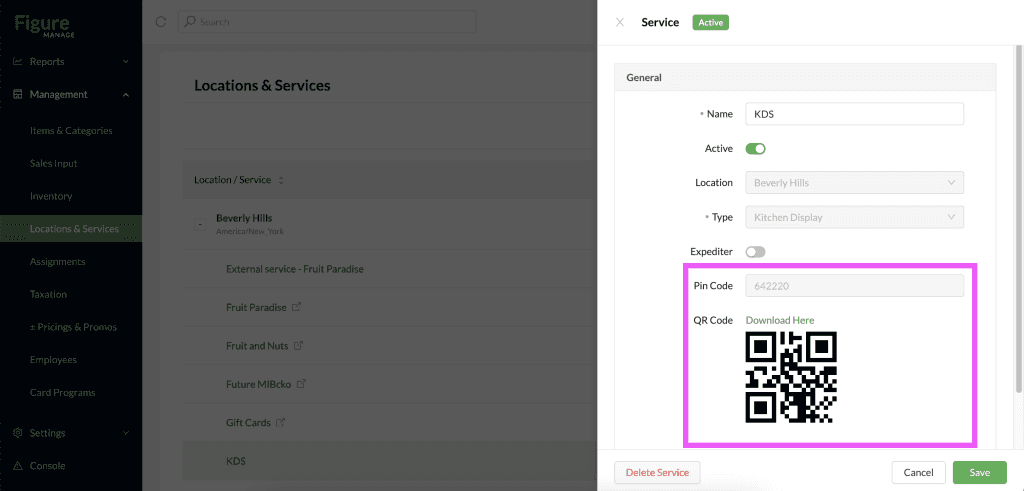
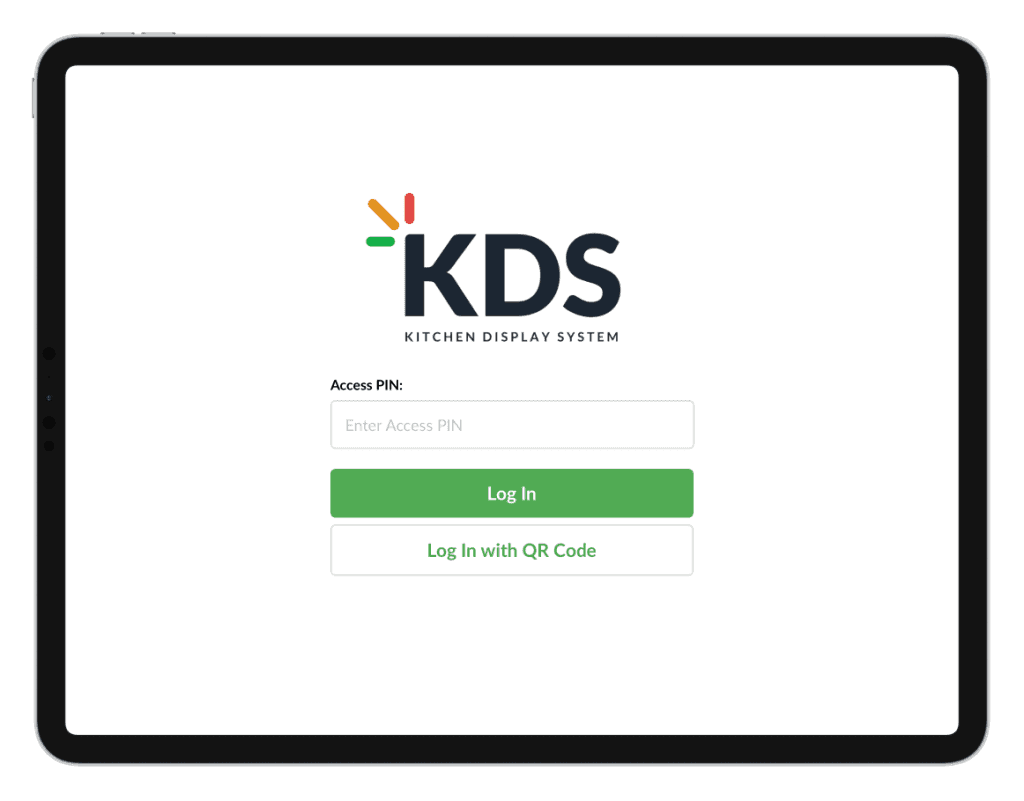
Your KDS set up is complete now!
How to set up Expediter KDS
To start using KDS, you will create a new service in the Figure Manage website. After, you will easily connect your POS with your KDS.
Create the Kitchen Display service in Figure Manage
[1] Log into Figure Manage website with your credentials and go to Management > Locations & Services.
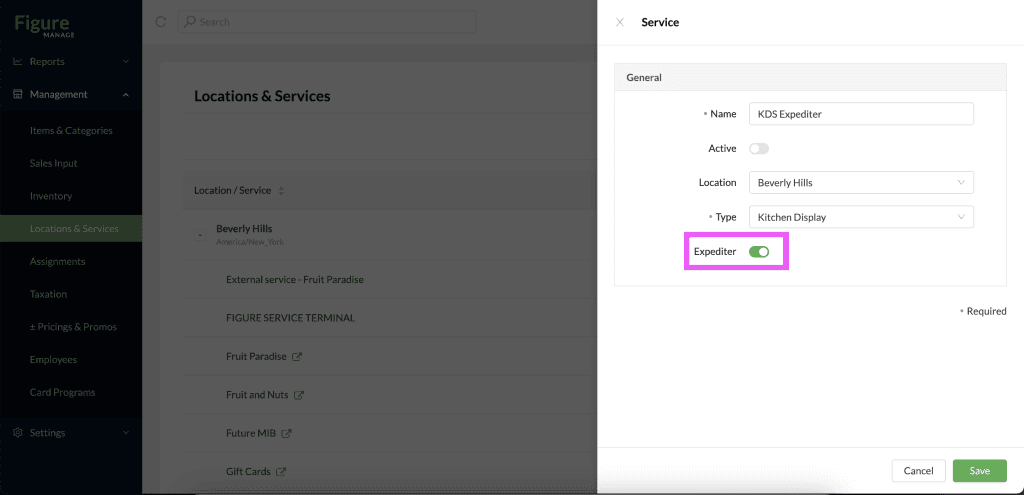
[3] Create a new Service with a type 'Kitchen Display'
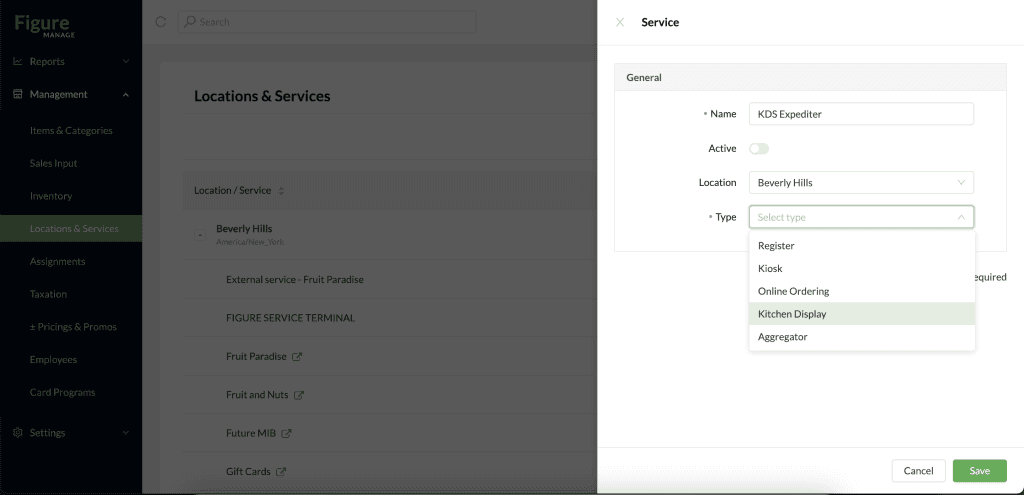
[4] Check the Expediter option and hit Save
Connect the Expediter KDS with Figure POS
Now, the Expediter KDS has to be set up the same way as a kitchen printer or usal KDS.
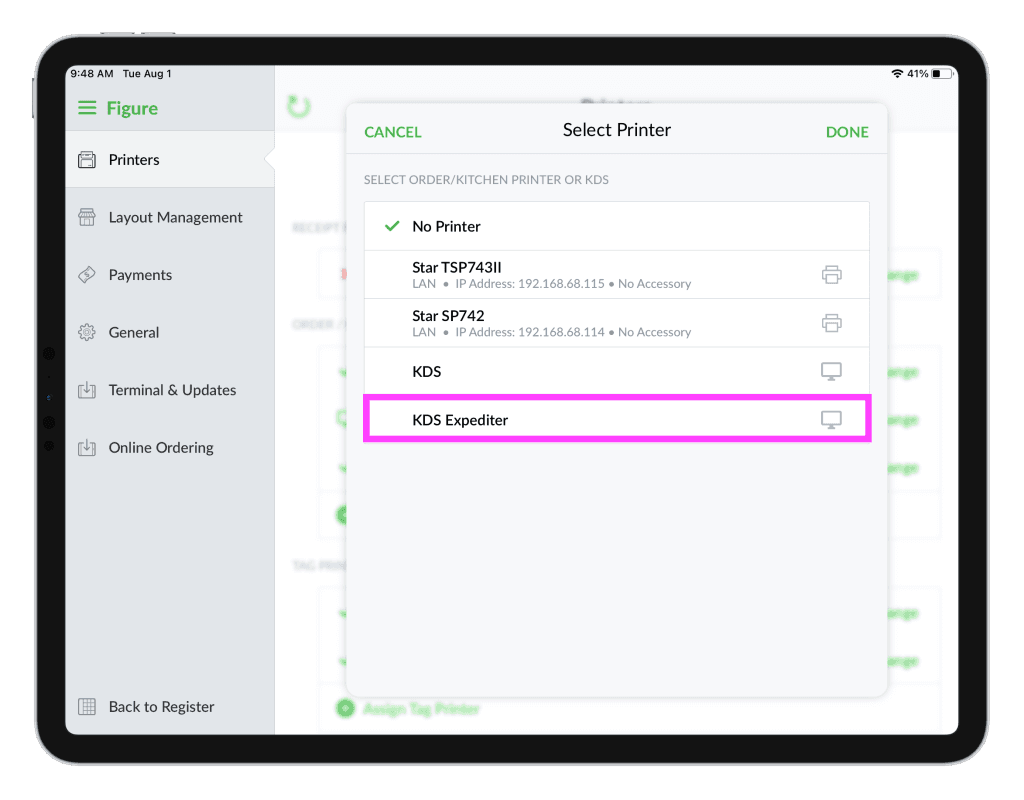
[1] Go to Main menu > Settings > Printers. See the ORDER / KITCHEN / KITCHEN SIPLAY SYSTEM (KDS) section and click Assign Order/Kitchen Printer or KDS
[2] Select your newly created Expediter KDS.
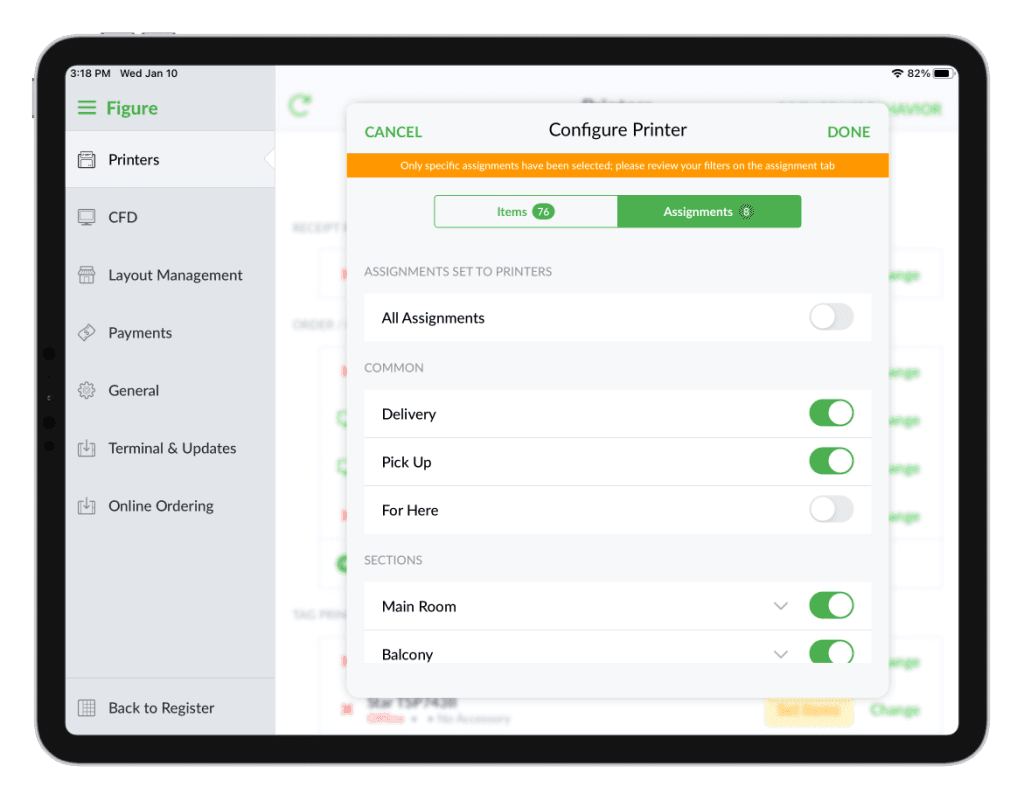
Set items and assignments to be sent to the Expediter KDS
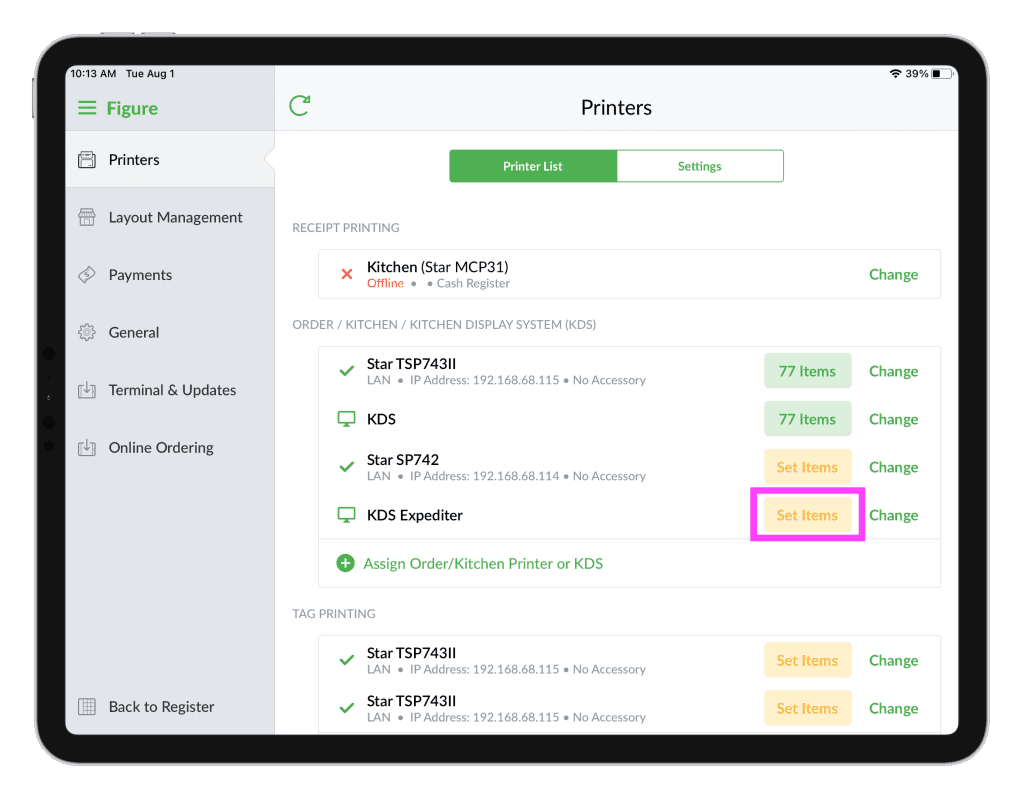
[1] Go to POS > Menu > Settings > Printers
[2] By the Expediter KDS tap the Set Items button
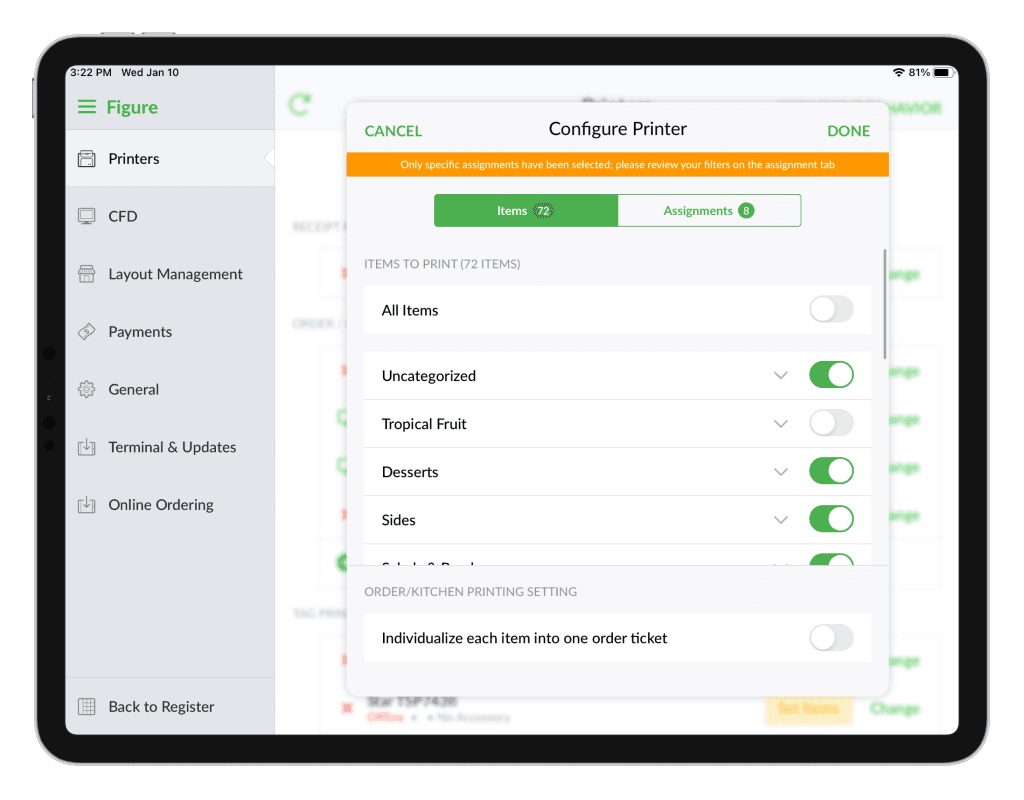
[3] Enable all items and assignemnts or items that should be sent to that KDS
Activate the Expediter KDS
[1] Download the Kitchen Display System from App Store to an iPad you want to use and the Expediter KDS and open the app
[2] Log in with the Pin Code you can find in the detail of the Expediter KDS in a Figure Manage website
Your Expediter KDS set up is complete now!