When you need to merge two orders into single one, you can do it either from the order list or from the table layout view. You can also easily merge two orders after scanning a barcode on the receipt. See below how to do that.
Merging orders in the order list
[1] Go to Orders and click on the order row, the 3 dots icon will appear – tap the icon.
[2] Click MERGE WITH...
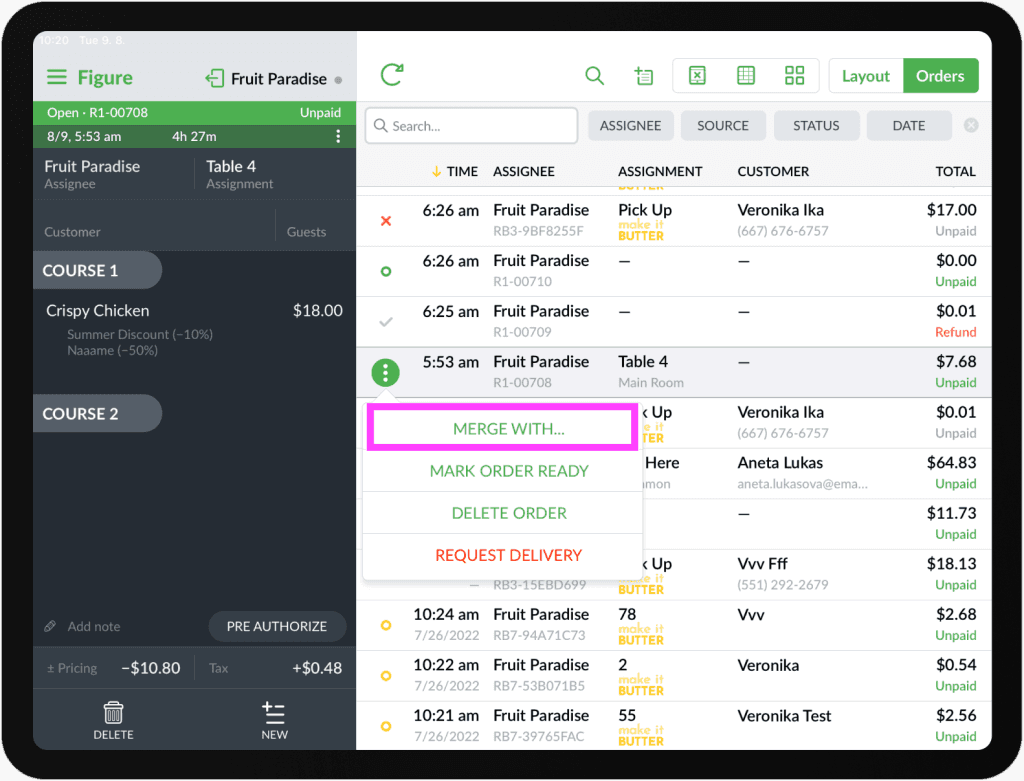
[3] Choose the order you want to merge this order with.
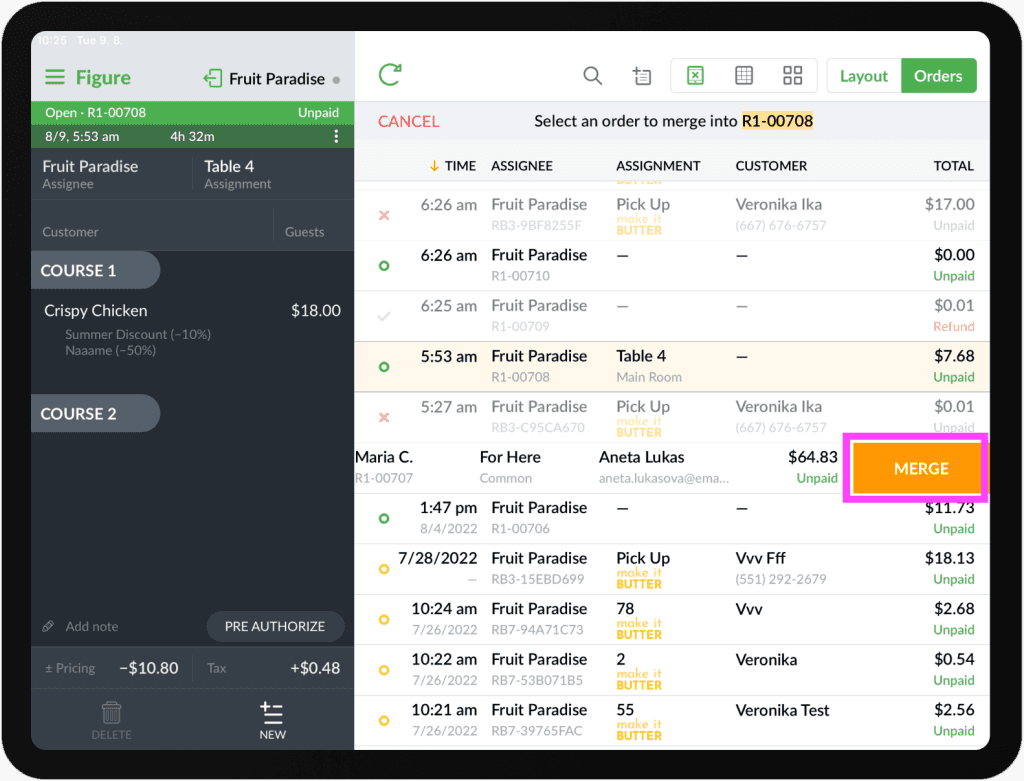
[4] Tap that second order and hit MERGE.
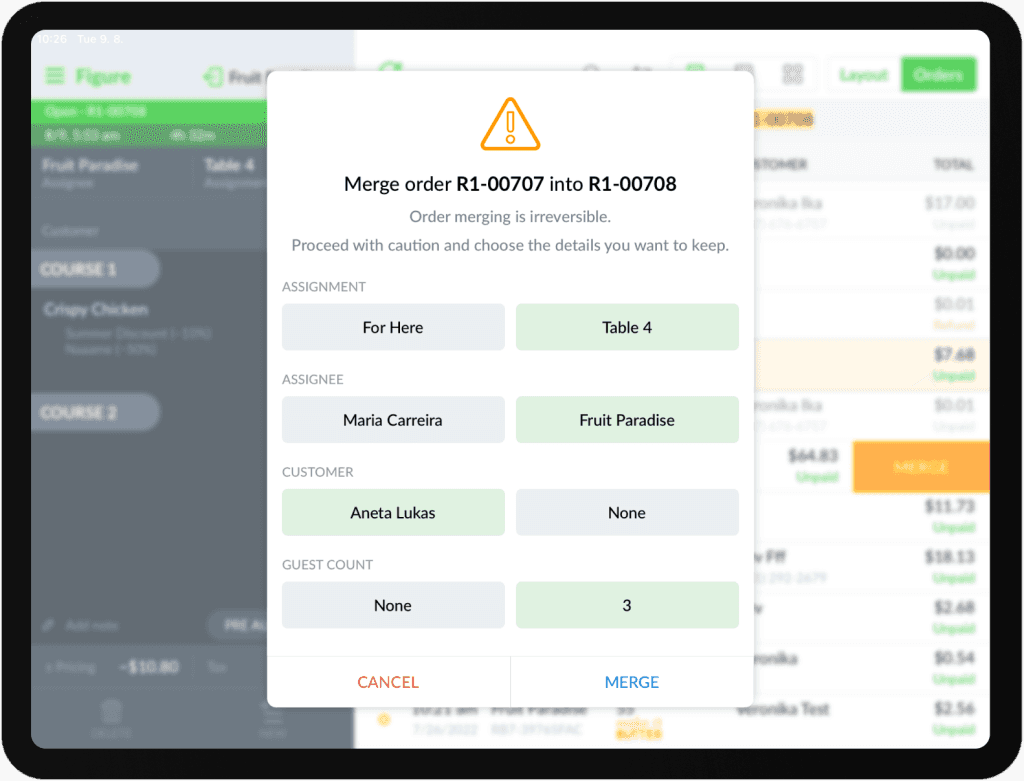
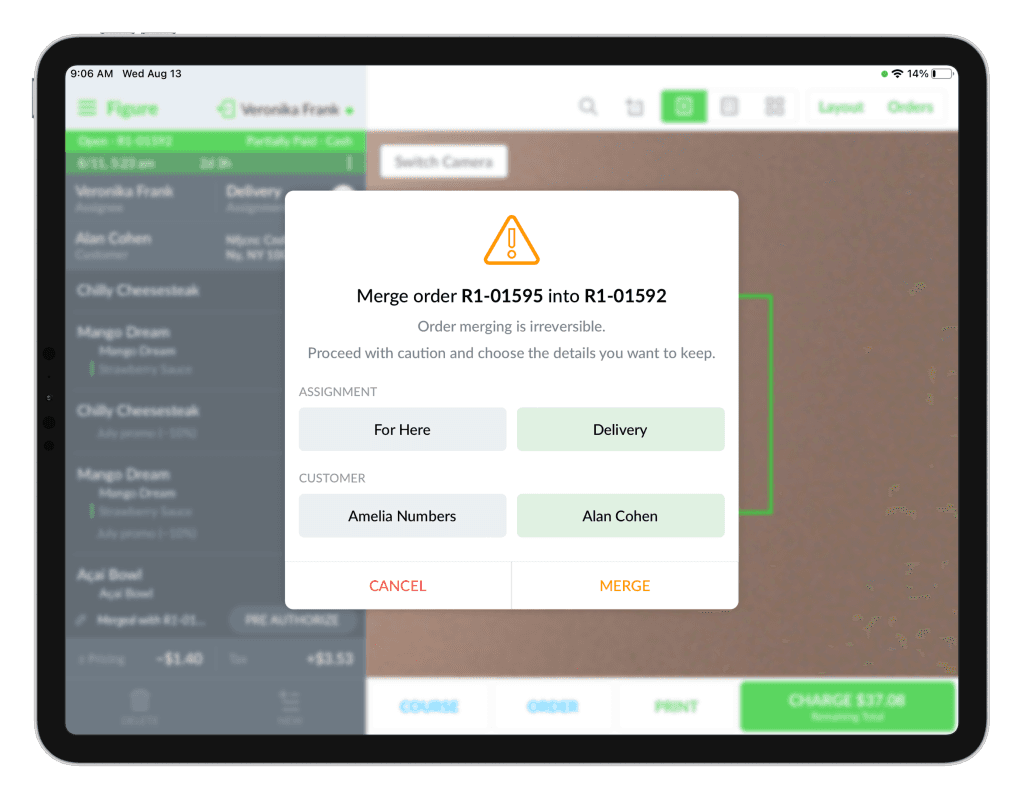
[4] If there are any differences between those two orders, a merging popover will appear. This allows you to choose which data you want to persist. It checks for differences in: Assignment, Assignee, Customer and Guest count.
Mark as green what you want to persist.
Merging or Transferring orders/tables from the Table Layout view
[1] Go to the Layout view
[2] Tap on a table you would like to merge with another table
[3] Hit the TRANSFER button at the bottom.
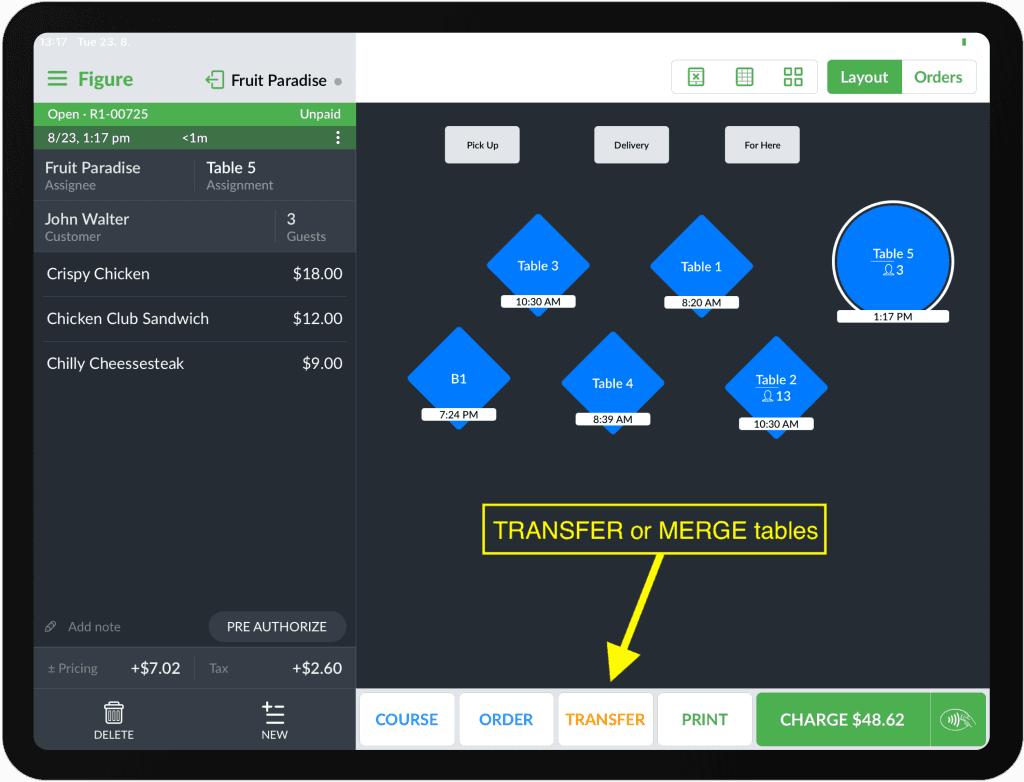
[4] Select the table you want to merge with the currently selected table.
[5] If the table is empty, you can easily transfer everything from the selected table to the other one. If the table is occupied, a pop-up will notify you. Then, you can choose to MERGE the tables.
[6] If there are differences between the two orders, a merge pop-up will appear. You can choose which data to keep. The system checks for differences in assignment, assignee, customer, and guest count. Mark in green the values you want to keep.
See a recording of the flow:
Merging orders by scanning a barcode on a receipt
To merge orders by scanning a barcode, you’ll need to enable two settings:
Display barcode on sales receipts
Go to Figure Manage > Settings > Receipt > Sales Receipt and enable 'Barcode With Order Enabled'.(You can also learn more in this article.)Enable order merging upon scanning
Go to Figure Manage > Settings > General > QR/Barcode Scanner Behaviour and enable 'Enable Order Merging Upon Scanning Orders'.
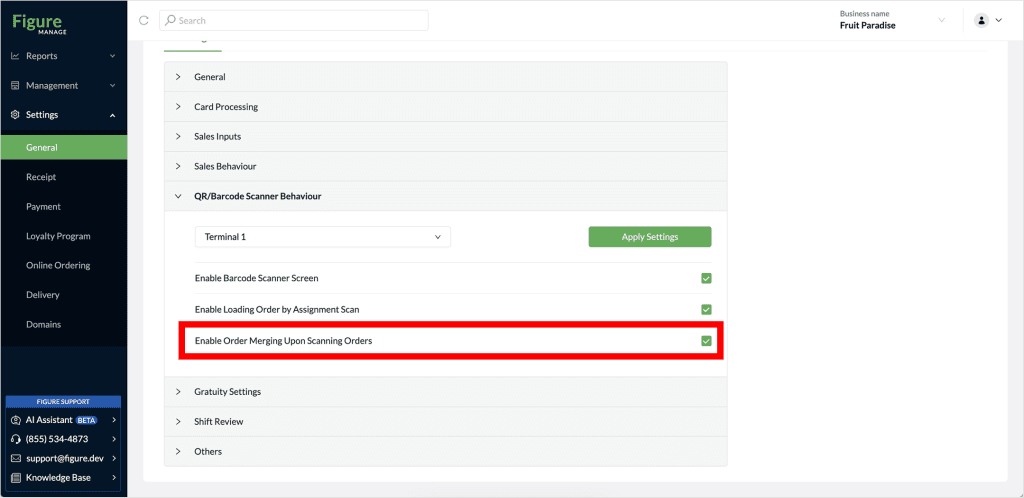
In order two merge two orders by using the barcode scanning, follow the steps below:
[1] Open an order
[2] Click the Camera button to activate the camera, or use a barcode scanner, to scan the barcode on the receipt of the second order.
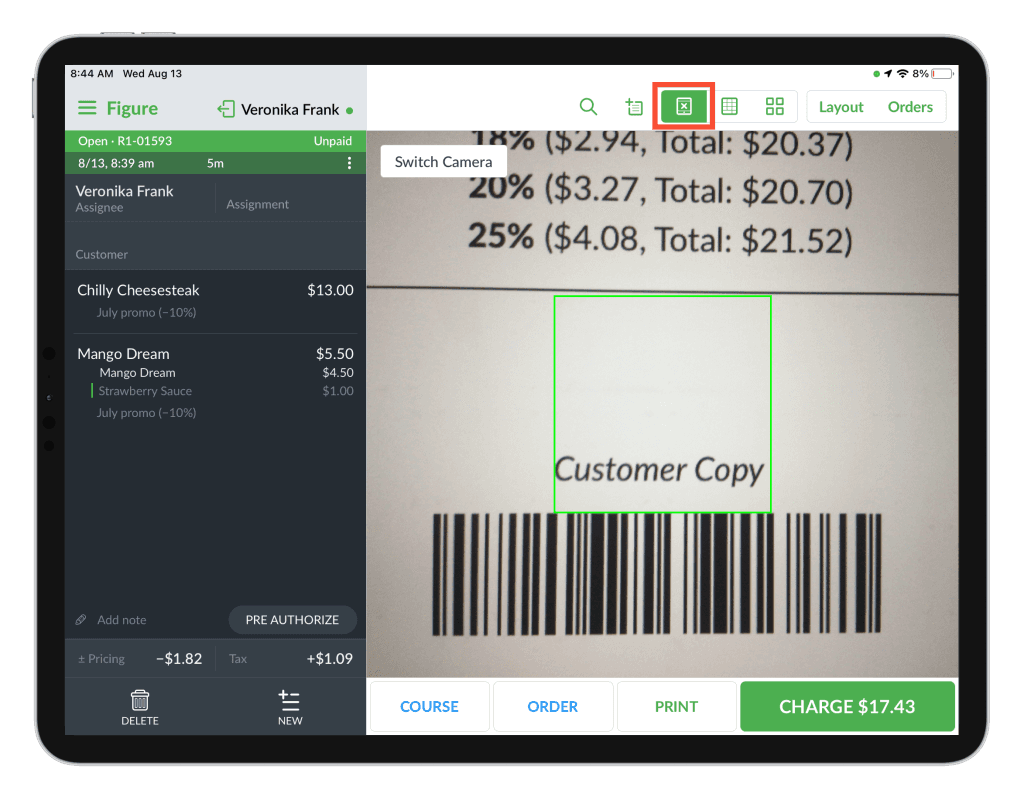
[3] A pop-up will appear offering to either OPEN the scanned order or to MERGE the order. Select MERGE.
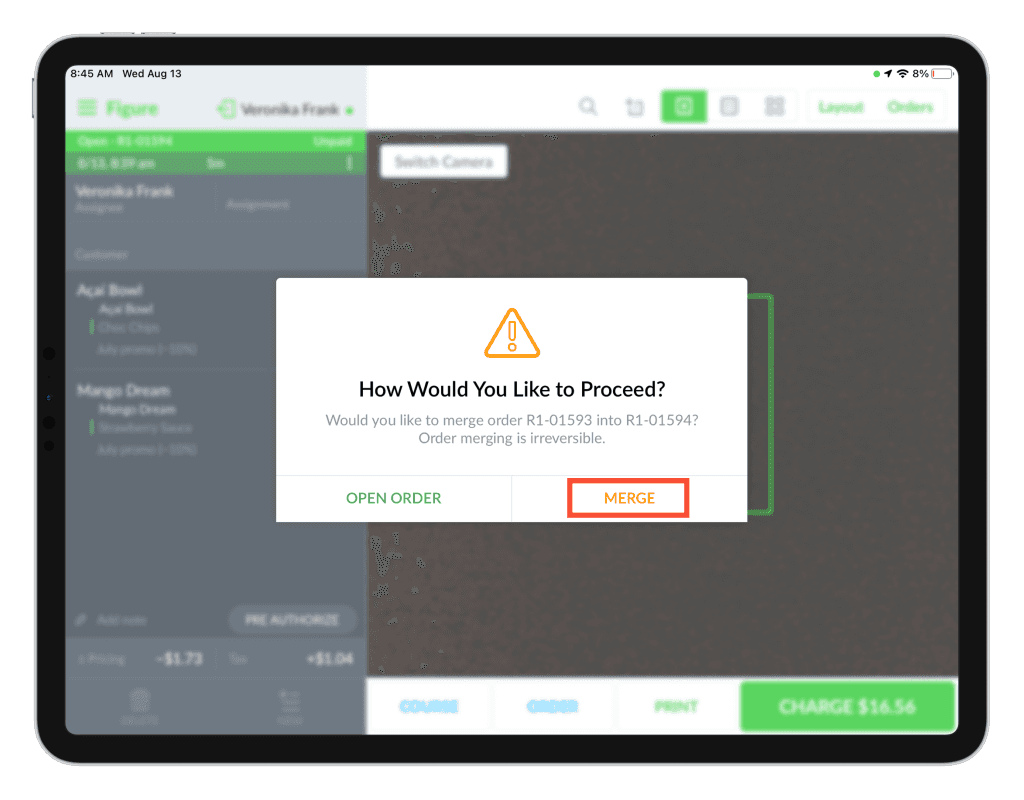
[4] If there are any differences between those two orders, a merging popover will appear. This allows you to choose which data you want to persist. It checks for differences in: Assignment, Assignee, Customer and Guest count.
Mark as green what you want to persist and click MERGE.
Indicator of merged orders
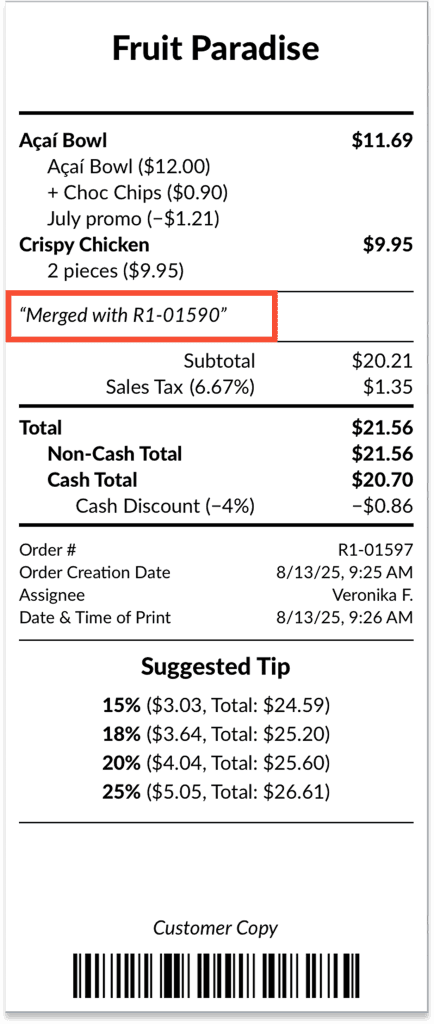
The information about orders being merged is displayed as an order note.