In order to be able to send items to the kitchen, printers and items for printing have to be set up first – see this article on how to do that.
Ordering modes
Items are being sent to the kitchen by pressing the ORDER button in the POS. There are two ordering modes to choose from – Single Tap (Quick) and Double Tap (Custom). You can choose which mode to use when going to POS > Main menu (top left corner) > Settings. You will appear at the Printers screen, there go to Settings and select one of the options by the 'Enable Order Button'.
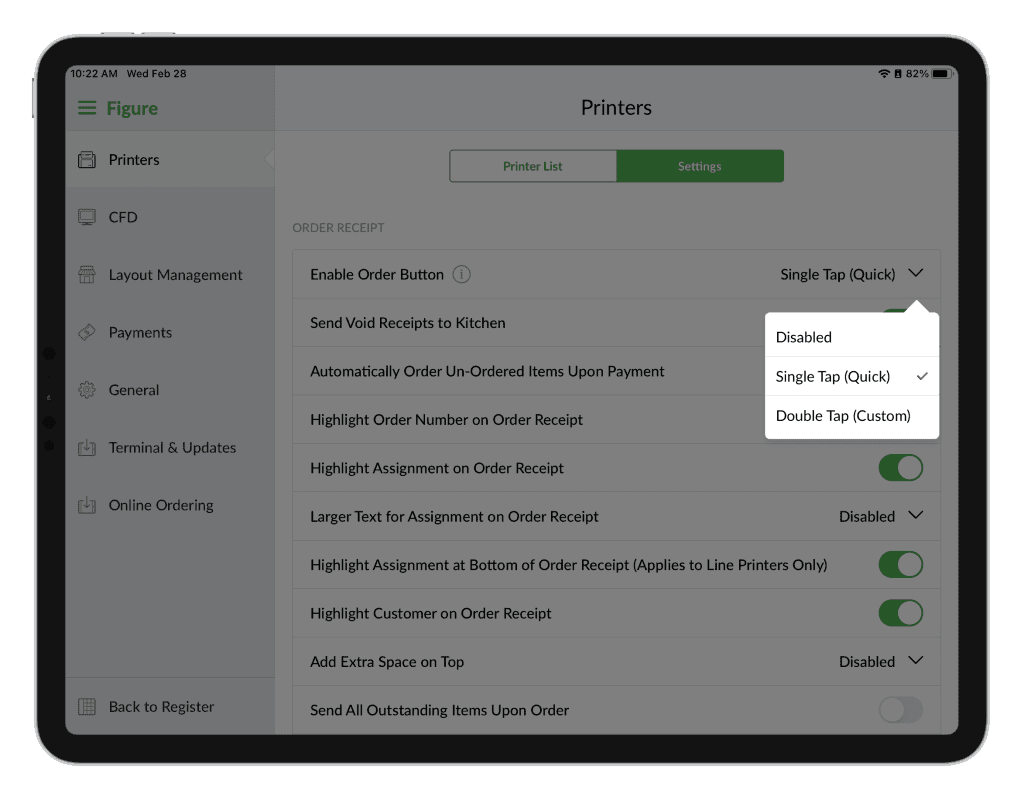
Single Tap (Quick)
This mode is suitable for fast paced establishments – when the ORDER button is pressed once, all unordered items are instantly sent to the kitchen.
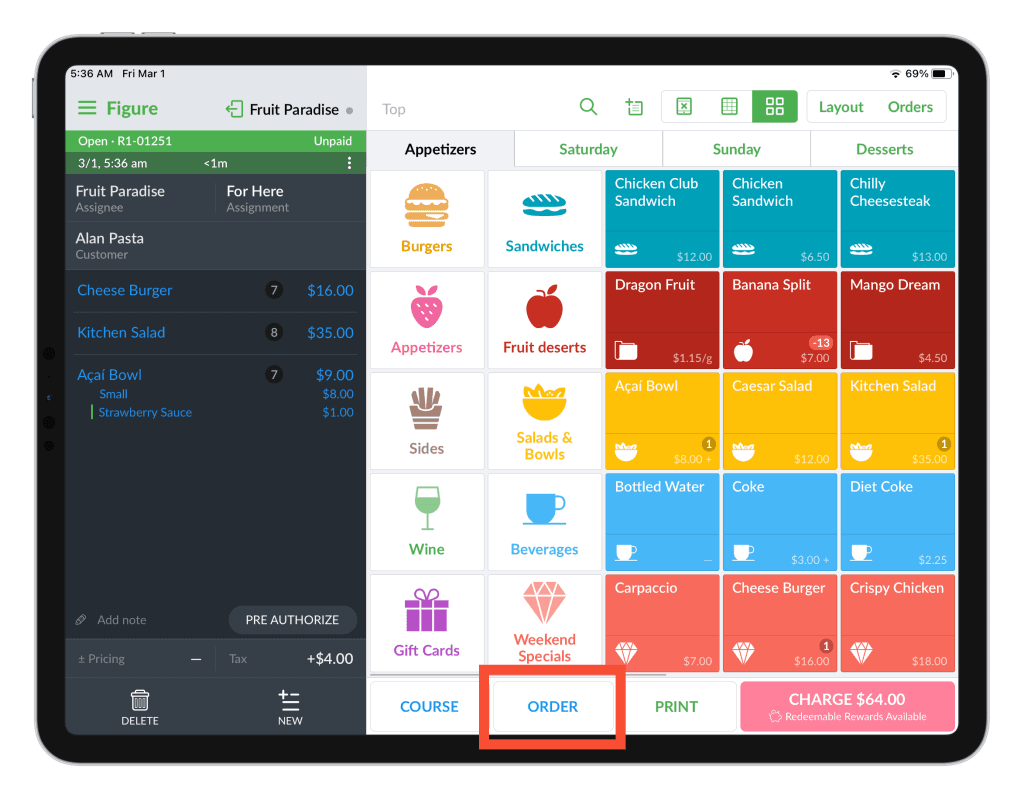
Useful tip:
To speed up the operation, enable a setting called Open 'New Order' Upon Sending Items. Then, if the ORDER button is pressed, items are instantly sent to the kitchen and a new empty order/tab is opened (= reduce the step of pressing the NEW button to open a new order). See the screenshot below.

Double Tap (Custom)
After the first tap of the ORDER button, unordered items get highlighted and it is possible to deselect items before sending the order to the kitchen.
See the recording for the Double Tap (Custom) mode (note: the receipt will not appear on the screen in your POS, this is only for the demonstrative purposes, the ticket will print on the printer):
Related articles:
Printers – set up printers and items to be printed
Troubleshooting – Items are not being sent to the kitchen