When any holidays are approaching, there are these operational tips to ensure your holiday season runs smoothly. Whether it's tweaking business hours for Figure or delivery integrations, we've got you covered.
See the tips below. In each section, you can find a link to a full knowledge base article on the topic with detailed information.
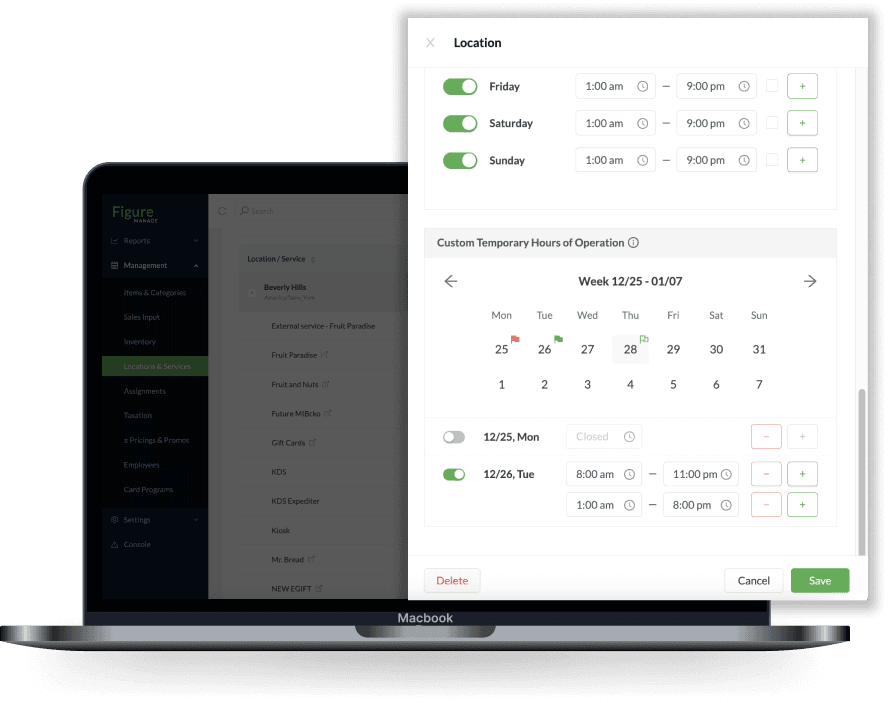
Customize Temporary Hours of Operations
Temporary Hours for Make It Butter
Temporary hours will show in the footer of your Make it Butter ordering website. The Custom Temporary Hours of Operation will override the General Hours of Operation.
Log in to Figure Manage with your credentials and go to Management > Location & Services
Open the location you want to adjust hours for.
Scroll down to Custom Temporary Hours of Operation.
Set the hours for the day. Use the '+' button for more sections. Toggle off to close for the day.
What platforms (websites) this feature affects:
❗️This feature affects only Make It Butter platform. If you are using any integration such as Grubhub or UberEats, we recommend changing the General Hours of Operation (instead of setting up the Temporary Hours of Operation) and then changing it back to usual hours after the holiday. The general hours of operation affects also Grubhub and UberEats.
PLATFORM (website) | Applies / does not apply |
Make it Butter | ✅ |
Grubhub | ❌ Custom Hours needs to be set on Grubhub's platform (learn how) |
UberEats | ❌ Custom Hours needs to be set on Grubhub's platform (learn how) |
Doordash | ❌ Custom Hours needs to be set on Doordash's platform (learn how) |
👉 See full article about hours of operations
Custom Hours for Integrations
See this article to learn how to set Custom Hours for Grubhub, UberEats and Doordash on their platforms.
OR as an alternative, instead of setting up Custom Temporary hours for each platform, you can change the General Hours of Operation in Figure Manage. This feature affects Make It Butter and also all directly integrated platforms – Grubhub and UberEats. Then, make sure to change the hours back to normal after the holiday.
Pause Online Ordering
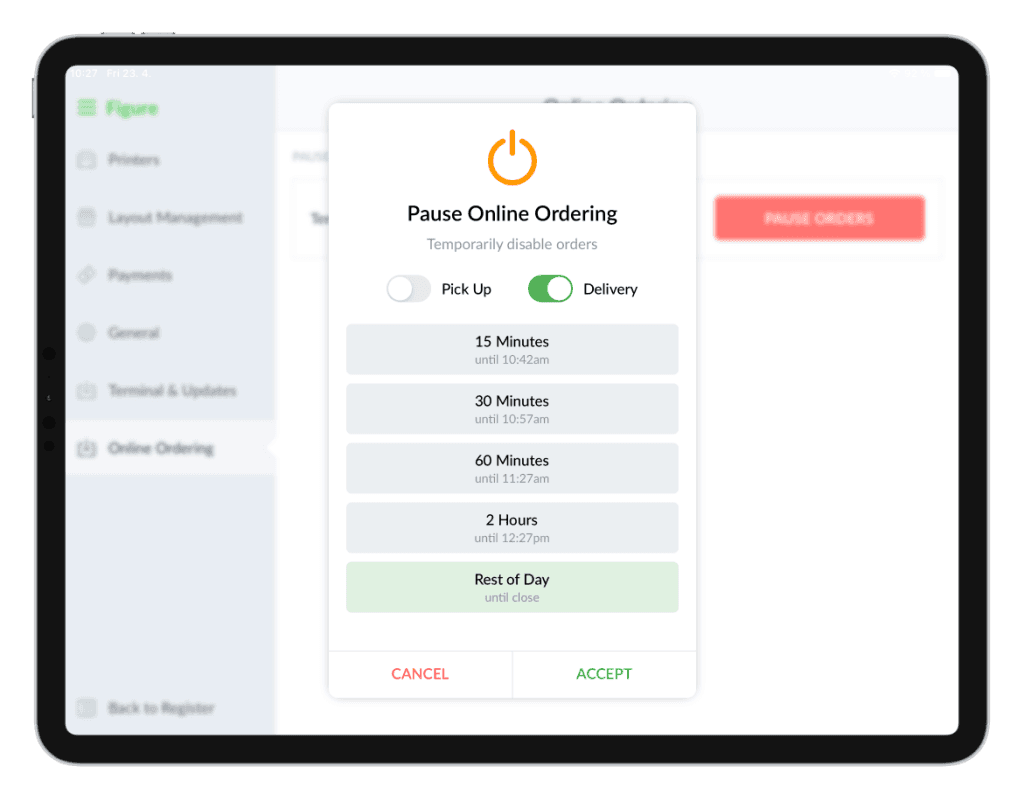
Temporarily pause online ordering in the event of high demand or overwhelming traffic to ensure optimal service. Select a particular pause time or pause until 'Rest of Day'.
Log in to Figure Manage and go to Menu > Settings > Online Ordering.
Tap on 'PAUSE ORDERS' - Choose Pick Up / Delivery or both and set the duration.
Confirm by tapping 'ACCEPT' - Online orders will resume after the specified time.
Cancel the pause anytime by tapping the trashcan icon.
What platforms (websites) this feature affects:
This feature affects only Make It Butter and Grubhub platform. No other integration will be affected.
PLATFORM (website) | Applies / does not apply |
Make it Butter | ✅ Make It Butter orders will be paused |
Grubhub | ✅ Grubhub orders will be paused |
UberEats | ❌ UberEats orders will NOT be paused |
Doordash | ❌ Doordash orders will NOT be paused |
👉 See full article about Pausing Online Ordering
Deactivate an Item
Temporarily halt item sales by deactivating when out of stock and reactivate when needed. The item will be deactivated for POS, Kiosk and all directly online ordering platforms.
PLATFORM (website) | Applies / does not apply |
Make it Butter | ✅ The item will disappear from MIB |
Grubhub | ✅ The item will disappear also from Grubhub after synchronizing the menus by pressing the 'Sync' in Figure Manage > Sales Input (learn more) |
UberEats | ✅ The item will disappear also from UberEats after synchronizing the menus by pressing the 'Sync' in Figure Manage > Sales Input (learn more) |
Doordash | ❌ For Doordash, the item needs to be deactivated on Doordash's platform |
👉 See full article about How to deactivate an item
Synchronize Grubhub & UberEats Menu
With direct integrations with Grubhub (GH) and UberEats (UE), you can manage all your menus directly through Figure Manage, eliminating the hassle of configuring them independently on their respective platforms.
After any change like adding a special menu items for the holiday to your third party platforms via Figure, make sure you synchronize the two platforms to have the change propagated on GH or UE website by going to Figure Manage > Sales Input > Online Ordering > select the third party website in the picker > press 'Sync'.
👉 See full article about Grubhub & UberEats menu synchronization
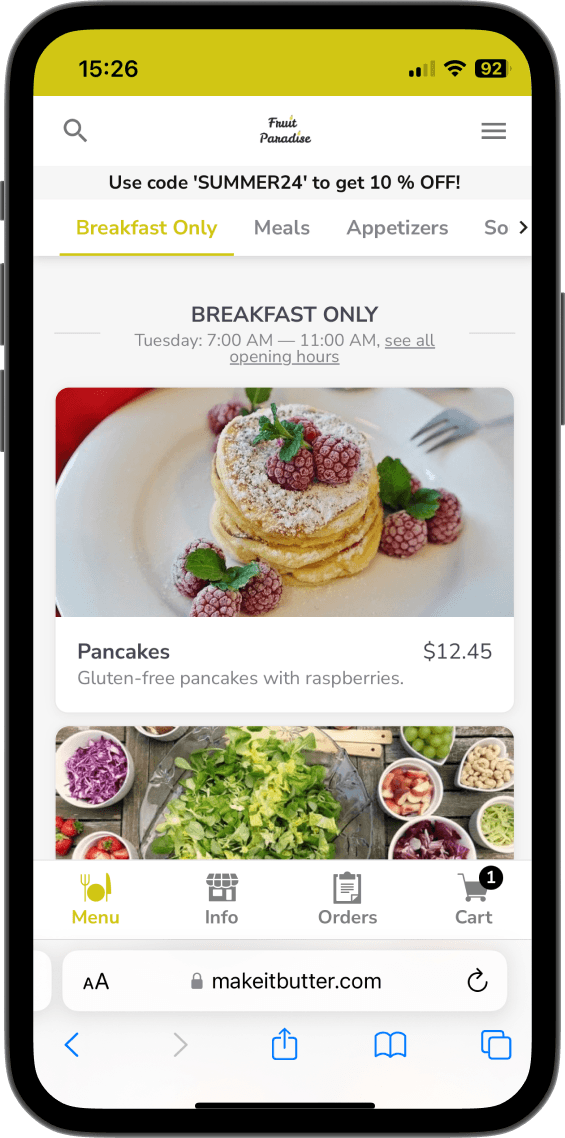
Add a Banner to Make It Butter website
Display a personalized message at the top of your online ordering website for promotions or operating hours updates.
👉 See full article about MIB banner
Create Promotions
Create promotions for your establishment and witness the power of increased sales, customer engagement, and fortified brand presence.
Promo Codes
Use simple promo code for Make It Butter website.
👉 See full article about Promo Codes
Coupons
A coupon can be issued based on preset criteria applied on the Make It Butter website by inputting a promo code that is printed on the coupon, or on POS at your restaurant.
👉 See full article about Coupons
Special Pricing
Set up Happy Hours, fixed or custom discounts.
👉 See full article about Special Pricing